How to Schedule YouTube Shorts (Make, Upload, Time)
To schedule YouTube Shorts, upload the vertical video in YouTube Studio, fill in the title and details, and choose Schedule instead of Public on the visibility step, then pick the date and time. The scheduling part is simple. What decides whether it works is the video: YouTube only treats a video as a Short when it is vertical or square and no longer than three minutes, and a Short without readable captions or a clear first second tends to be swiped away. This guide covers both halves. First you turn a longer video into a captioned 9:16 clip with GrabCast's free Shorts Maker, which runs in your browser, then you schedule it in YouTube Studio and plan it alongside your other channels. The example turns a 30-second bike-care segment from a longer how-to video into a Short.
📱 Try the Shorts Maker now — freeOpen →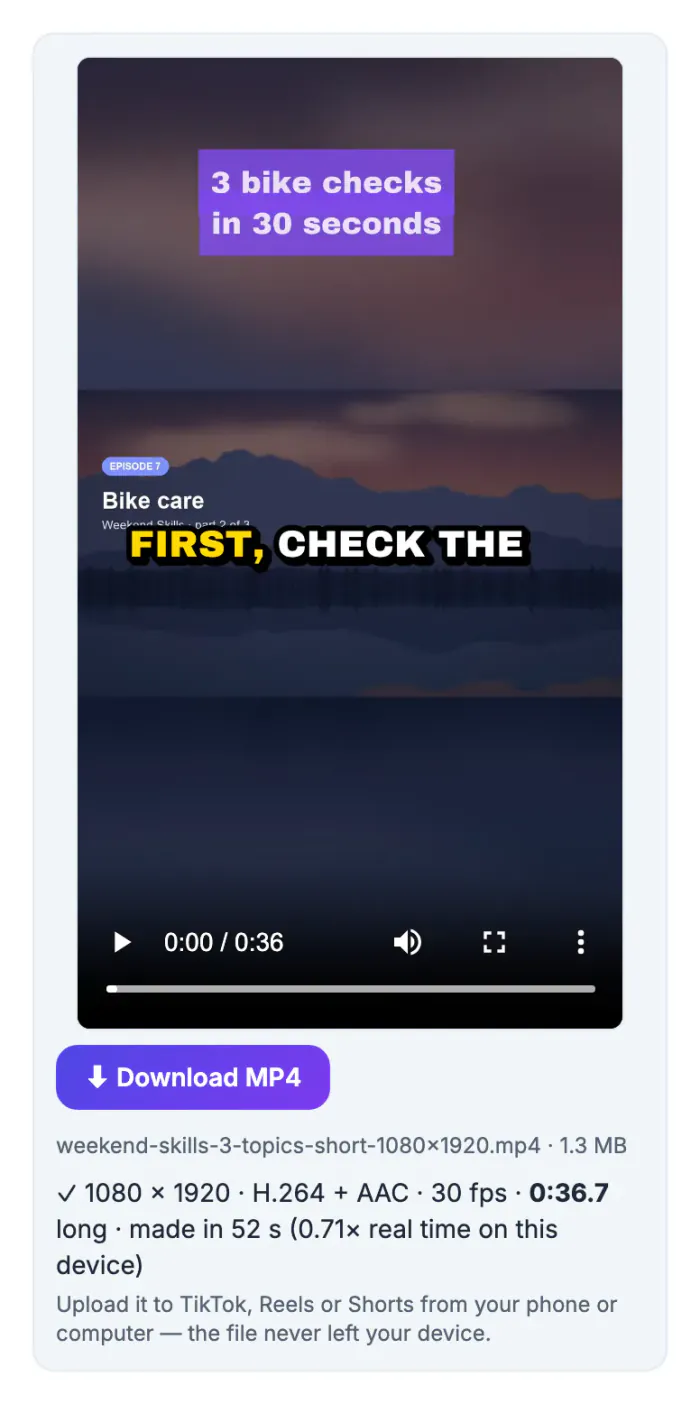
Edits tend to finish late at night, which is rarely when your viewers are watching. Scheduling lets the Short go live at an hour your audience is active, while you keep editing in batches. A regular rhythm also helps a channel: viewers who find you through one Short look for the next, and a steady schedule gives them a reason to subscribe. Scheduling also leaves a safety margin. A Short set to publish tomorrow can still be checked on a phone tonight: are the captions readable above the buttons, does the first second make sense without sound, is the title right? Fixing that before publishing is far better than deleting and re-uploading, which resets any early views and comments the first version earned.
Make sure the video will count as a Short
YouTube decides whether an upload is a Short from its shape and length, not from a checkbox.
- Shape: vertical 9:16 or square 1:1. A horizontal video posts as a regular video.
- Length: up to 3 minutes. Anything longer is a regular video.
- Resolution: 1080 by 1920 is the usual target for vertical video.
- Sound: music from outside YouTube's own library can limit a Short's length or reach, so use audio you own or YouTube's audio library.
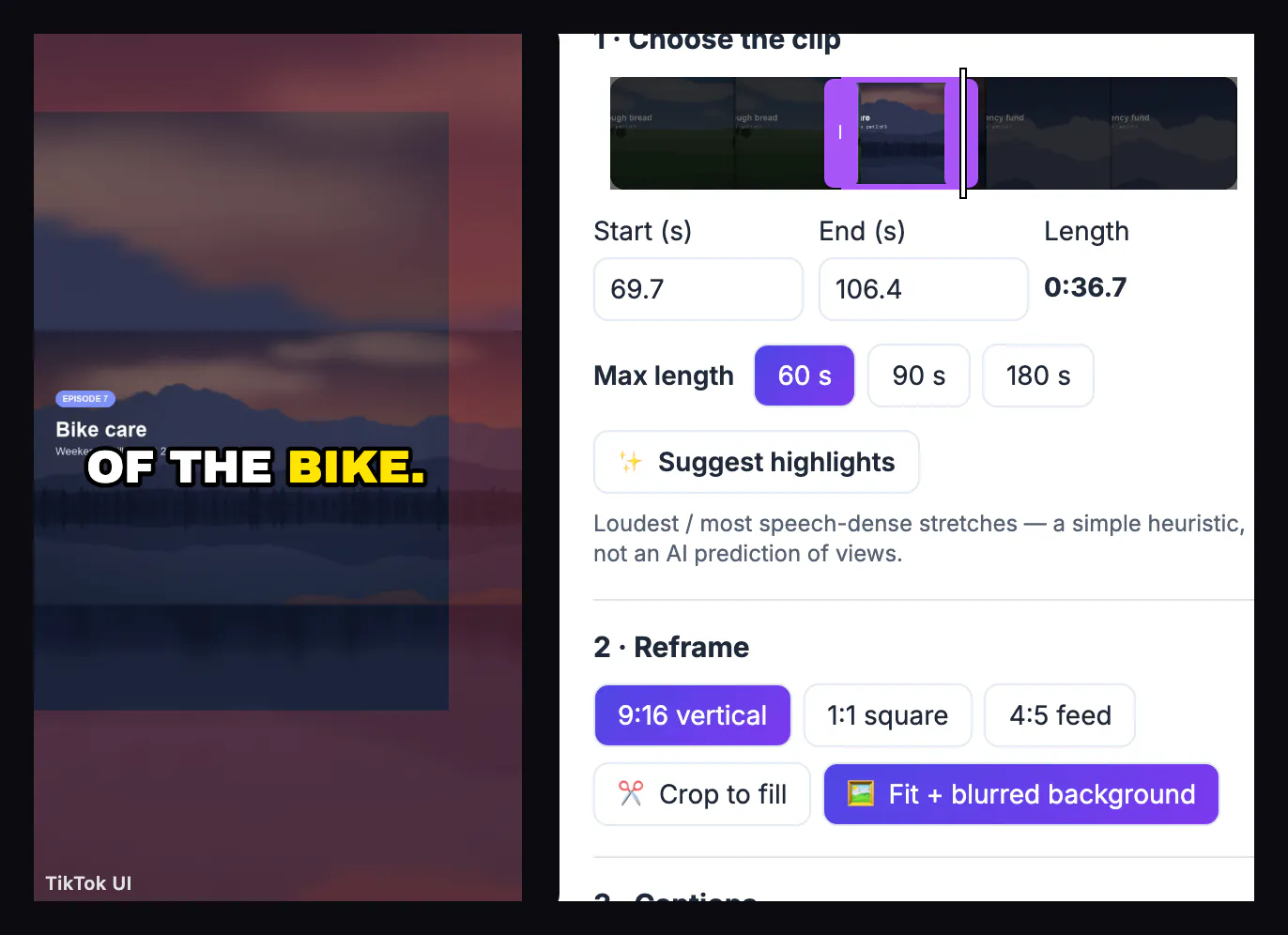
If your source is a horizontal video, you have two ways to make it vertical: crop to fill, which keeps the center or a focus point, or fit the whole frame on a blurred background, which keeps on-screen text and graphics. The bike-care segment had a title card on the left, so the blurred-background fit kept it readable.
Cut a long video into a captioned Short in your browser
The Shorts Maker does the whole edit in one page, and the video never leaves your device.
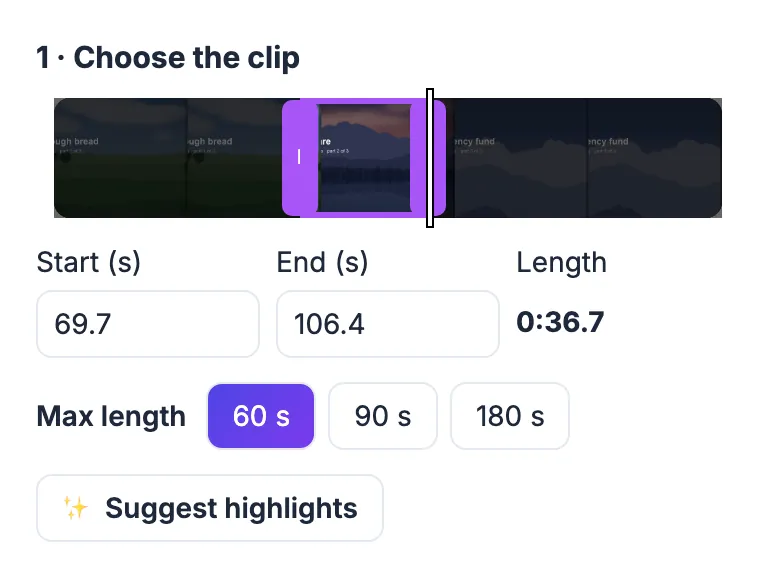
- Choose the clip: drag the purple window on the timeline or type Start and End; the maximum is 60, 90 or 180 seconds.
- Reframe: 9:16 vertical with Crop to fill (drag to move the focus) or Fit plus blurred background.
- Captions: Transcribe the clip with the on-device speech model, or Import .srt if you already have subtitles, then pick a style and the app whose buttons to avoid.
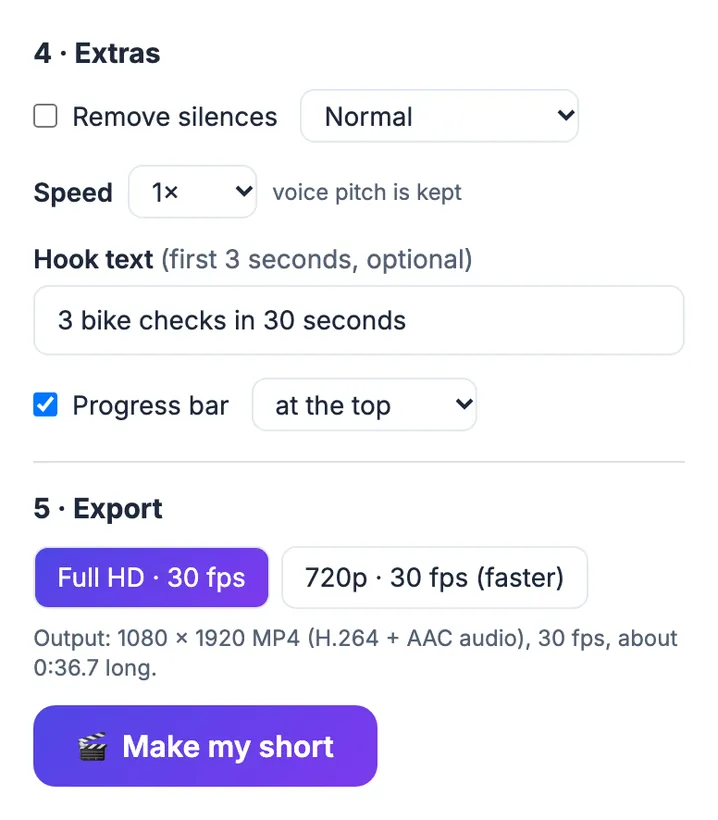
- Extras: remove silences, change speed, add a hook title for the first 3 seconds and a progress bar.
- Export: 1080 by 1920 at 30 frames per second as an MP4 with H.264 video and AAC audio, or 720p when you need it faster.
For the example, the clip ran from 1:09.7 to 1:46.4, captions came from an .srt file of the narration, the hook read 3 bike checks in 30 seconds, and the Full HD export of the 36.7-second clip took under a minute in a desktop browser. For a closer look at picking moments from long recordings, see how to make short clips from a long video.
How to schedule YouTube Shorts in YouTube Studio
Scheduling happens in YouTube itself. On a computer:
- Open YouTube Studio, click Create, then Upload videos, and choose the MP4.
- Write a title that says what the viewer learns; add a description and, if you like, a few hashtags.
- Set the audience question (made for kids or not), which YouTube requires for every upload.
- On the Visibility step choose Schedule, then set the date, time and time zone, and confirm.
The Short appears in Studio's Content list under Shorts with a scheduled date until it publishes. You can change the time or details there until then. Scheduling from the YouTube phone app varies by version and account, so the computer route is the reliable one.
Plan the Short with the rest of your week
If the same clip also goes to TikTok and Instagram Reels, plan all three together so captions and times stay in step.
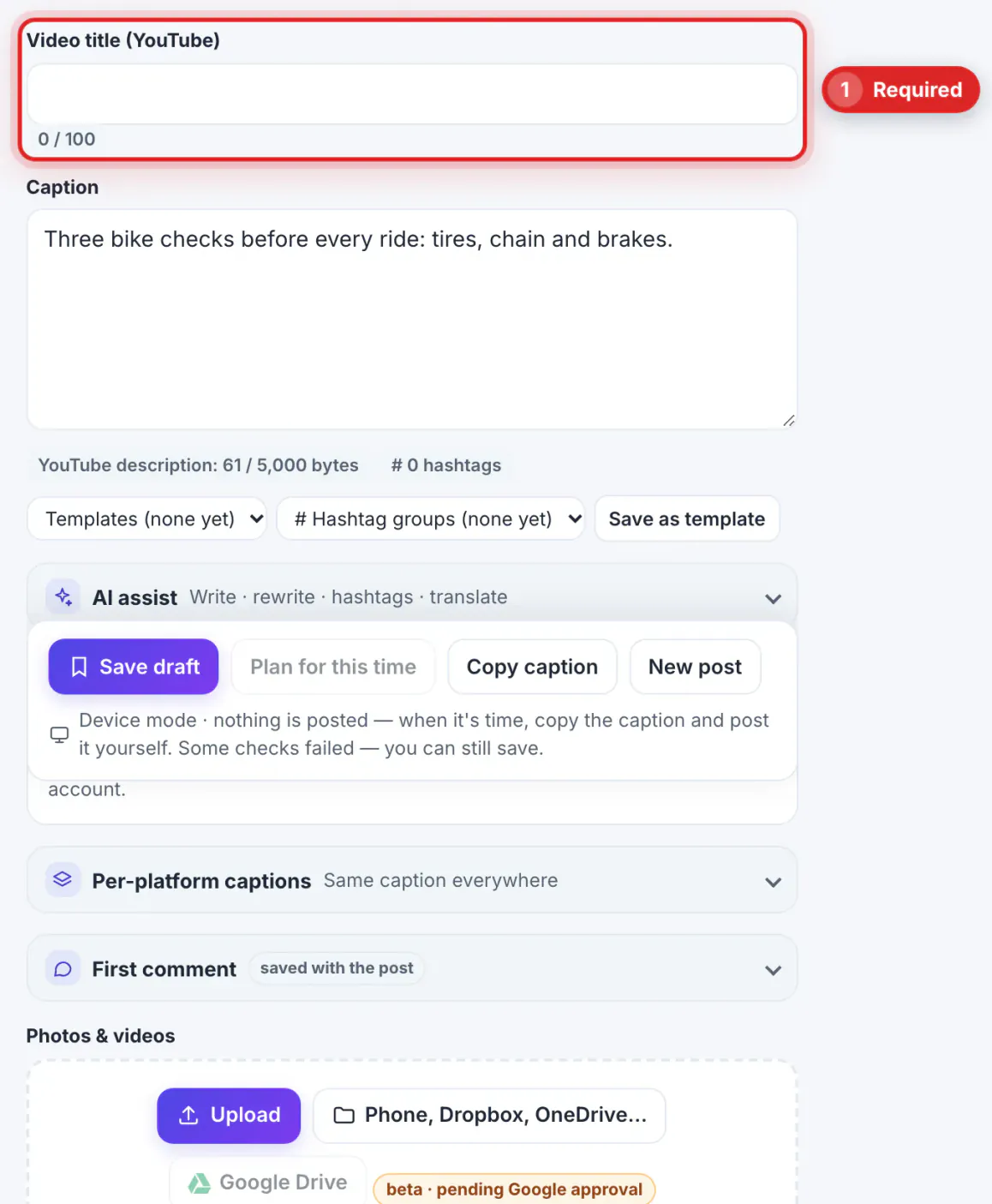
- In the Social Media Scheduler, tick YouTube and choose Short; the check warns if a video is too long or not vertical, and asks for the title YouTube requires.
- YouTube is marked plan only until GrabCast's YouTube review is complete, so you upload in Studio when the reminder or calendar alarm fires, or schedule it there directly.
- Space the platforms a little apart if you want to see which one picks the clip up first.
- After a few weeks, check YouTube Studio's analytics for when your viewers are on YouTube and move your slot.
For more on reusing one vertical video across apps, see fixing a video that is too long for Instagram and the video and audio guides.
Step-by-step
Common mistakes to avoid
Pro tips
Frequently asked questions
Can you schedule YouTube Shorts?
Yes. In YouTube Studio, upload the vertical video and choose Schedule on the Visibility step, then set the date and time.
How long can a YouTube Short be?
Up to 3 minutes, in a vertical or square format. Longer or horizontal uploads are treated as regular videos.
What size should a Short be?
1080 by 1920 pixels (9:16) is the usual target. The Shorts Maker exports exactly that as an MP4, or 720 by 1280 for a faster export.
Is my video uploaded when I use the Shorts Maker?
No. Trimming, reframing, captioning and encoding all happen in your browser. Only the program files and speech model are downloaded, once.
Can GrabCast publish Shorts to YouTube for me?
YouTube publishing is waiting for YouTube's app review, so YouTube shows plan only for now. You plan the Short in GrabCast and schedule or upload it in YouTube Studio.
Scheduling a YouTube Short takes a minute in YouTube Studio; making a Short worth scheduling takes a little more care. Keep it vertical and under three minutes, place captions above the app's buttons, open with a clear hook, then choose Schedule on the Visibility step. Plan it next to your TikTok and Reels versions so the whole week stays visible.
Related guides
Browse more: all video and audio guides · the Shorts Maker