How to Convert Video to MP3 (Free Audio Extractor)
To convert a video to MP3, add the video file to an audio converter, choose MP3 and a bitrate, and click Convert. GrabCast's free Audio Converter reads the sound track from MP4, MOV, MKV and many other files in your browser, so the video is never uploaded. In the example a 12-second, 0.3 MB clip became a 0.19 MB MP3 at 128 kbps in a few seconds. This guide covers when to use MP3, how to choose a bitrate, the optional settings (channels, sample rate, loudness and trimming) and the legal side: convert your own recordings or files you have the right to use.
🎶 Try Audio Converter now — freeOpen →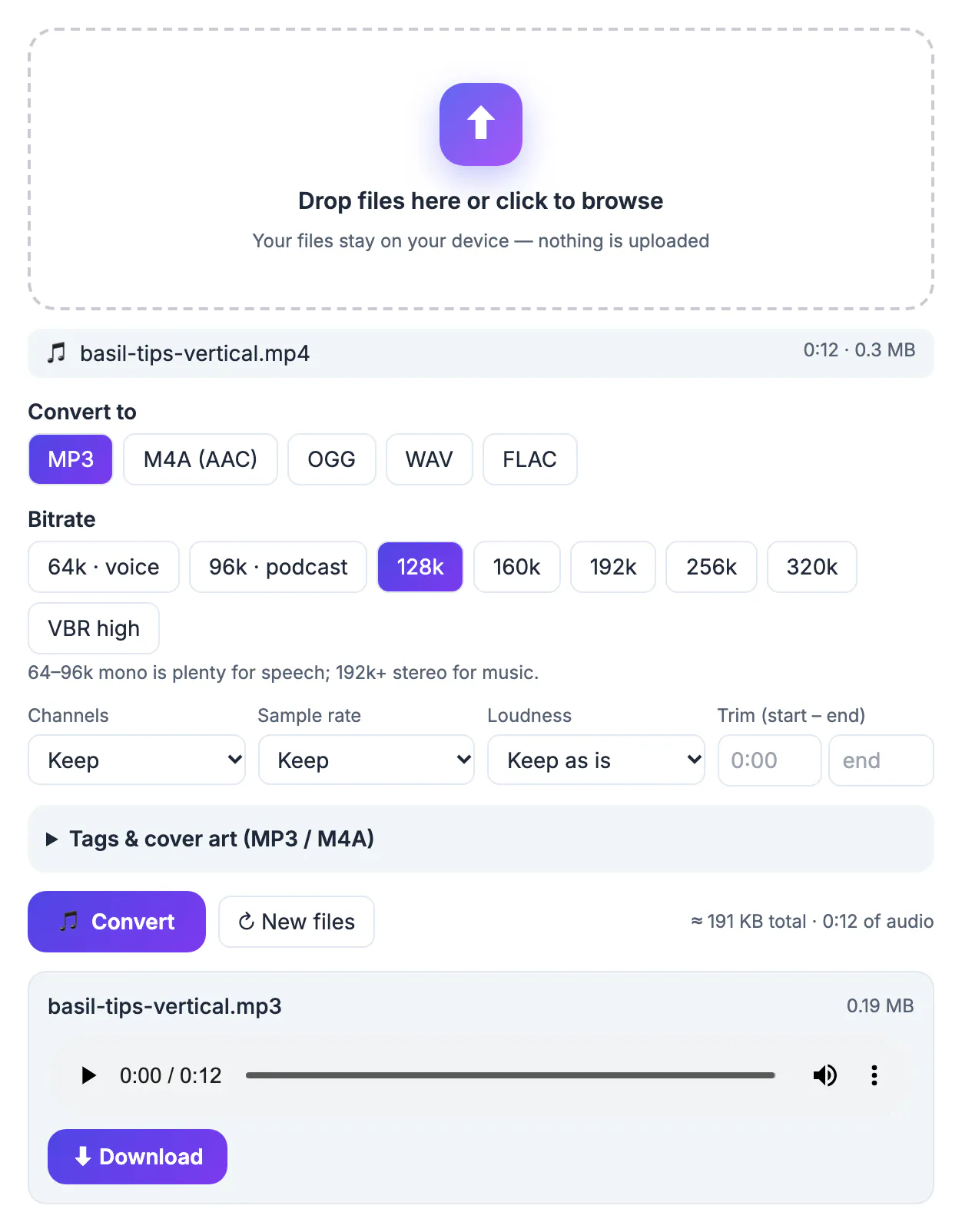
A lecture, interview, meeting recording or your own music demo is often stored as a video because that is how the phone or camera saved it. If you only need the sound, for a podcast episode, a transcript, a voice note or a car stereo, the audio track is far smaller and easier to share than the video. MP3 plays on almost every device, which is why it is still the default choice.
Choose format and bitrate
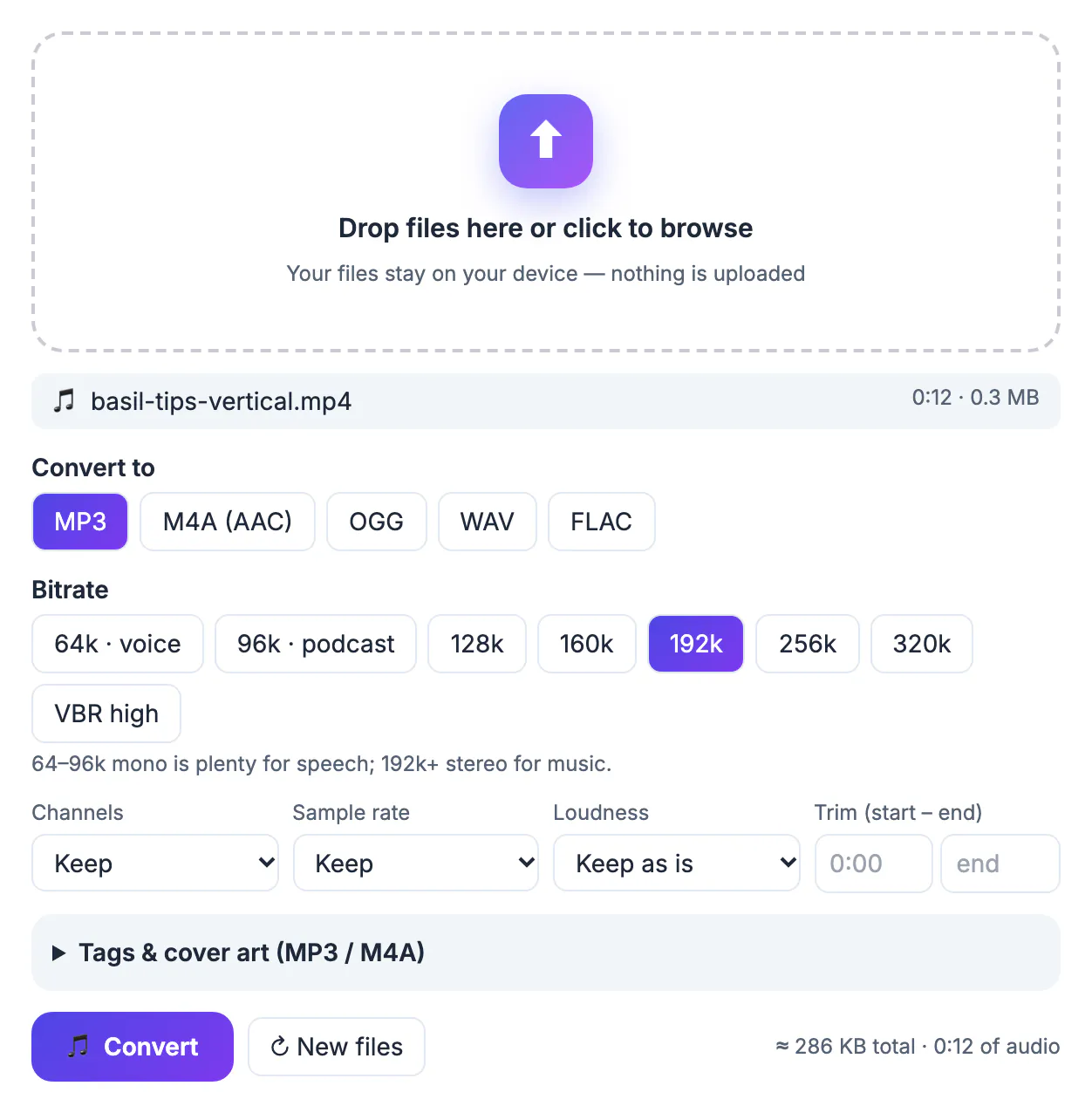
The tool offers MP3, M4A (AAC), OGG, WAV and FLAC. MP3 is the most compatible; M4A gives slightly better quality at the same size on Apple devices; WAV and FLAC are lossless and much larger. Bitrate is the amount of data per second of audio:
- 64k voice and 96k podcast: enough for speech, smallest files.
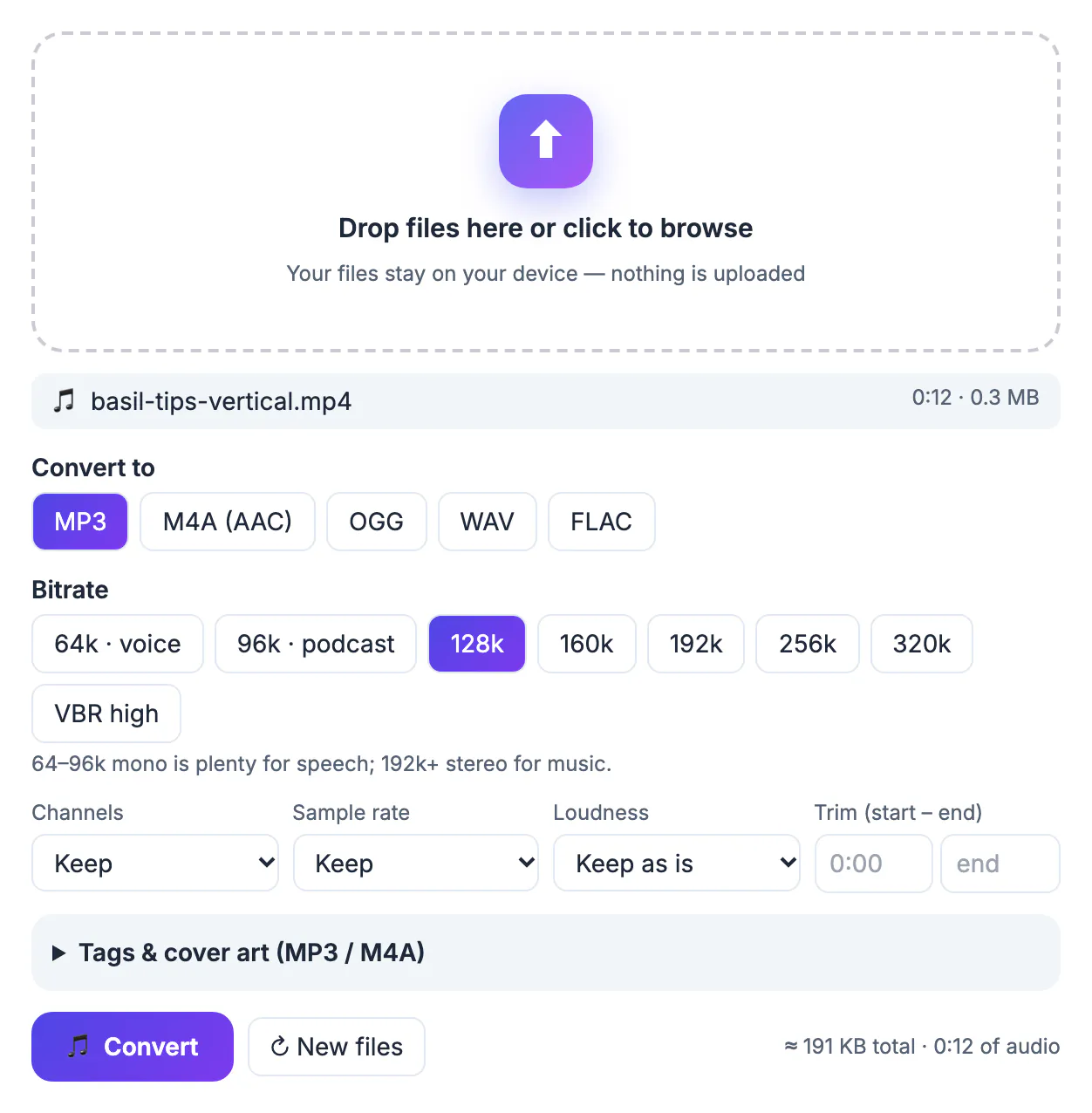
- 128k: a good general setting; used in the example.
- 192k to 320k: better for music; larger files.
- VBR high: variable bitrate that spends bits where the audio needs them.
The note under the bitrate row says it plainly: 64 to 96 kbps mono is plenty for speech, 192 kbps or more stereo for music. The example clip is spoken tips, so 128k is generous.
Optional settings
- Channels: mono halves the size for speech.
- Sample rate: keep the original unless a device asks for 44.1 or 48 kHz.
- Loudness: normalise to Podcast (−16 LUFS) or Streaming (−14 LUFS) so different clips sound equally loud.
- Trim start and end: cut a section when you only need part of the recording.
- Tags and cover art: for MP3 and M4A, add a title, artist and image.
The line at the bottom estimates the total size before you convert (about 191 KB for the 12-second clip at 128k) and the length of audio.
Convert and check
Click Convert. When finished, a result card shows the file name (basil-tips-vertical.mp3), its size (0.19 MB), a player and a Download button. Play a few seconds to be sure the sound is right and there is no clipping. Videos with several audio tracks or no sound will not give a useful result; check the original first. Large videos need memory: on a phone, convert long recordings in parts using the trim boxes.
Use it for your own material
Only convert videos and audio you own, made yourself or have permission to use. Copying someone else's protected content is not something GrabCast supports, and this tool only works on files you already have on your device. Once you have the MP3 you can turn speech into text with the Voice-to-Text Studio or edit it with the Audio Cutter. Related: how to transcribe a lecture.
Common uses and file size expectations
People extract audio to make a podcast from a recorded conversation, to listen to a talk on a commute, to transcribe a meeting, to prepare a voice-over or to send a recording to someone who cannot open large video files. As a guide, 128 kbps is about 1 MB per minute, 96 kbps about 0.7 MB per minute and 64 kbps about 0.5 MB per minute, so a one-hour lecture at 96 kbps mono is roughly 40 MB. Choose the lowest setting where the voice is still clear.
If the file will be transcribed, a moderate bitrate is enough, and mono is fine, because speech recognition does not need stereo. Loudness normalization helps if the speaker was quiet.
Settings for speech, music and podcasts
Choose the bitrate by content. Speech sounds fine at 64 to 96 kbps in mono, which keeps recordings small. Music deserves 192 kbps or more in stereo. Podcasts normally use 96 to 128 kbps stereo or 64 kbps mono. If you plan to edit further, keep a lossless copy and only produce the compressed version at the end.
- Interviews and lectures: mono at 96 kbps.
- Songs you own: 192 to 256 kbps.
- Voice notes: 64 kbps is enough.
- Archives: keep WAV or FLAC.
Next steps include trimming dead air off a recording, joining several files and switching M4A recordings to MP3.
Checking sound quality and legal use
Play the result through headphones, listening for clipping, hiss or missing sections. Compare loudness with other files in your library. Only process recordings you made or have permission to reuse, and respect licences on music and broadcasts.
Troubleshooting a file that will not convert
If a file fails, check that it plays in a normal player first, because a damaged or incomplete download cannot be processed. Large files may need more memory than your device has, so close other tabs or try a shorter clip. If the sound is missing, the original may have no audio track or use an unusual codec. Try another browser, update it and retry before assuming the file is broken.
Very long recordings are best handled in parts. Cut the video into sections of thirty minutes, process each in turn and join the results afterwards if you need a single track. This approach also makes it easier to find mistakes and keeps each step quick.
Finally, keep your expectations realistic. A low-quality source will not sound better after processing, and aggressive loudness settings can make speech tiring to hear. Compare the result with the original at the same volume before you share it, and keep the unaltered file in case you want to try different settings later.
If you work with sensitive recordings, such as meetings or interviews, store the output in a protected folder and delete temporary copies. Tell participants how the audio will be used, and follow any consent rules that apply where you live or work.
Step-by-step
Common mistakes to avoid
Pro tips
Frequently asked questions
How do I convert a video to MP3 for free?
Add the video to the Audio Converter, choose MP3 and a bitrate, and click Convert. It runs in your browser.
What bitrate should I use?
96 to 128 kbps for speech, 192 kbps or higher for music.
Is my video uploaded?
No. It is processed on your device.
Can I convert only part of the video?
Yes. Use the trim start and end boxes.
Which videos may I convert?
Only your own recordings or files you have permission to use.
Extracting MP3 from video is a matter of choosing a bitrate that fits the content and checking the result. Use speech settings for talks, higher for music, and convert only material you have the right to use.
Related guides
Browse more: all video and audio guides · Audio Converter