How to Transcribe a Lecture to Text (Free, for Students)
To transcribe a lecture, drop the recording into an on-device speech-to-text tool, choose the spoken language and let it run. GrabCast's free AI Voice-to-Text Studio runs a Whisper model in your browser, so the recording stays on your computer: a 23-second physics clip was transcribed in about 1.4 seconds with the Tiny model. The text is a strong first draft, not a finished set of notes: in the example it wrote "days topic" for today's topic and "cards" for carts. This guide shows the steps with screenshots, explains how to get cleaner results, what to do with the transcript (export, summarize, search) and the etiquette of recording a class.
🎓 Try AI Voice-to-Text Studio now — freeOpen →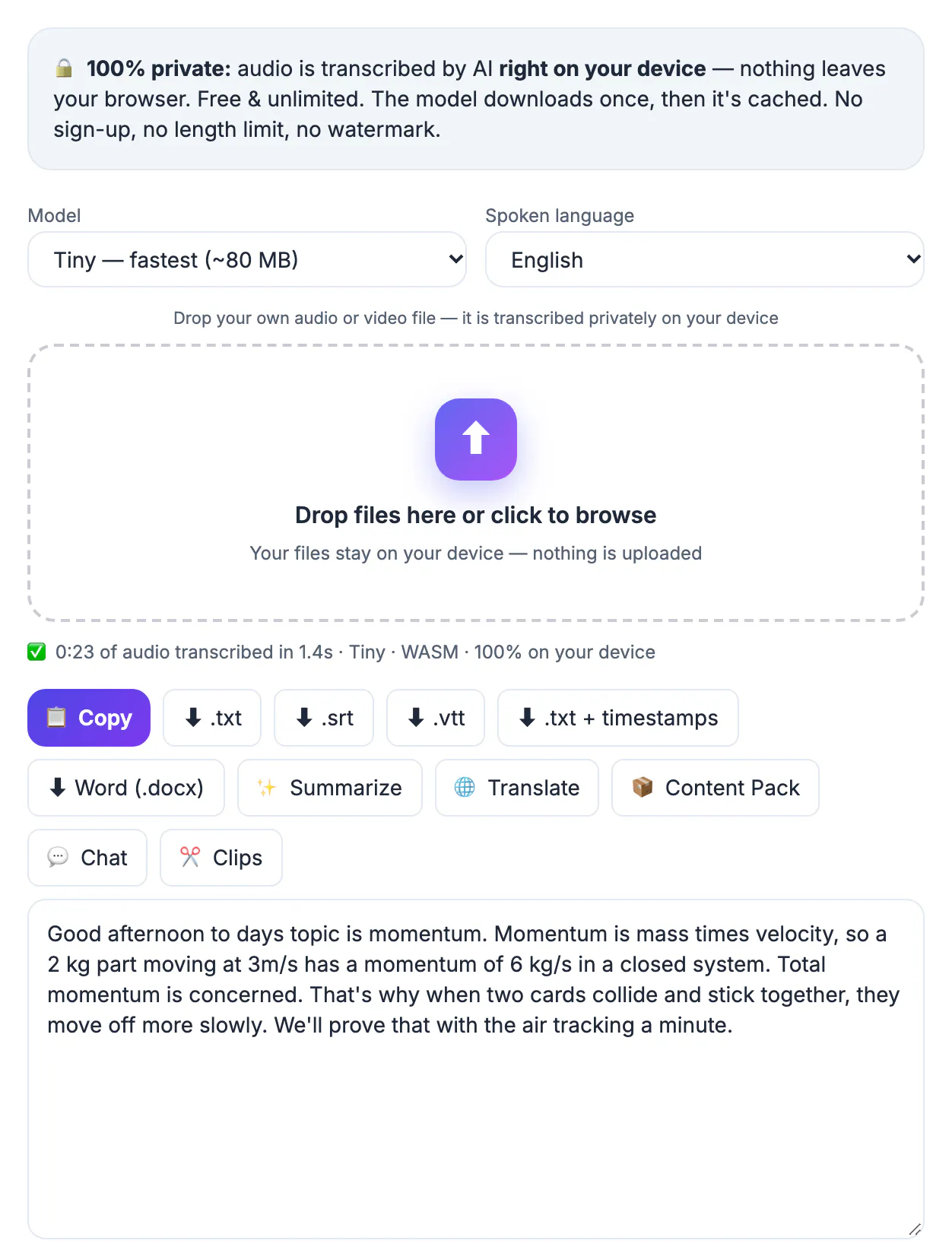
Notes taken live miss things, and a recording is hard to search. A transcript lets you find the moment a term was defined, quote accurately and study by reading, which is faster than replaying an hour of audio. It also helps students who need captions or who are listening in a second language.
Get a recording worth transcribing
Ask permission first: many schools and countries require the lecturer's consent to record, and some classes forbid it. Place the phone or recorder near the speaker, not in your bag, record in a quiet room and avoid overlapping voices. A clean recording gives far better text than any setting can rescue. Video is fine too; the studio reads the sound from the file.
Transcribe on your device
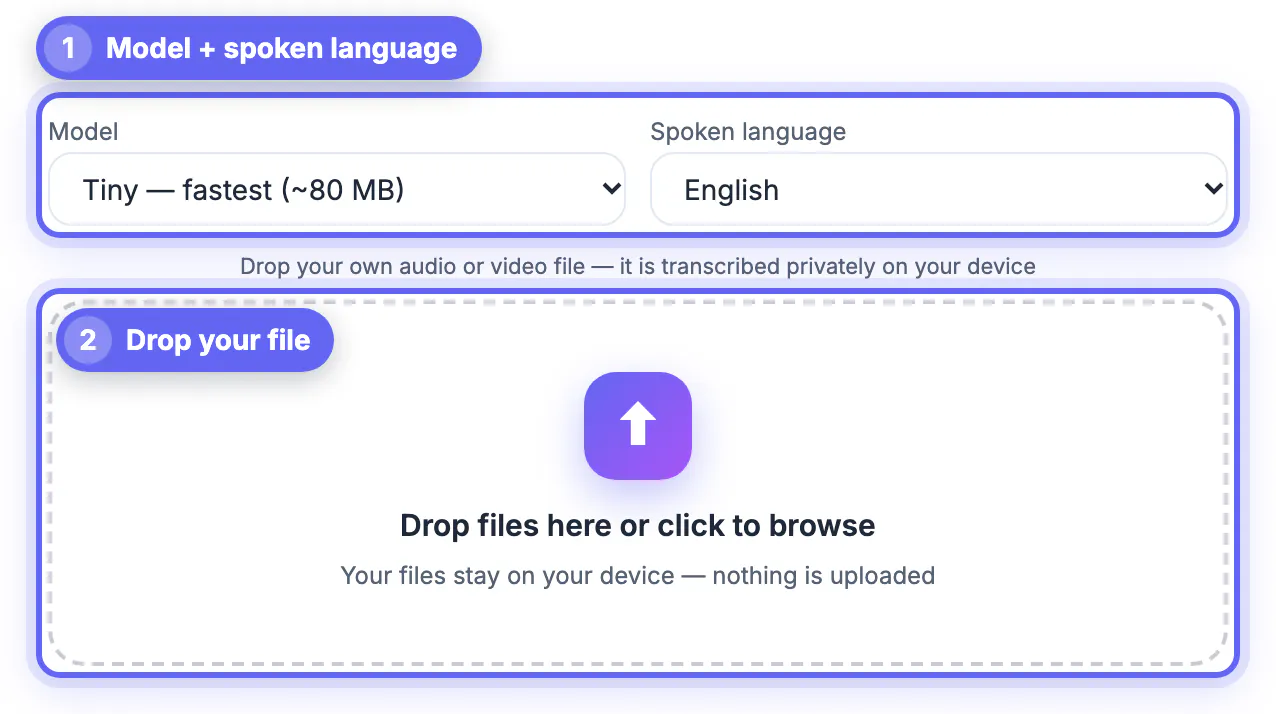
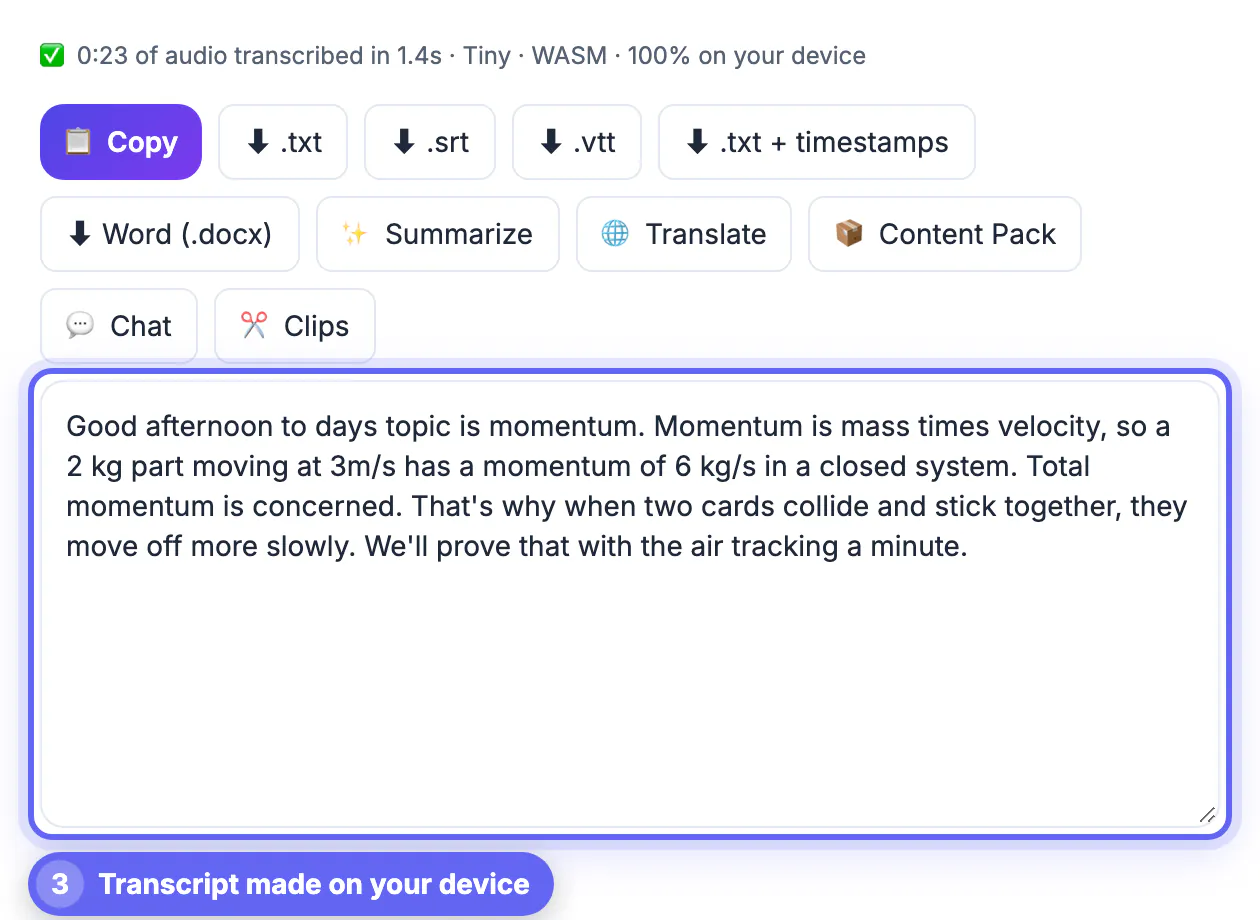
Open the Studio, choose the model and the spoken language, then drop the file. Tiny (about 80 MB, downloaded once and cached) is the fastest; larger models are more accurate but slower and need more memory. The status line reports the result, here 0:23 of audio transcribed in 1.4s, Tiny, 100% on your device. Nothing is uploaded, so unpublished lectures and private classes are safe. Longer lectures take longer, roughly in proportion to their length, and a phone may need the smaller model.
Read the transcript critically
The example transcript, from a spoken physics sample, was mostly right: "Momentum is mass times velocity" and the collision explanation came through. But it also wrote "Good afternoon to days topic", "6 kg/s" instead of kilogram-meters per second, and "air tracking" for air track. Technical terms, units, names and numbers are where speech recognition fails, so check them against your slides and correct the text box directly. Tiny models make more such mistakes than larger ones.
Export and use
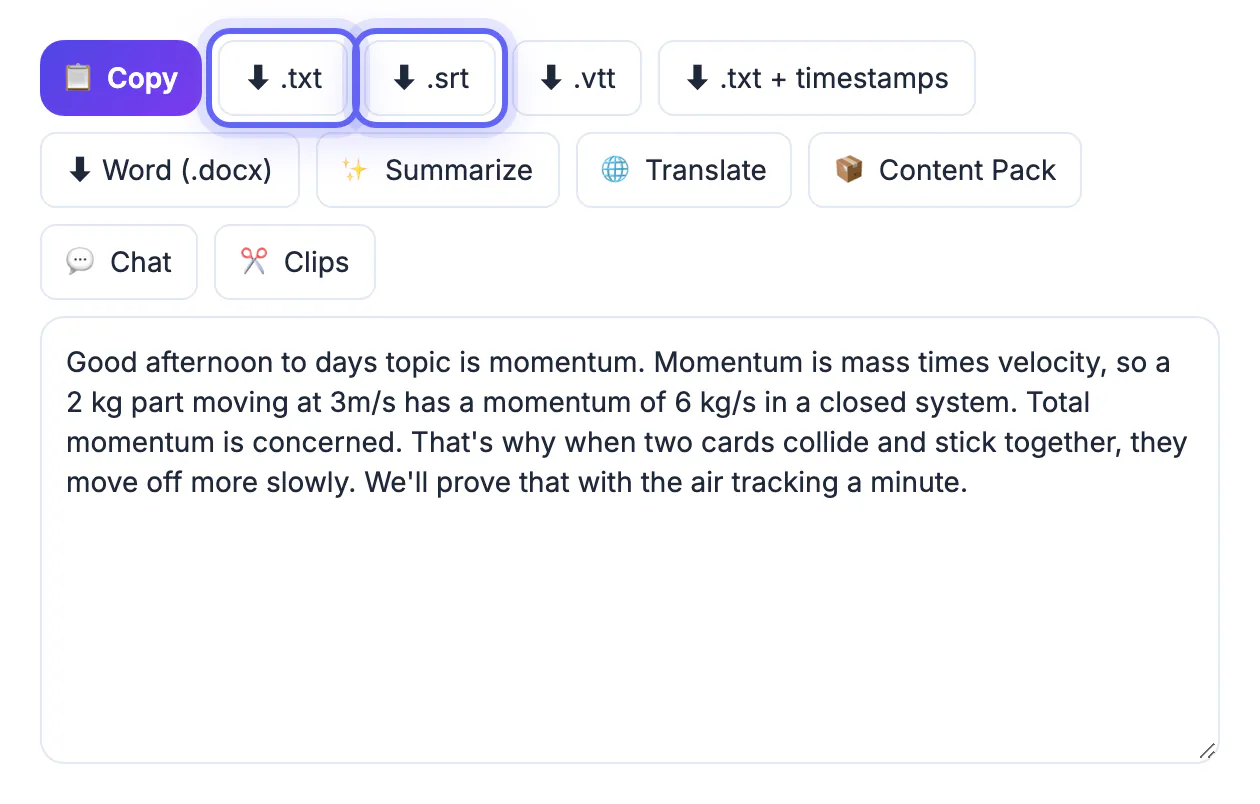
Use Copy for the text, .txt for a plain file, .srt or .vtt for subtitles, .txt + timestamps to find a moment, or Word (.docx). The Summarize, Translate, Content Pack, Chat and Clips buttons work from the same transcript. Study tips: paste the transcript into your notes, add headings by topic, highlight terms and turn definitions into flashcards. For meeting-style recordings see how to transcribe an interview, and for a video source how to convert video to MP3.
Studying with a transcript
Once you have the text, turn it into study material. Read through once and add headings at each change of topic. Highlight definitions and formulas, then move them into a summary page. Use the timestamped export to link a question in your notes to the moment in the recording where the answer is. For revision, the Summarize option gives a short outline you can compare with your own notes to see what you missed.
Do not rely on the transcript alone for exams: correct it against the slides and textbook, since errors in terms and numbers can be learned by mistake. Share the transcript with classmates only if the lecturer allows it, and never publish a lecture without permission, since the content and the voice belong to the lecturer.
Longer recordings and accuracy
Speed depends on your device: a laptop can process a long lecture in a fraction of its running time with the Tiny model, while a phone takes longer. If accuracy matters more than speed, choose a larger model; it downloads once, uses more memory and gives better results on names, accents and technical terms. For a two-hour lecture, split the audio into two or three parts so that a mistake or a browser refresh does not cost you everything.
Poor room acoustics are the biggest enemy: echo and a distant microphone produce more errors than any model can fix. If you can, use a lapel or clip-on microphone for the lecturer with permission.
Turning the transcript into study material
A transcript is raw material. Add headings at each change of topic, bold definitions and formulae, and write a two-line summary at the top of every section. Create flash cards from the key terms, and add questions you could be asked in an exam. Reviewing a page of text is faster than replaying an hour of audio, and you can search it for any term.
- Mark unclear words with a question mark and check them against the slides.
- Compare with your own notes to catch what you missed.
- Keep timestamps so you can replay confusing moments.
- Store files in a folder for each course.
For similar workflows, transcribing a voice memo, private on-device transcription and removing filler words help you tidy the result.
Respecting rules and copyright
Always ask the lecturer before recording, follow your school's policy and keep the transcript for personal study. Do not share recordings or transcripts publicly without permission, since the content may be protected and other students' voices may appear.
Checking accuracy on key terms
Subject vocabulary is where errors cluster. Skim the transcript for names, formulas and technical words, and compare them with the lecture slides or textbook. Correct them once, and keep a short glossary to fix repeats quickly.
Step-by-step
Common mistakes to avoid
Pro tips
Frequently asked questions
How do I transcribe a lecture for free?
Drop the recording into the AI Voice-to-Text Studio, choose the language and read the transcript. It runs on your device.
Is my recording uploaded?
No. The Whisper model runs in your browser.
How accurate is it?
Good on clear speech, but the Tiny model makes mistakes with technical terms and numbers, as our physics example shows. Check and correct.
Can I get subtitles?
Yes. Export .srt or .vtt.
Am I allowed to record a lecture?
It depends on your school and local law. Ask the lecturer first.
Transcribing a lecture is quick with an on-device model, but the result is a draft. Record clearly, ask permission, correct the technical terms and export the format you need.
Related guides
Browse more: all video and audio guides · AI Voice-to-Text Studio