How to Copy Text From a PDF (Free, Even Scanned)
To copy text from a PDF, drop it into a PDF-to-text tool, wait for the text to appear and click Copy or download a .txt file. GrabCast's free PDF to Text extracts the text layer in your browser, so the file is not uploaded, and it works on pages that will not let you select text in a viewer. In the example, a four-page lecture handout became 129 words of plain text in a few seconds. This guide explains the steps, why some PDFs cannot be copied (scans have no text layer), what to expect from tables and diagrams, and what to do about them.
📋 Try PDF to Text now — freeOpen →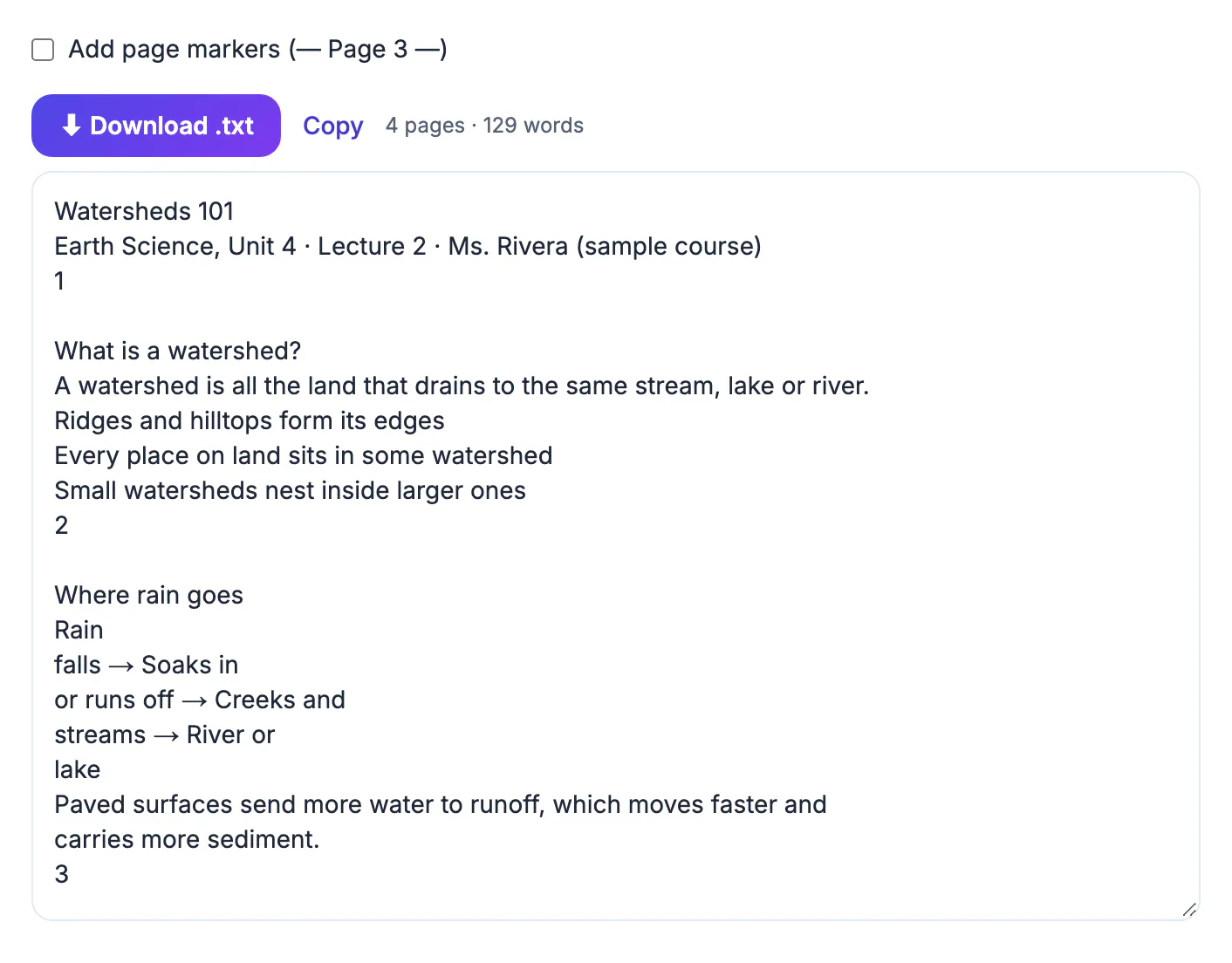
A PDF is a page description, not a document you edit. Text may be stored as real characters, as outlines, or as a picture of a page. Viewers let you select real characters, but tables, columns and headers can paste in a jumbled order, and some files block copying or are simply scans. Extracting the whole text layer at once and reading it in a plain box is more reliable than dragging a selection across pages.
What the tool gives you
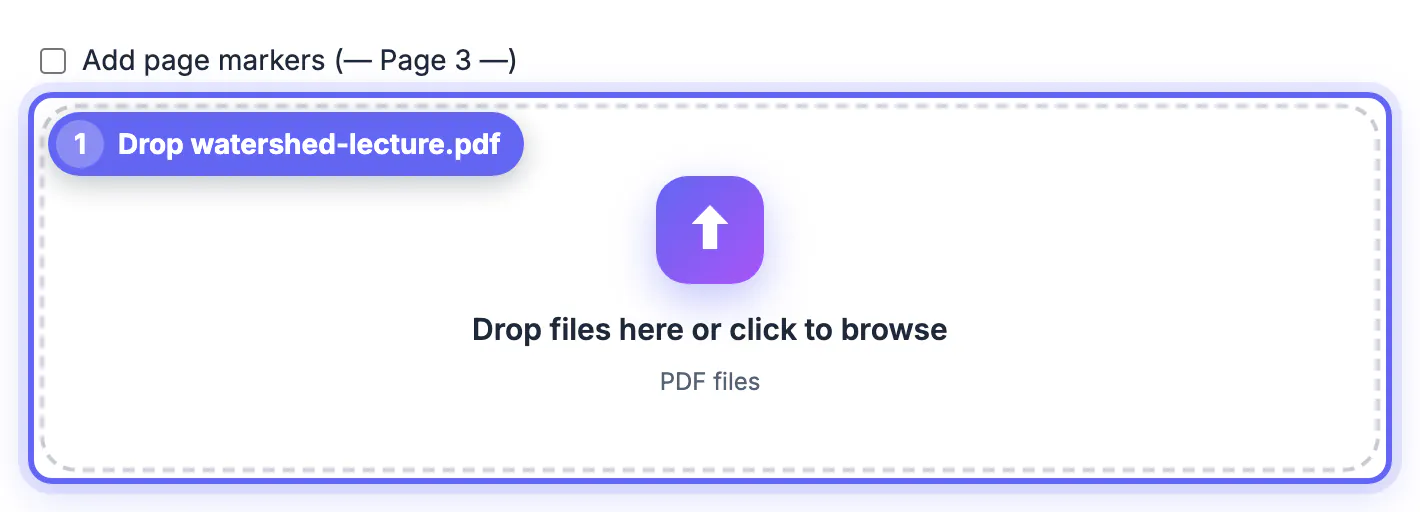
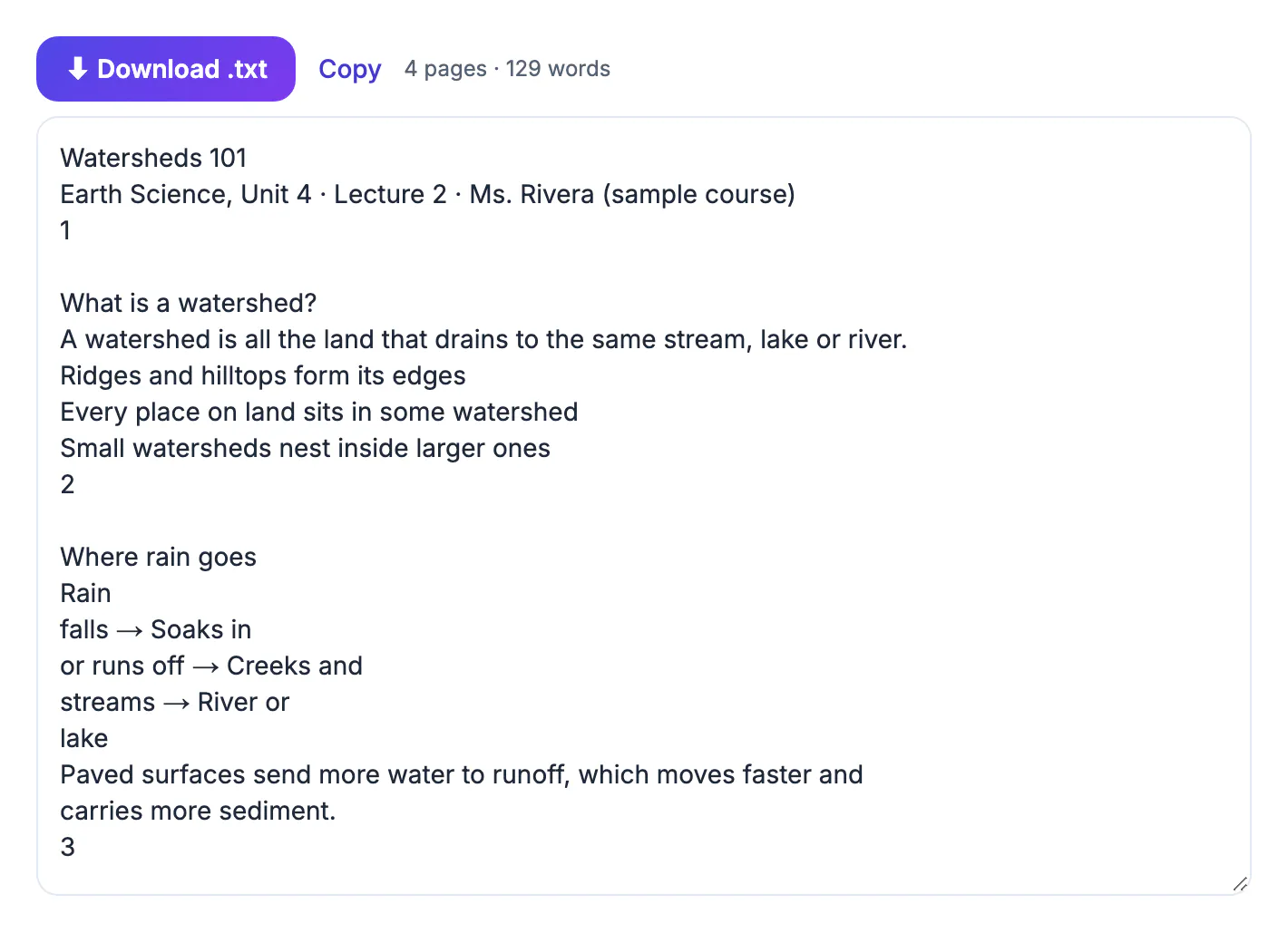
The extractor reads the text layer page by page and puts everything into one box you can scroll and edit. For the lecture handout the header said 4 pages · 129 words. Body text arrives in reading order; page numbers arrive as lines by themselves (1, 2, 3). Tick Add page markers before you convert and each page gets a line such as "— Page 3 —", useful when you need to cite where something came from.
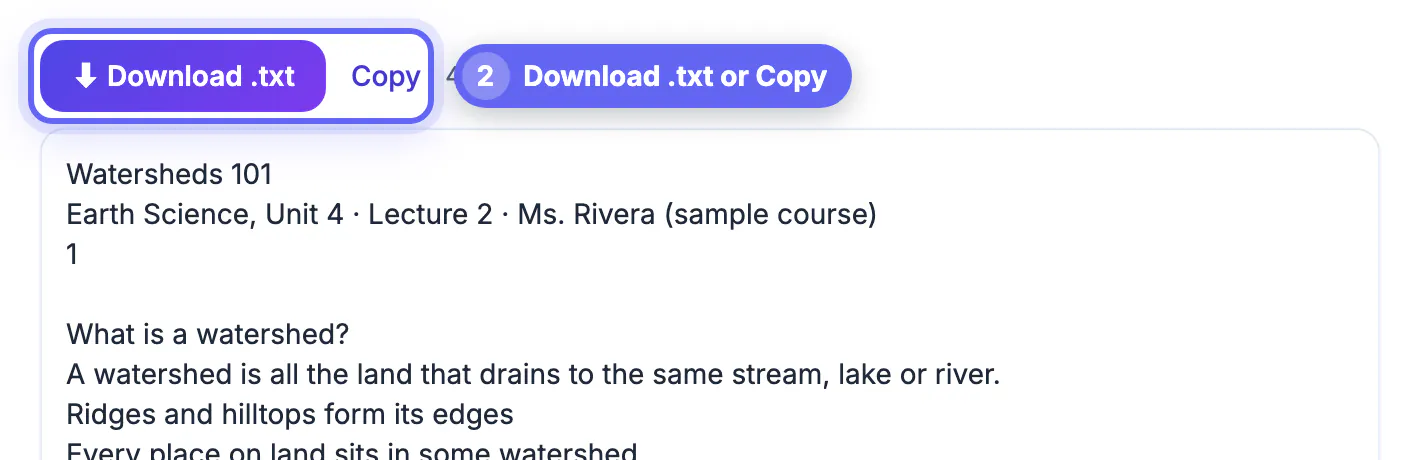
The Copy button puts the text on the clipboard; Download .txt saves it as a file you can open in any editor.
Tables, diagrams and columns
Anything laid out visually is flattened. In the example a small flow diagram (rain falls, soaks in or runs off, creeks and streams, river or lake) came out as short fragments over several lines, and you have to reassemble the sentence. Multi-column pages may interleave; tables usually come out row by row with cells separated by line breaks or spaces. Plan to tidy such parts by hand, or copy only the section you need.
If layout matters, a converter to Word or Excel keeps structure better; see PDF to Word and PDF to Excel.
Scanned PDFs need OCR
If the box comes back empty, or a viewer will not highlight any words, the PDF is probably a scan: a picture of a page with no text inside. Copying needs optical character recognition instead. Use OCR PDF to make the text searchable, or Image to Text for a photo. OCR is never perfect; read the result against the page, especially numbers and names.
Password-protected PDFs must be unlocked with the password first, and a file that blocks copying may not be readable at all. Respect the document owner's terms when you reuse its text.
Private and free
The PDF is processed inside your browser, so contracts, medical letters and school records stay on your device. There is no sign-up and no page limit beyond your device's memory. For more on extracting text and when to retype instead, read how to convert a PDF to text and PDF to text vs retyping.
A quick checklist before you copy
Before you paste extracted text into something important, run through four checks. First, open the PDF and try to select a word: if you can, the file has a text layer and extraction will work. Second, look for columns or tables, because those will need manual tidying. Third, decide whether you need page markers for citations. Fourth, check whether the document has restrictions on reuse, such as a copyright notice or a confidentiality marking.
Once you have the text, a simple clean-up routine helps: remove page-number lines, join broken lines inside paragraphs and fix hyphenated words split across lines. The Text Cleaner can strip extra spaces and line breaks in one click, which is especially useful for text that came from a two-column layout.
Cleaning up what you extracted
Raw output usually needs a quick tidy. Hyphens at line ends split words, columns may interleave, and page numbers or headers repeat. A short routine fixes most problems before the words move into an email or a notes app.
- Join broken lines into paragraphs by removing single line breaks.
- Delete repeated headers, footers and page numbers.
- Check numbers, dates and names against the original page.
- Re-create lists and tables by hand when structure matters.
Comparing methods can help: extraction versus retyping shows how much time each option takes, and extracting words from a picture with OCR handles scans and photographs.
When copying is not allowed
Some files restrict selection or printing with a permissions setting. If you own the file or are authorised to use it, remove the restriction with the password and then extract. Do not try to bypass protection on material you have no right to use, and respect copyright when quoting longer passages.
Citing and reusing material
Copying a sentence for your notes is different from republishing a page. Keep the source title, author, year and page number with each quotation, and use quotation marks. For research papers, keep the DOI or link so a reader can verify the claim. These habits save hours when you write a bibliography later.
Accessibility and long documents
Readers who use screen readers depend on a proper layer of words behind each page. A file made by scanning paper has none, so assistive software announces nothing until recognition is applied. If you publish documents, run recognition on scans and keep headings and lists in the source so the output stays navigable.
For very long reports, work in chapters. Pull out one section, tidy it, save it under a clear name and move on, which makes mistakes easier to find and keeps your notes organised. A bookmark list in the original often shows where each chapter begins.
Step-by-step
Common mistakes to avoid
Pro tips
Frequently asked questions
How do I copy text from a PDF that won't let me select it?
Drop the file into PDF to Text. If it has a text layer it will be extracted. If it is a scan, use OCR PDF.
Why is the text out of order?
PDFs store text in the order it was drawn, not the reading order, so tables and columns can come out jumbled.
Is my PDF uploaded?
No. The text is extracted in your browser.
Can I keep the page numbers?
Tick Add page markers to insert a line for each page.
Does it work on scanned pages?
No, scans have no text layer. Use OCR PDF or Image to Text.
Copying text from a PDF is fastest when you extract the whole text layer at once. Add page markers if you need them, expect to tidy tables and diagrams, and switch to OCR when the file turns out to be a scan.
Related guides
Browse more: all PDF guides · PDF to Text