How to Convert a PDF to Text Free, Without Uploading
To convert a PDF to text, drop the file into GrabCast's PDF to Text tool: it reads every page in your browser, shows the words in a box, and lets you copy them or download a plain .txt file named after your PDF. Nothing is uploaded, so it works for contracts and bank statements too. It only works on PDFs that contain real, selectable text, which covers anything exported from Word, Google Docs or a web page. If the tool reports that no selectable text was found, your file is a scan, and the section on scans below explains the switch to OCR. The rest of this guide covers what a .txt file keeps and loses, how to tidy the output, and when another format suits you better.
📝 Try the PDF to Text tool now — freeOpen →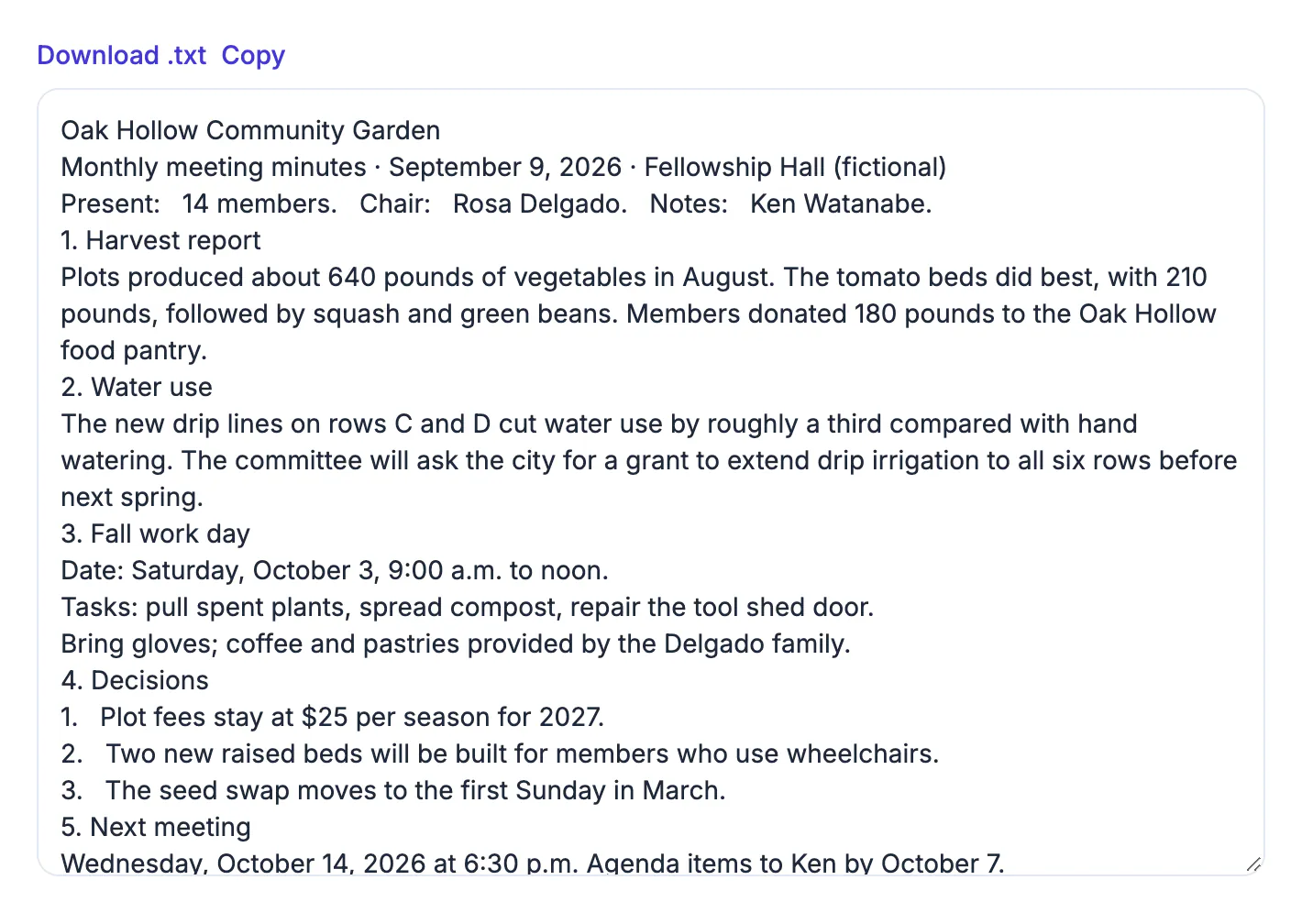
A PDF is built to look identical everywhere, which is great for printing and sharing and awkward for everything else. Copying a few paragraphs from a viewer brings along broken lines, odd spacing and sometimes invisible characters, and copying 40 pages by hand is miserable. A plain .txt file is the opposite: tiny, universal and editable in Notepad, TextEdit, Word, Google Docs or any code editor. It is the format that search tools, spreadsheets, translators and AI assistants handle best. Converting once gives you a working copy you can quote, search, reorganize or feed into another tool, while the original PDF stays untouched as the reference.
Convert a PDF to text in the browser, step by step
The tool uses PDF.js, the same open-source library behind Firefox's PDF viewer, loaded from a public CDN. The extraction itself happens on your device.
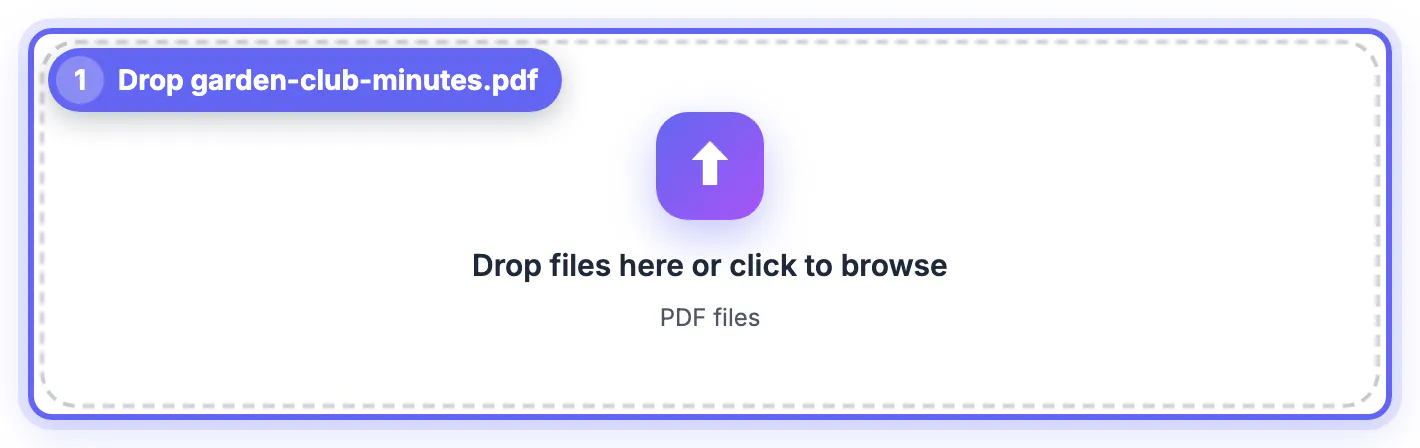
- Drop a PDF into the box or click to browse; the file is read page by page
- Every page is extracted, with no set page limit; very large files simply take longer and use more memory
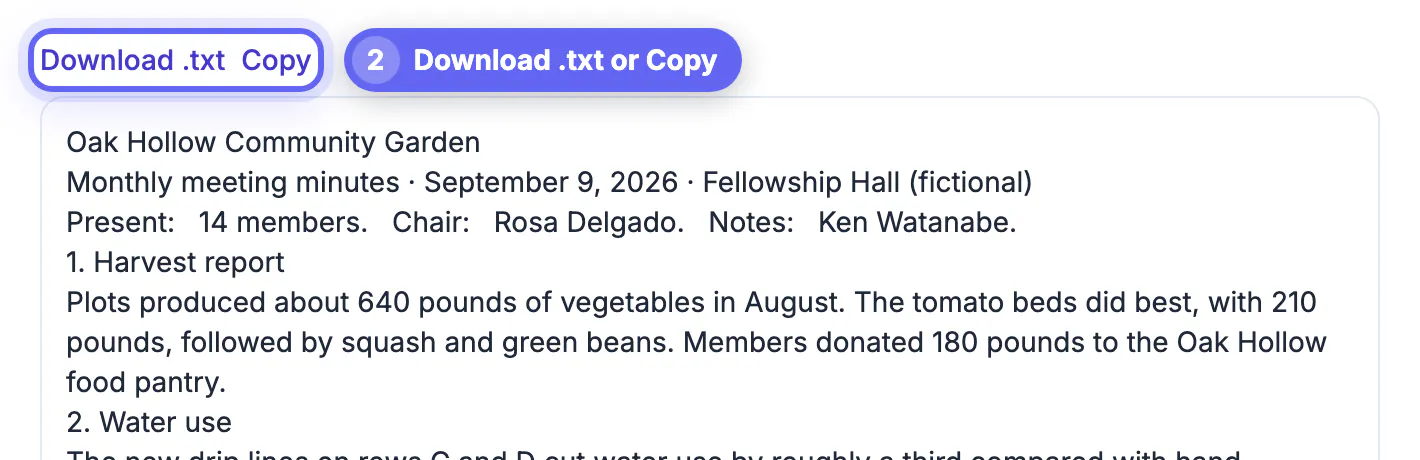
- Line breaks are kept where the PDF marks them, with a blank line between pages so you can tell where each page ended
- Click Download .txt for a file named after your PDF, or Copy to paste the text straight into another app
- A password-protected PDF shows an error; remove the password you already know with Unlock PDF, then try again
A 30-page report usually converts in a few seconds on a laptop. Because the file never leaves your browser, there is no upload bar and no queue behind other users.
Text PDFs versus scanned PDFs
There are two kinds of PDF, and they look identical in a viewer. A text PDF stores real characters; a scanned PDF stores pictures of pages.
- Quick test: try to drag-select one sentence in your viewer; if individual words highlight, the text is real
- Scans, faxes, phone photos saved as PDF and most older archive files are image-only
- A scan is often several megabytes per page, while a text PDF of the same length can be a few hundred kilobytes
- PDF to Text tells you when it finds no selectable text instead of returning an empty file
For a scan, use OCR PDF. It reads each page with the Tesseract.js OCR engine in your browser, adds an invisible text layer, and also offers the recognized words as a .txt download or Copy all text. Proofread the result, since OCR can misread characters that a text PDF never would.
What a .txt keeps, what it drops, and how to tidy it
You get the words and nothing else: fonts, colors, images, links and layout are gone. That is the point, but a few PDF habits show up in the output.
- Broken lines: PDFs store text as positioned pieces, so a paragraph can arrive as many short lines; rejoin them in your editor
- Hyphenated words split at the end of a line, such as infor- mation, need joining
- Running headers, footers and page numbers repeat on every page; delete them with find and replace
- Multi-column layouts and tables can come out in a different order than you see; check those sections against the PDF
- Footnotes may land in the middle of body text, close to where they sat on the page
A useful habit: paste the text into an editor with find and replace, remove the repeated header in one pass, then read the first and last lines of each page break, where most oddities live.
When plain text is not the right format
Plain text is best for quoting, searching, translating and feeding other tools. If you need something else, pick a different converter rather than rebuilding layout by hand.
- Need to edit with headings and formatting: PDF to Word creates a DOCX you can open in Word or Google Docs
- Need a table's numbers in cells: PDF to Excel is built for tabular data
- Need answers from a long document rather than all of its text: Chat with PDF lets you ask questions and cites page numbers
- Need the text in another language: paste the .txt into the AI Translator, which accepts files up to 2 MB
For a single quote, selecting it in your viewer and pasting is still fastest. The converter earns its place when you need a whole chapter, a full report or a document you will search again and again.
Step-by-step
Common mistakes to avoid
Pro tips
Frequently asked questions
Is the PDF to text converter free, and is there a page limit?
It is free with no sign-up. Every page is extracted with no set limit, although very large files take longer and use more browser memory because the work happens on your device.
Is my PDF uploaded?
No. The PDF is opened with PDF.js in your browser and the text is extracted there. Your document is not sent to GrabCast's server.
Why did no text come out of my PDF?
The PDF is almost certainly a scan, made of page images with no text layer. Use OCR PDF to recognize the words, then copy them or download a .txt.
Why is the extracted text out of order?
PDFs store text as positioned pieces, not paragraphs. Columns, tables, headers and footers can come out in a different order from what you see, so tidy those sections in an editor.
Can I convert a password-protected PDF to text?
Not directly. If the PDF needs a password to open, remove it first with Unlock PDF using the password you already know, then extract the text.
Converting a PDF to text takes seconds when the file has a real text layer: drop it into PDF to Text, download the .txt, and tidy line breaks and headers. If the tool finds no text, the PDF is a scan and belongs in OCR PDF. Either way, your document stays in your browser.
Related guides
Browse more: all PDF guides · the PDF to Text tool