How to Crop an Image: Composition and Pixel Basics
To crop an image, draw a box around the part you want to keep, lock an aspect ratio if the result must fit a specific slot, and save the selection as a new file. That is the mechanical part and it takes seconds. Knowing how to crop an image well is about what you leave in: where the subject sits, how much space surrounds it, and how many pixels you can afford to lose. This guide covers the composition rules photo editors use every day and the resolution math behind every crop.
✂️ Try Crop Image now — freeOpen →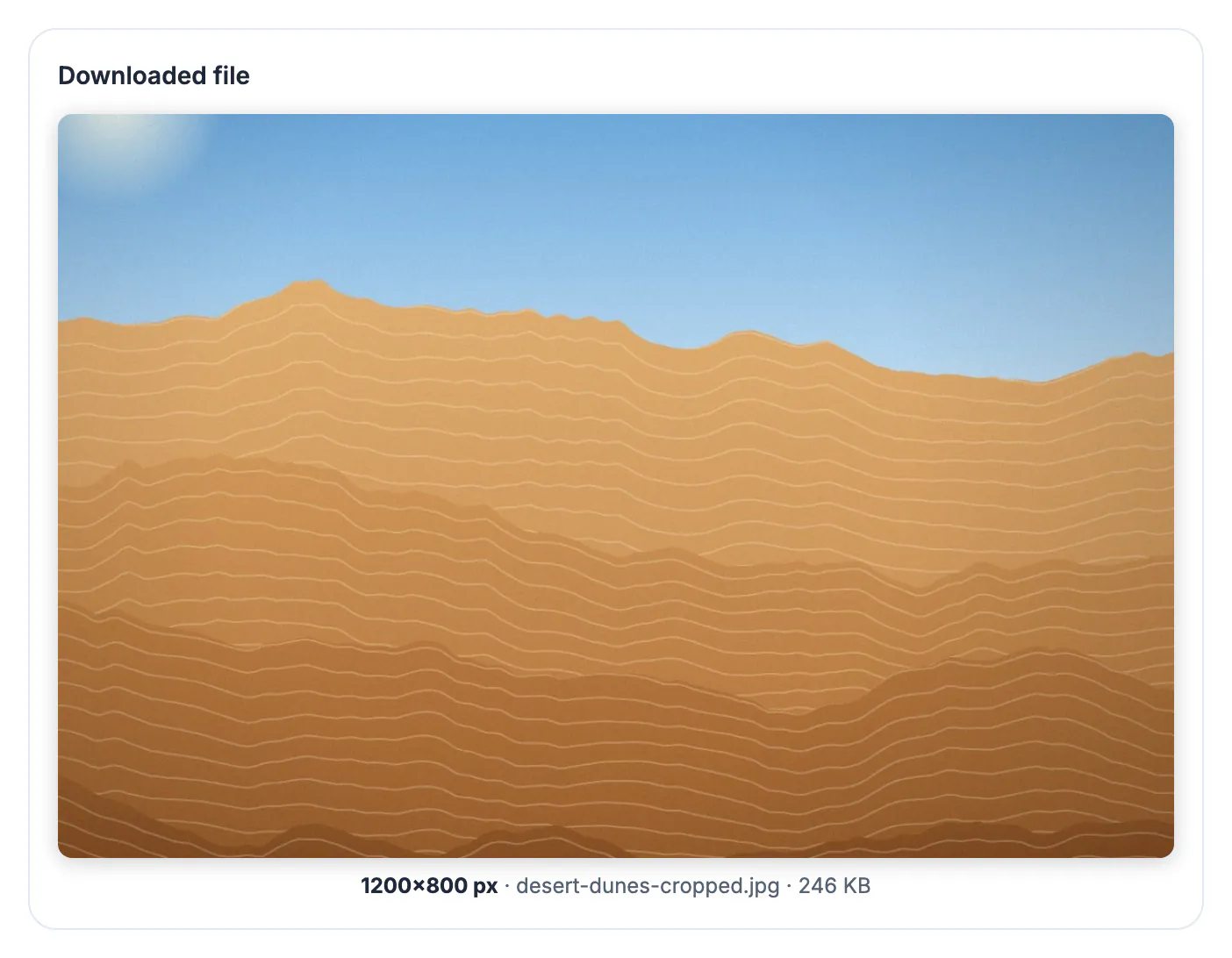
People often mix up the two. Resizing changes the pixel dimensions of the whole picture, making everything larger or smaller while keeping the entire scene. Cropping removes part of the scene and keeps the remaining pixels exactly as they were. A 4000 x 3000 photo cropped to its central half becomes 2000 x 1500, with the same sharpness per pixel but a quarter of the total pixel count. That is why cropping improves composition but can limit how large the result can be printed or displayed. The usual order is crop first, to decide what the picture is about, then resize to the exact dimensions a website, printer or app requires. Photo editors at newspapers and magazines crop almost every picture they publish, not to hide anything, but to remove dead space and point the reader at the story. The same habit improves holiday snapshots, product listings and team photos with no special equipment, just a few seconds of thought about what the frame should say.
Composition rules that make a crop look intentional
A good crop gives the eye one clear place to land. Crop Image draws a rule-of-thirds grid inside the box to help.
- Put the main subject on a thirds line or where two lines cross, not dead center, for a more dynamic frame
- Center deliberately for symmetry: architecture, reflections, product shots on plain backgrounds
- Leave looking room in front of a face or moving subject, more space on the side they face
- Keep headroom modest; a large gap above a head makes a portrait feel empty
- Remove distractions at the edges, such as a stray elbow, a bright sign or a half-visible car
If a crop feels wrong, try moving the box before resizing it. Shifting the subject from center to a thirds line often fixes it.
Where not to crop people
Portrait photographers avoid cutting through joints, because a frame edge at a wrist or knee reads as an amputation.
- Avoid crops at the ankles, knees, wrists, elbows or neck
- Good crop lines fall mid-thigh, mid-upper-arm, at the waist, or just below the shoulders
- Do not slice the top of the chin; cutting through the forehead is more acceptable in a tight headshot
- In group photos, never trim half a person at the edge; include them or remove them fully
The same logic applies to pets and objects: cut through a clean line, not through the part that defines the shape.
How much resolution each crop costs
Every crop discards pixels. Knowing the budget tells you whether the result will still be large enough for its destination.
- Cropping away half the width and half the height keeps only 25 percent of the pixels
- A 12 MP phone photo cropped that way becomes about 3 MP, roughly 2000 x 1500
- 3 MP is plenty for a website or social post but only a sharp 5 x 7 inch print at 300 PPI
- Web images rarely need more than 2000 pixels on the long side
- Digital zoom on a phone is just a crop taken in advance; cropping later gives you more choices
Watch the live pixel readout as you drag. If it falls below what you need, loosen the crop.
Choosing an aspect ratio
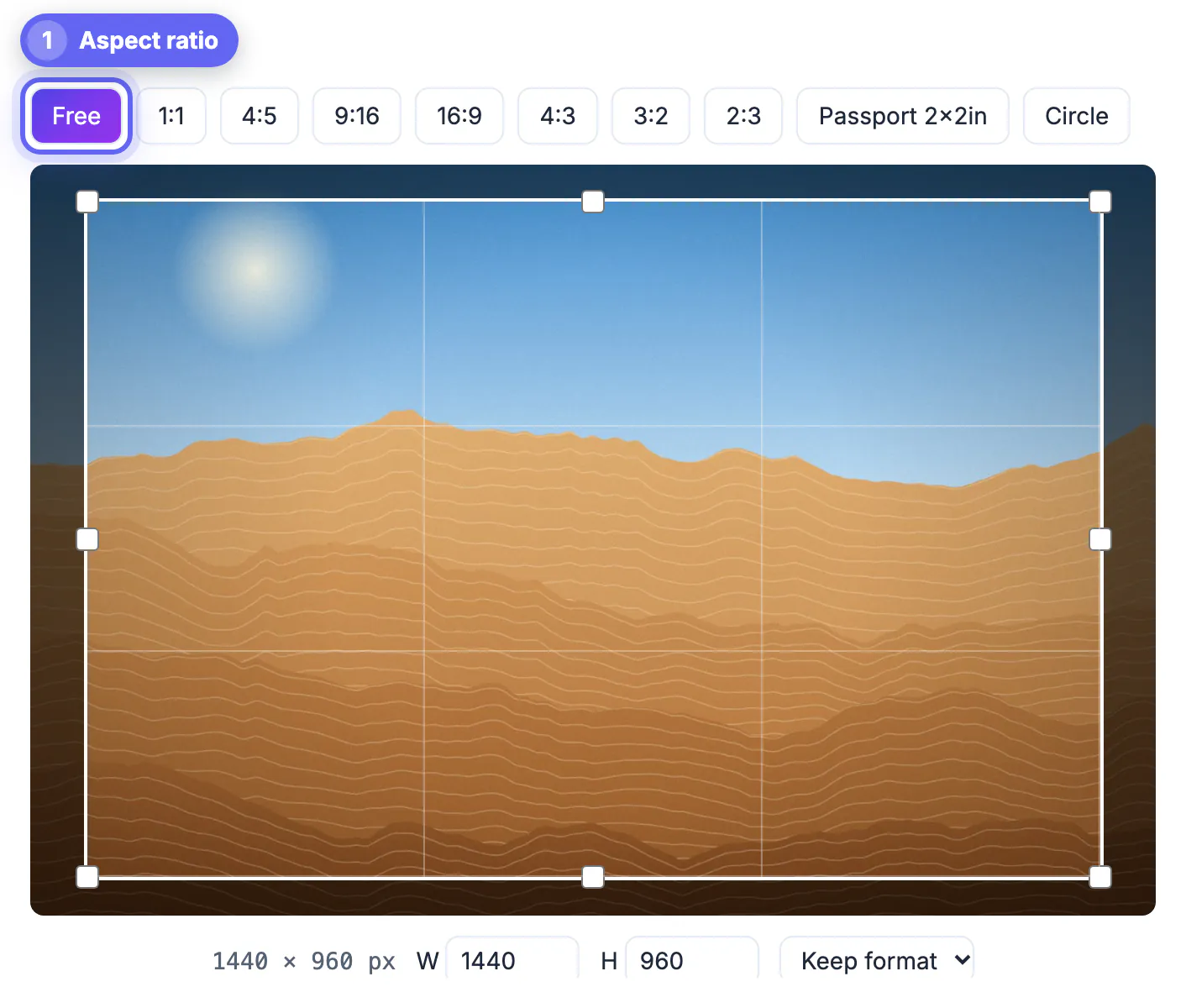
Free cropping suits most personal photos. Lock a ratio when the image must fit a fixed space.
- 1:1 square for avatars and marketplaces
- 4:5 or 9:16 for vertical social feeds and Stories
- 3:2 for standard photo prints and 16:9 for slides, video and banners
- 4:3 for tablets and many presentation templates
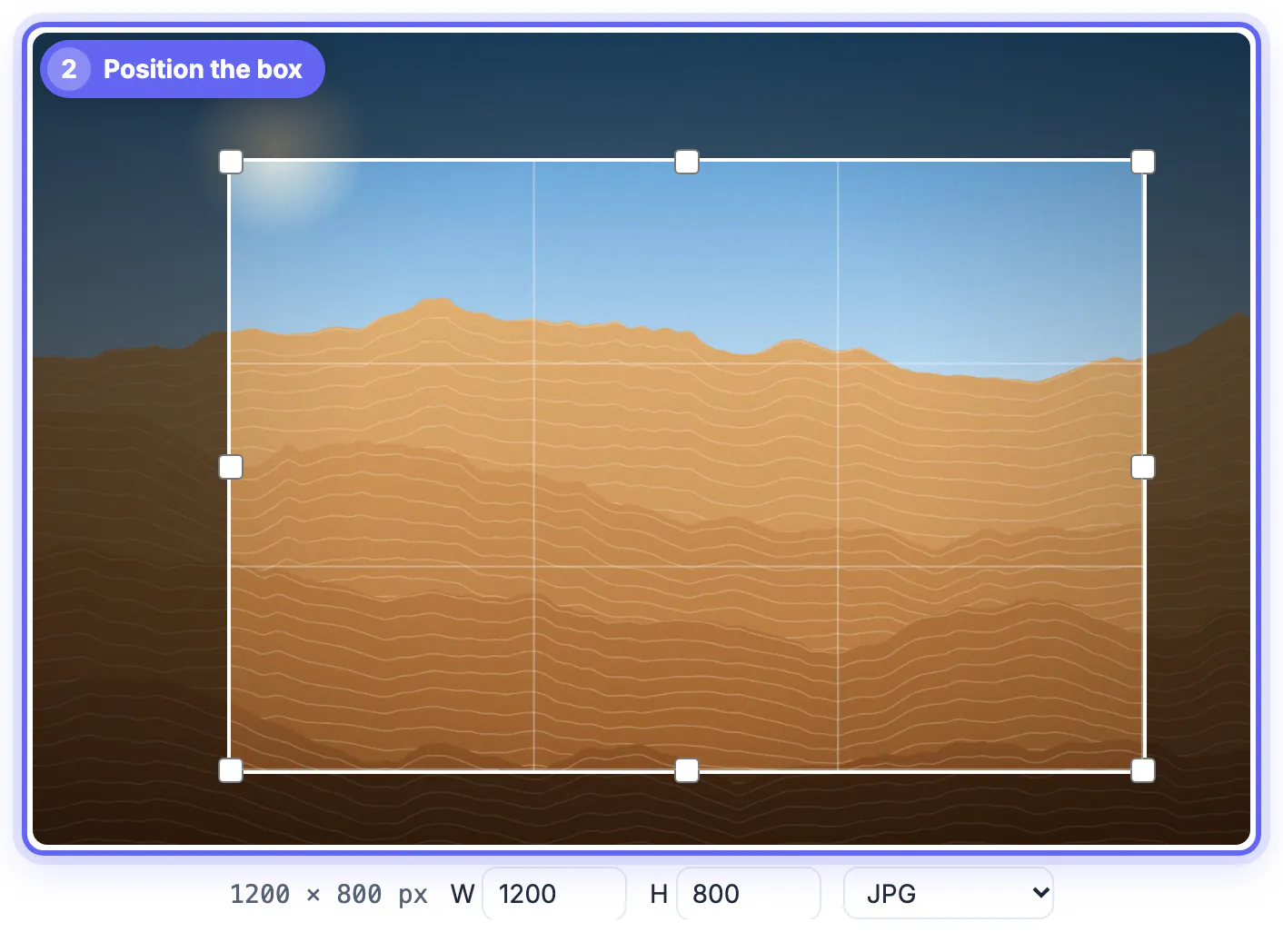
- Exact pixels when a form or CMS demands, say, 1200 x 800
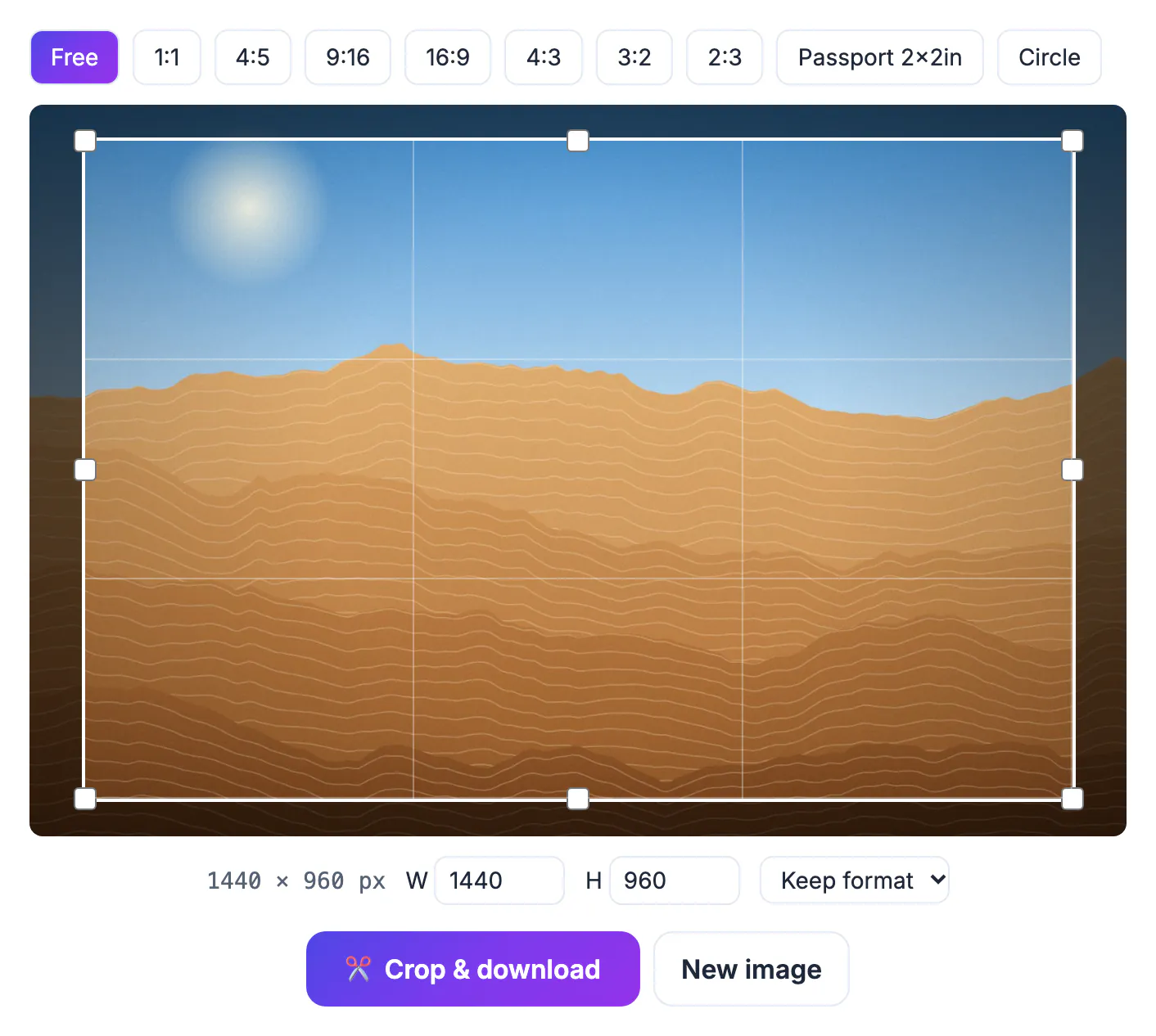
Crop Image offers 1:1, 4:5, 9:16, 16:9, 4:3, 3:2 and 2:3 presets, plus passport and circle shapes, and saves in the original format unless you pick another.
If the horizon is tilted, straighten the photo first so the crop starts level. A final touch-up in the Photo Editor & Filters tool works well after cropping.
▶ Watch: How to crop an image (0:36)
Video transcript
- Add your photo. Drop the photo you want to crop. A crop frame appears on top of it.
- Pick the 1:1 preset. 1:1 makes a perfect square for profile pictures and product photos.
- Drag the frame. Move the frame so the subject sits in the middle of the square.
- Check the size. Width and height show the exact pixels you will get.
- Crop and download. Save the cropped copy. Your original photo stays as it was.
Step-by-step

Common mistakes to avoid
Pro tips
Frequently asked questions
How do I crop an image without losing quality?
Cropping keeps the remaining pixels exactly as they were. Save as PNG for zero compression, or JPG at the tool's high quality setting for smaller files. Repeated JPG re-saving is what degrades quality over time, so crop from the original each time.
What is the difference between cropping and resizing?
Cropping removes part of the scene; resizing changes the size of the entire picture. Most tasks use both, cropping first. Resizing to fit a destination after cropping keeps the composition you chose.
Does cropping reduce file size?
Usually, because fewer pixels remain. A crop to a quarter of the area typically produces a much smaller file. PNG screenshots in particular shrink a lot, since large flat areas of screen are removed.
Can I crop on a phone?
Yes. The crop box works with touch, so you can drag it and its handles in a mobile browser. Drag inside the box to move it and pull the white handles to change its size.
Is the image uploaded to crop it?
No. Crop Image works entirely in your browser, and your photo is not sent anywhere. That makes it safe for personal photos, client work and documents with private details.
Crop to decide what the picture is about: place the subject on a thirds line, avoid cutting through joints, and watch the pixel count so the result is still big enough. Lock a ratio only when the destination requires one, then resize.
Related guides
Browse more: all image guides · Crop Image