Rotate an Image Online: Quarter Turns, Flips and Any Angle
To rotate an image, open it in GrabCast's Rotate & Flip Image tool, click ↺ 90° or ↻ 90° until it stands upright, and download. If the picture is only leaning a little, drag the Straighten slider or press Auto-straighten instead of making a quarter turn. The tool runs inside your browser, so a sideways photo for a school form, an upside-down scan of a lease or a crooked product shot for an online listing never leaves your computer. This walkthrough covers every control on the page, the one decision that changes your final pixel size (crop the corners or keep the whole picture), how the file is saved, and how to fix up to 50 images in one pass. Only edit images you own or have permission to change.
🔄 Try the Rotate & Flip Image tool now — freeOpen →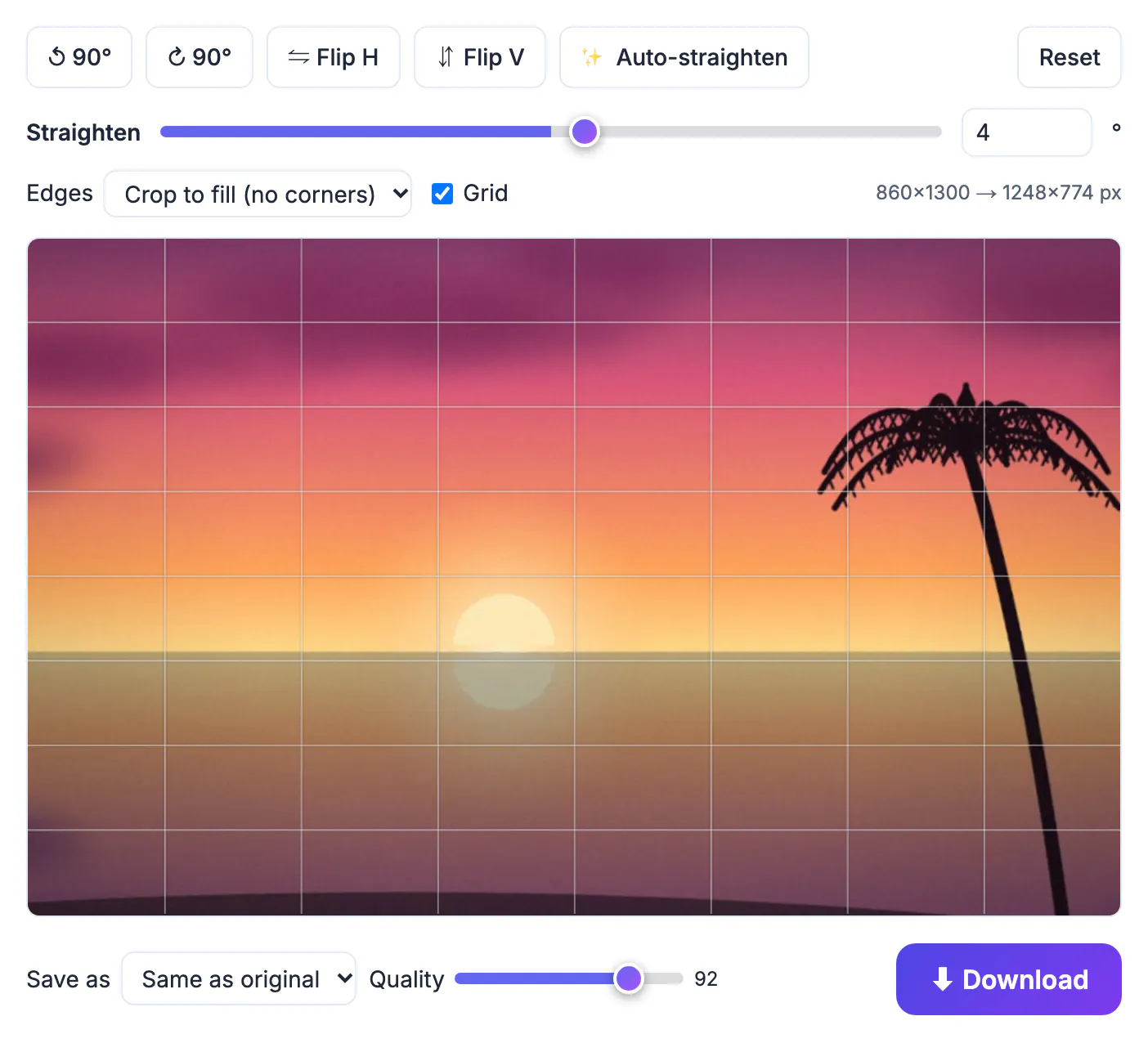
Opening Photoshop or a phone gallery app to turn one picture a quarter turn is overkill, and many gallery apps only change an orientation flag instead of the pixels, so the file still arrives sideways somewhere else. This page does one job: it redraws the pixels in the new orientation, shows you the exact output size before you save, and hands back a normal JPG, PNG or WebP file. Because the work happens on a canvas in your own browser tab, there is no upload queue, no account and no watermark, and the page keeps working if your connection drops after it loads. The honest trade-off: it is not a layer editor. If you need to retouch, clone out objects or rotate one element inside a design, use a full editor and come back here for quick orientation fixes and batches.
What each rotate control on the page does
After you drop a file on the page, a toolbar appears above a live preview. Every button acts on the preview instantly, so you can experiment freely and press Reset to return to the original.
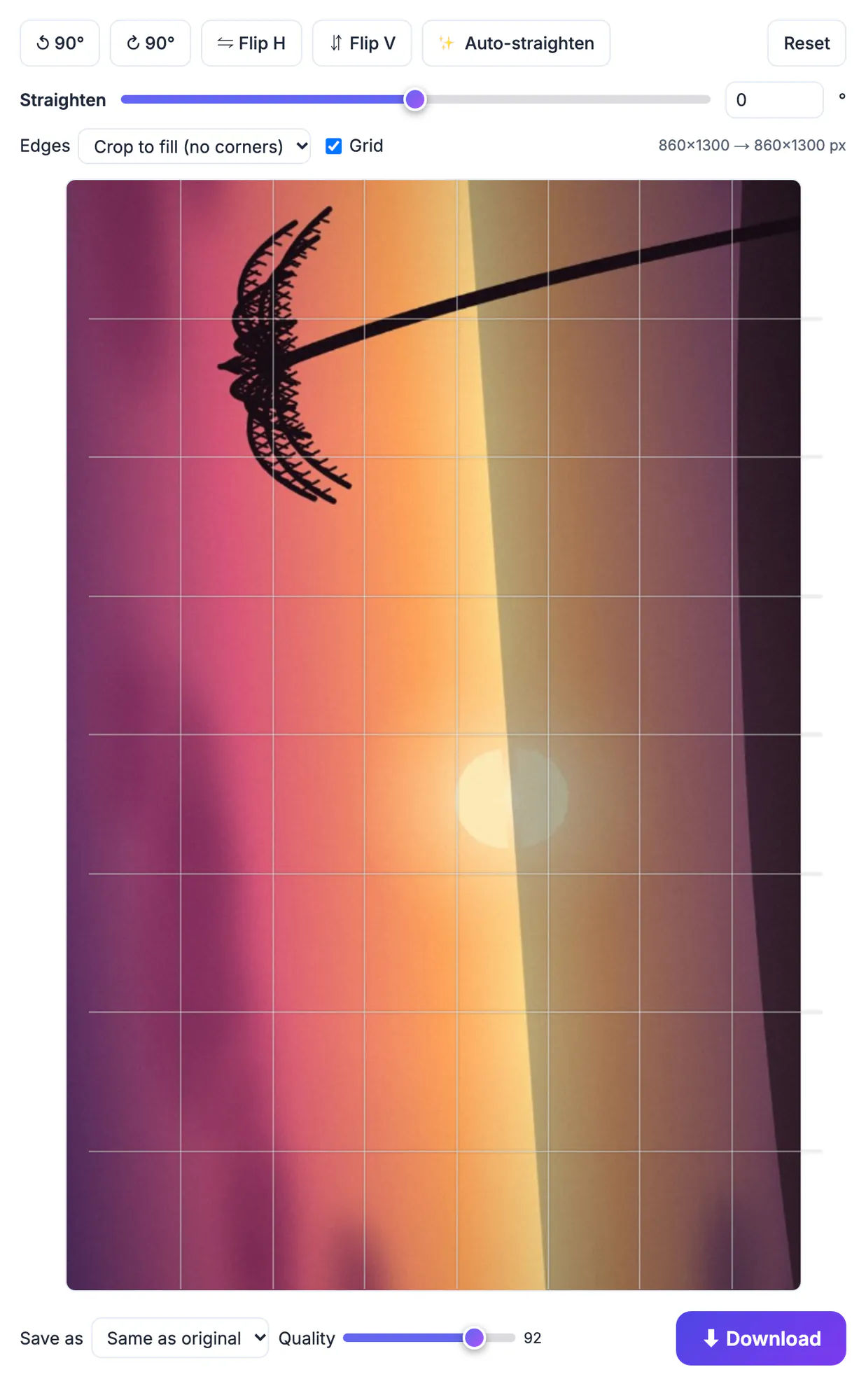
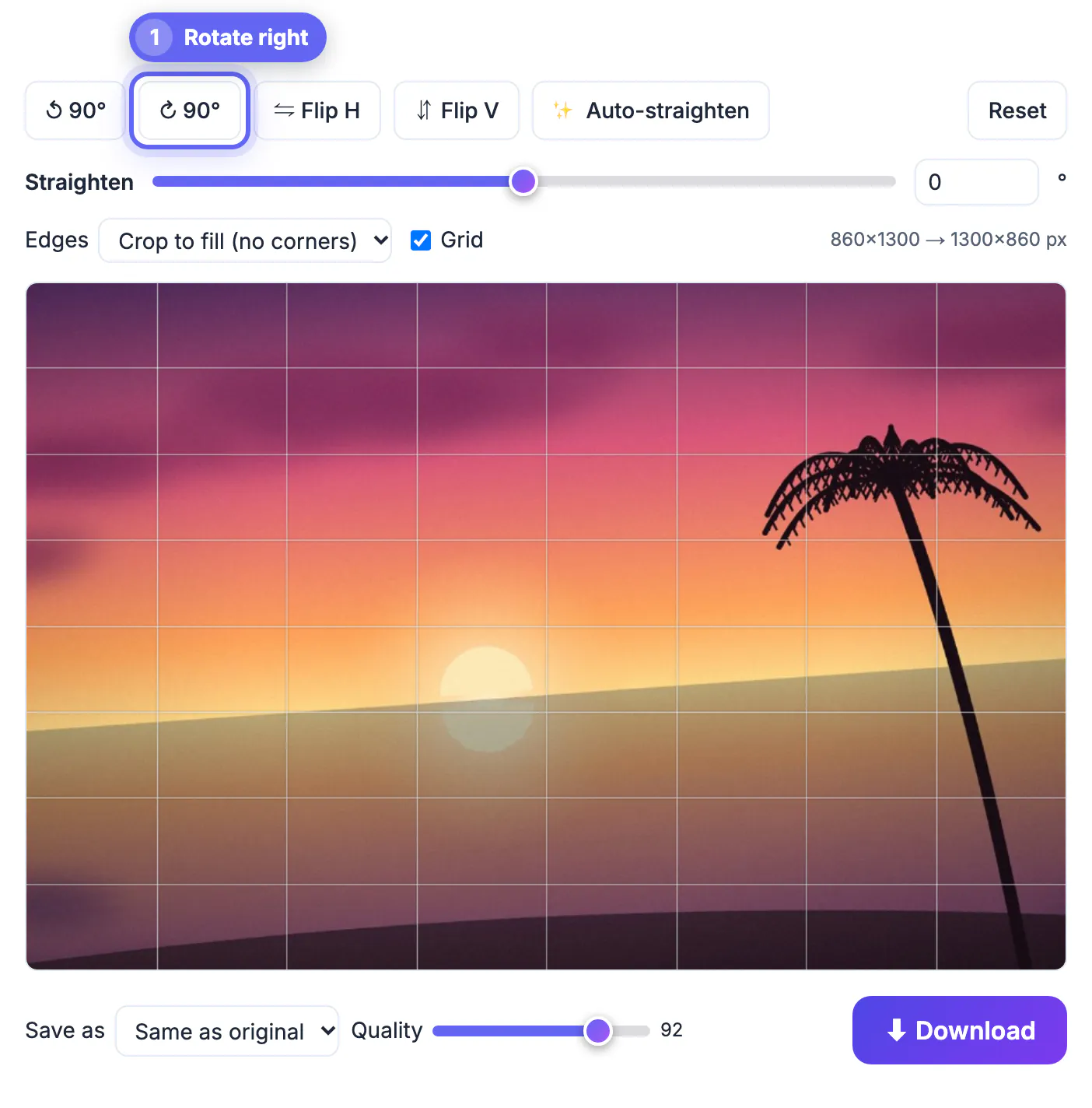
- ↺ 90° and ↻ 90° make quarter turns counterclockwise and clockwise. Two clicks turn a picture upside down; four clicks bring it back.
- Flip H mirrors left to right and Flip V mirrors top to bottom. Use them for a reversed selfie or a scan fed in backward, not to fix a sideways photo.
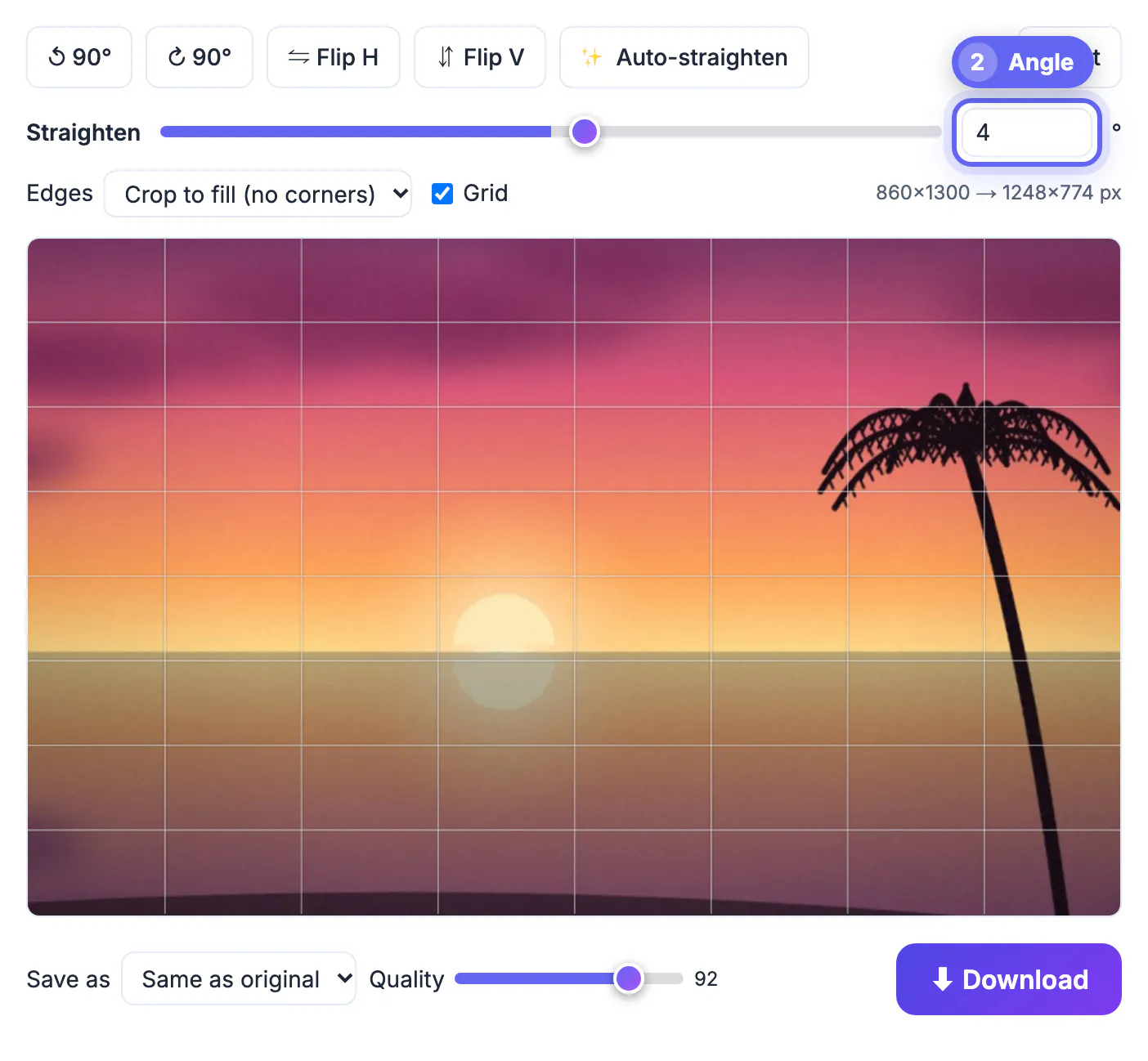
- The Straighten slider covers −45° to +45° in 0.1° steps. Type an exact value in the number box, or focus the slider and tap the arrow keys for 0.1° nudges; hold Shift for 1° jumps.
- Auto-straighten measures strong edges such as a horizon, a door frame or the border of a page and proposes an angle, which you can then fine-tune by hand.
- The Grid checkbox draws an eight-by-eight overlay on the preview so you can line a shelf or a skyline up against a true horizontal.
Crop the corners or keep the whole picture
Quarter turns never lose pixels. A fine angle does, because a tilted rectangle no longer fits a straight frame. The Edges menu decides what happens to the gaps, and the line above the preview shows the result, for example 4032×3024 → 3889×2824 px.
- Crop to fill cuts the largest clean rectangle from the tilted picture. For a 12-megapixel phone photo at 3°, that keeps about 90 percent of the area and leaves no empty corners.
- Keep whole image enlarges the canvas so nothing is cut off. The same 3° photo grows to 4184×3230 px, with the triangles filled white, black or transparent.
- Transparent corners only survive in PNG or WebP. If you save as JPG, which has no transparency, the corners are filled white automatically.
- Pick crop for photos you will post, and keep-whole for documents, artwork or logos where losing a signature line or an edge is not acceptable.
How the rotated image is saved
The Save as menu starts on Same as original, so a JPG comes back as a JPG and a WebP as a WebP. You can switch to JPG, PNG or WebP at any time.
- The Quality slider runs from 60 to 100 and defaults to 92. It affects JPG and WebP; PNG is lossless and ignores it.
- Saving a JPG once at 92 is visually indistinguishable for ordinary photos, but repeated save-and-reopen cycles slowly soften detail, so rotate from the original each time.
- Files that are not JPG, PNG or WebP, such as a GIF, are saved as JPG unless you choose another format. Only the first frame of an animated GIF is kept.
- The download is named after your file with -rotated added, such as lease-page-2-rotated.jpg, so the original is never overwritten.
- The exported file carries no camera metadata, so GPS location and the old orientation tag are gone. That is usually a plus, but keep the original if you need the capture date.
After rotating, trim any leftover edges with the Crop Image tool, and use the Compress Image tool if the file needs to be smaller to share.
Rotating a batch of images in one pass
You can drop up to 50 images at once. Thumbnails appear under the preview, and clicking one shows how the current settings look on that file.
- The turn, flip, angle, edge and format settings are shared by the whole batch. Apply to all (ZIP) exports every file with those settings into rotated-images.zip.
- That makes batches ideal for a set that shares one problem, such as 30 pages from a sheet-fed scanner that all came out upside down.
- Auto-straighten measures only the image you are viewing, so split pictures with different tilts into separate runs or straighten them one by one.
- iPhone HEIC photos open in Safari but not in most other browsers. Convert them to JPG first, then rotate.
- A very large file, such as a 100-megapixel panorama, can exceed your browser's canvas limit. The page tells you, and a resized copy will go through.
Step-by-step
Common mistakes to avoid
Pro tips
Frequently asked questions
How do I rotate an image 90 degrees without losing quality?
A quarter turn moves pixels without cutting any. Choose PNG, or keep JPG or WebP at a quality of 92 or higher, and the result looks identical to the original apart from its orientation.
Can I rotate a photo by a small angle, like 2 degrees?
Yes. The Straighten control accepts any angle from −45° to +45° in 0.1° steps, and Auto-straighten can suggest one from the lines in the picture.
Will rotating change my file format?
Not by default. Same as original keeps JPG, PNG and WebP as they were. Other formats, such as GIF, are saved as JPG unless you pick PNG or WebP yourself.
Can I rotate several images at once?
Yes, up to 50. The current turn, flip and angle settings are applied to every file, and the results download together as one ZIP.
Is my image uploaded anywhere?
No. The rotation runs on a canvas inside your browser tab, and the file you download is created on your own device.
Quarter turns and flips fix most sideways or mirrored pictures in two clicks, and the Straighten slider or Auto-straighten handles the few degrees of lean that a quarter turn cannot. Decide between cropping the corners and keeping the whole image before you save, check the pixel size, and batch files that share the same problem.
Related guides
Browse more: all image guides · the Rotate & Flip Image tool