How to Extract Pages From a PDF (Free, No Upload)
To extract pages from a PDF, open it in a PDF splitter, choose the Extract mode, type the pages you want (for example 1, 3-4) and download the new file. GrabCast's free Split PDF does it in your browser, so the document is not uploaded. In the example, pages 1, 3 and 4 of a five-page garden plot application became a new three-page PDF of about 2 KB. This guide shows the steps with screenshots, explains the page-range syntax (commas, hyphens and the word end), compares Extract with the other modes and tells you what to do when the tool says a page is outside the range.
🪓 Try Split PDF now — freeOpen →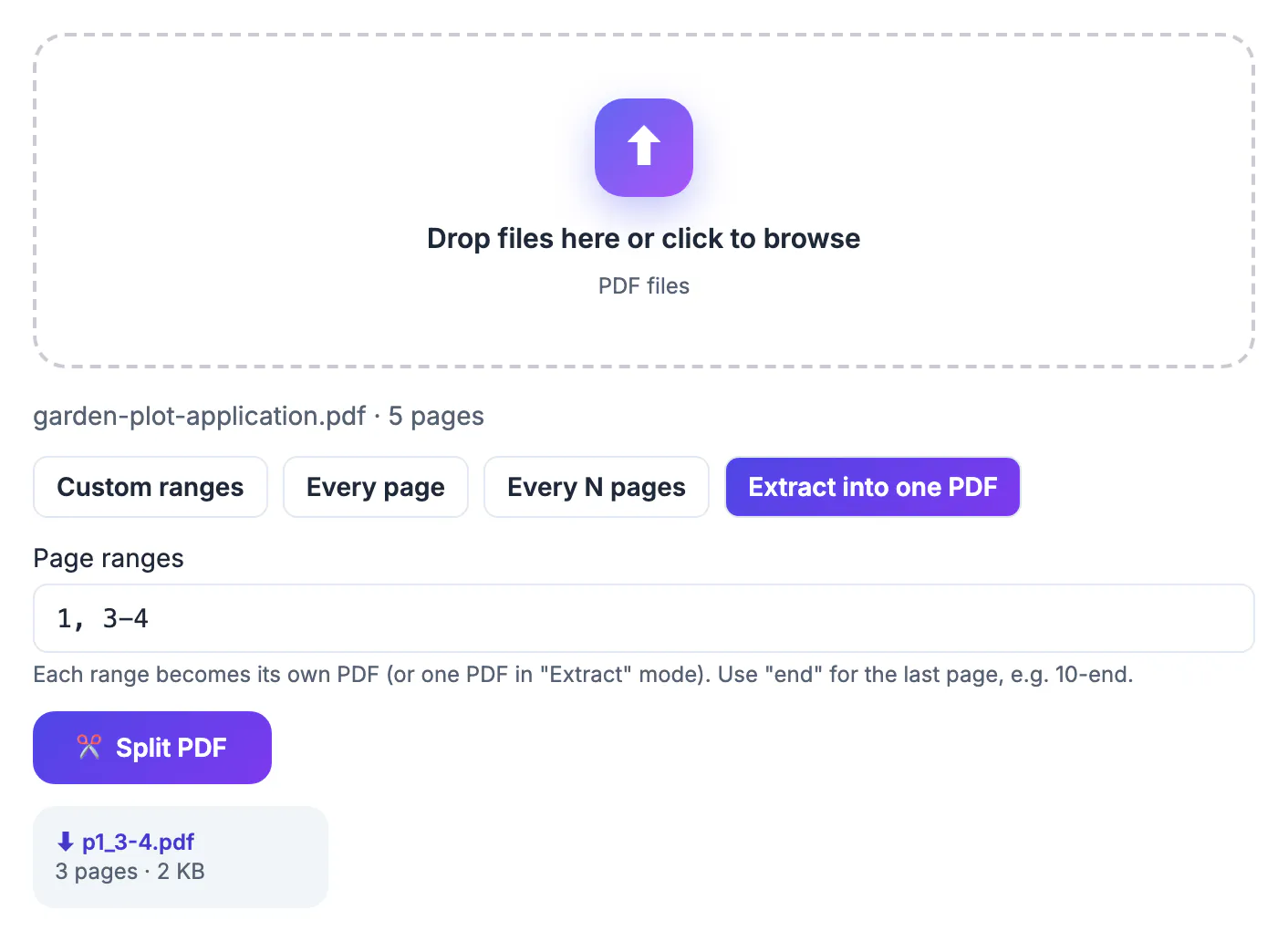
Contracts, manuals and forms often run to many pages when you only need to send two: a signature page, an invoice summary or the section a colleague asked about. Sending the whole file leaks more than necessary and buries the part that matters. Extracting keeps the pages you choose, in their original quality, without printing, screenshots or a full editor.
The four modes of the splitter
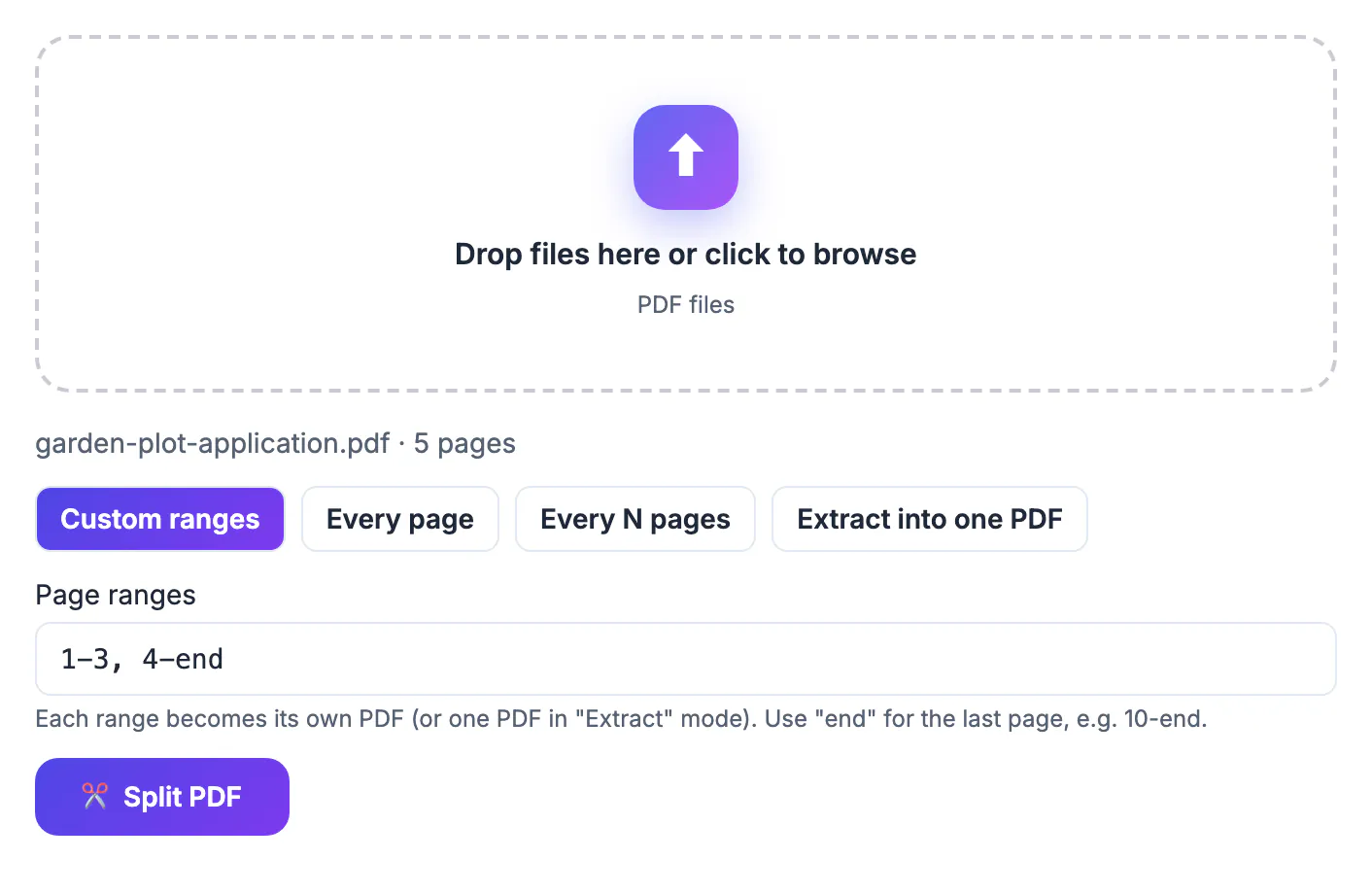
- Custom ranges: each range becomes its own PDF, for example 1-3 and 4-end gives two files.
- Every page: one file per page.
- Every N pages: chunks of N pages, useful for splitting a long scan into fixed sections.
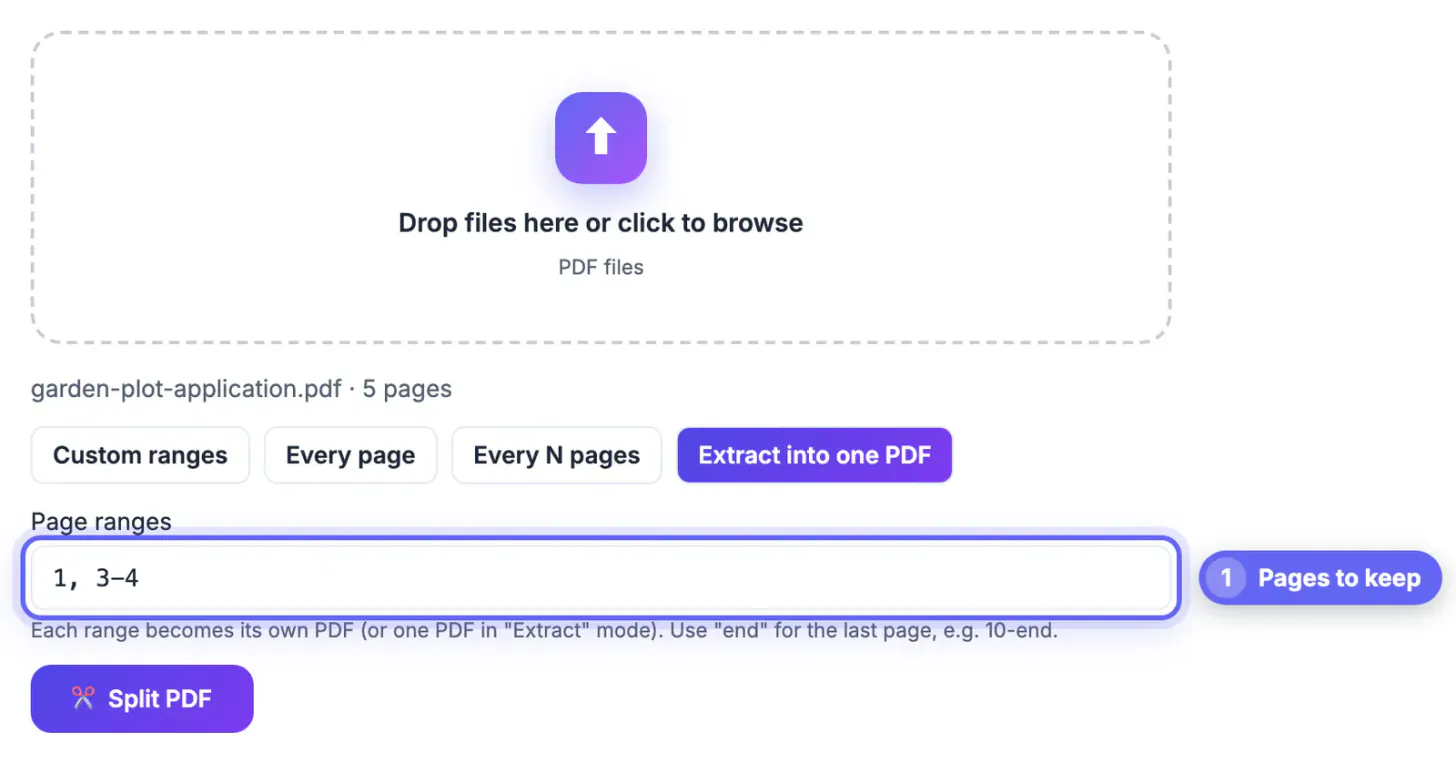
- Extract into one PDF: takes the listed pages and puts them together into a single new PDF. This is the mode for "give me pages 1, 3 and 4".
After you load the file the tool shows its name and page count (garden-plot-application.pdf · 5 pages), which is the quickest check that you have the right document.
How to write the page range
Separate pages and ranges with commas: 1, 3-4 means page 1 plus pages 3 and 4. A hyphen makes a range (3-4), and the word end stands for the last page, so 2-end is everything from page 2. Pages are numbered from 1 at the front of the file, not by the numbers printed on the pages, so a cover page counts. If you type a page that does not exist, the tool tells you in red, for example that page 3 is outside 1–2 when a two-page file was loaded. Fix the number and the message disappears.
In Extract mode the pages are kept in the order you type them, so 4, 1 puts page 4 first.
Result and quality
Click Split PDF and the result appears as a link with the name and size, p1_3-4.pdf, 3 pages · 2 KB in the example. The pages are copied rather than re-rendered, so text stays selectable and images keep their quality. Check the new file before you delete or send anything: open it and confirm the pages, especially if the original had a cover, a table of contents or unnumbered inserts that shift the page numbers.
Links inside the document that pointed to removed pages will no longer work, and bookmarks may be lost.
Privacy and other page jobs
Because the file is processed in your browser, confidential documents stay on your device. For related jobs: reverse the process with Merge PDF, fix sideways pages with Rotate PDF and shrink the result with Compress PDF. A broader walk-through is in how to split a PDF. If the extracted pages contain personal data you must remove first, use a true redaction tool, not just page removal.
Examples of page ranges
These ranges show the syntax in practice for a 10-page file:
- 1 gives the first page only.
- 2-4 gives pages 2, 3 and 4.
- 1, 5, 9-end gives page 1, page 5 and pages 9 to 10.
- 3-end drops the first two pages, such as a cover and contents page.
- 10, 1 puts the last page in front of the first in Extract mode.
If you need to remove pages rather than keep them, list the pages you want to keep: to delete page 3 of a 10-page file, extract 1-2, 4-end. That produces a new file without page 3 and leaves the original untouched.
Everyday reasons to pull out a few sheets
Large files often contain only a small part you need to share. A contract may need only the signature page, a manual only the troubleshooting chapter, and a statement only the month in question. Sending the relevant sheets keeps the message small and protects the rest of the content.
- Submit one form from a long application pack.
- Send a single chapter of a textbook to a study group.
- Share the receipt page of a long invoice bundle.
- Remove cover sheets or blank sheets before printing.
Related jobs include cutting a document into parts by range or by size, joining files into one and rearranging sheets by dragging.
Checking the result before you send
Open the new file and look through every sheet. Confirm that the first and last ones are the ones you meant, that nothing confidential came along by mistake, and that the file opens on a phone. If the document is sensitive, add a password with AES-256 protection before emailing it.
Naming and storing the extracted files
Use clear names such as lease-signature-page.pdf instead of output.pdf, and keep the original untouched in a separate folder. If you create many files from one source, add a short note in a spreadsheet listing which ranges went where, which makes it easy to repeat the process later or to explain it to a colleague.
Mistakes that waste time
Typing a range beyond the length of the file, leaving a stray comma, or confusing the printed number on a sheet with its position in the file are the usual causes of a wrong result. A cover sheet shifts everything by one, so the sheet labelled 5 may sit at position 6 on screen. Check the thumbnail strip, note the position counter rather than the printed label, and run a small test before processing something long.
Finally, keep the untouched original until the recipient confirms they received everything they needed, in case they ask for another section later.
A short checklist before you share
Confirm the recipient needs only these sheets, look for hidden notes or comments that could reveal more than intended, and check the file name does not mention anything private. When the content is legal or financial, ask whether a redacted copy would do. Finally, send the smallest version that remains readable, and keep a record of what you shared and when.
Planning a larger clean-up job
When a long document needs several different sections sent to different people, plan the work on paper first. List each recipient, the sheets they need and the format they expect. Group requests that overlap, prepare each file once and label it with the recipient's name and the date. This avoids sending the wrong section to the wrong person, which is the most common privacy slip in office work.
Keep a simple log with three columns: who received what, when it was sent and how it was protected. If a question comes back weeks later, you can answer in seconds instead of reconstructing the history from your outbox. For regulated material such as medical, legal or personnel records, follow your organisation's retention policy and delete temporary copies once the transaction is complete.
Finally, ask a colleague to open one of the outputs on a different device before the full batch goes out. A second pair of eyes finds missing sheets, rotated content and unreadable fonts far more reliably than another solo check.
Quick sanity checks after processing
Scroll through the output once, pausing on the first and last sheet. Look for clipped edges, missing signatures or unexpected blank sheets. Compare the total count with what you intended, and check that bookmarks and links still make sense for the shorter file. If anything is off, rerun with a corrected range instead of patching the result by hand.
Step-by-step
Common mistakes to avoid
Pro tips
Frequently asked questions
How do I extract certain pages from a PDF for free?
Open Split PDF, choose Extract into one PDF, type the pages such as 1, 3-4 and click Split PDF.
What does end mean in a page range?
It stands for the last page, so 3-end is every page from the third to the last.
Does the PDF get uploaded?
No. It is processed in your browser.
Will the extracted pages keep their quality?
Yes. Pages are copied, not re-rendered, so text and images are unchanged.
Why does it say a page is outside the range?
You typed a page number larger than the page count. The tool shows the count after loading the file.
Extracting PDF pages is a matter of choosing Extract, typing a range like 1, 3-4 and checking the result. Remember that pages count from the front of the file and keep the original until you have opened the new PDF.
Related guides
Browse more: all PDF guides · Split PDF