Split a PDF by Ranges, Every Page or Every N Pages
To split a PDF, open it in GrabCast's Split PDF tool, choose a mode, type page ranges such as 1-3, 5, 8-end, and download the resulting files individually or together as a ZIP. Four modes cover almost every case: custom ranges that each become their own file, every page as a separate file, fixed chunks of every N pages, and extract, which gathers chosen pages into one new document. It all runs in your browser, so a bank statement or signed contract is never uploaded, and there is no watermark or sign-up.
🪓 Try the Split PDF tool now — freeOpen →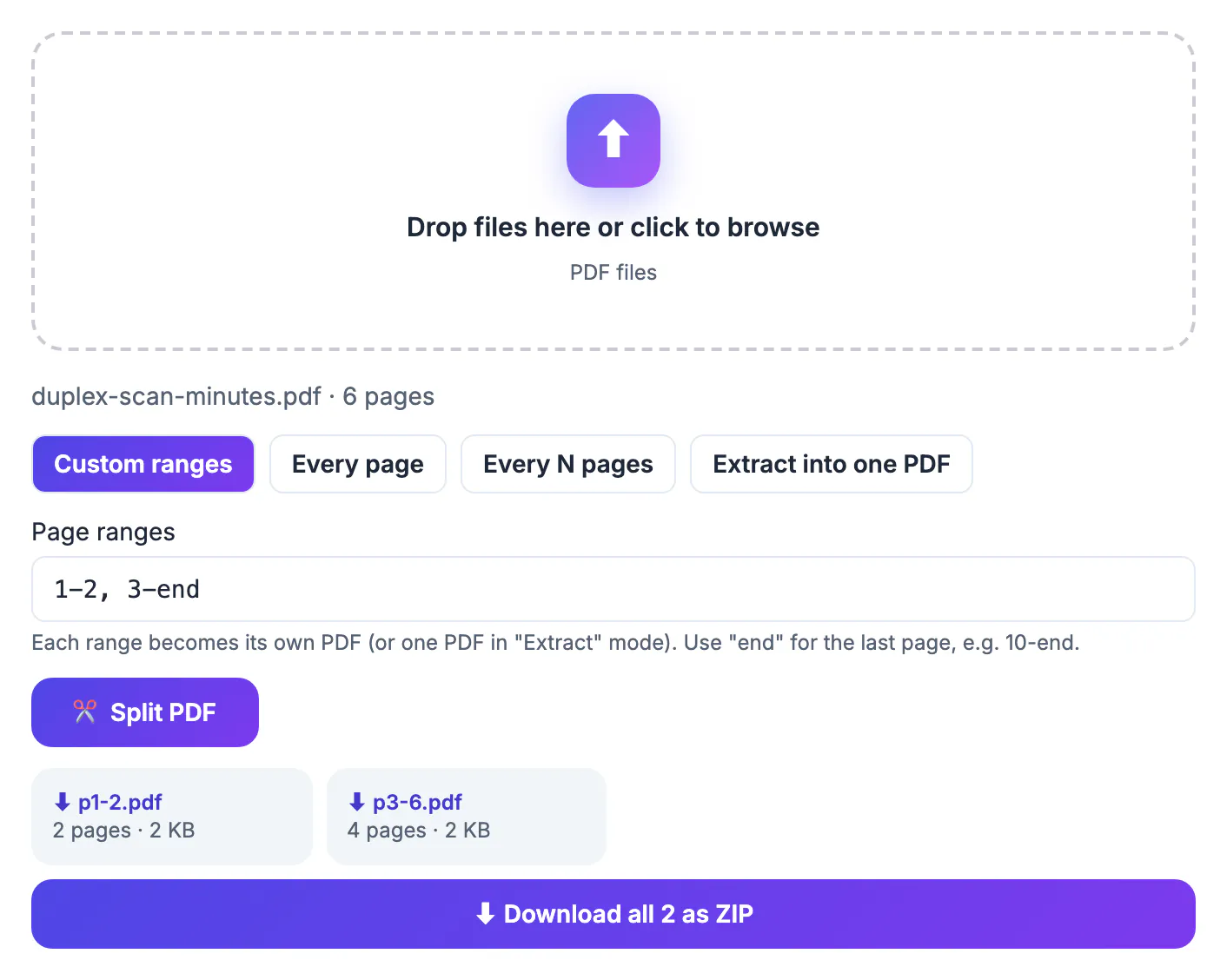
Upload-based splitters ask for the entire document just so you can keep three pages of it. For tax records, medical paperwork, HR files or anything under a confidentiality clause, that is a copy of the whole file on a server you do not control. Doing the job in the browser removes that step: the pages are copied into new files on your own machine, and closing the tab leaves nothing behind. It is also faster for large files, since there is no upload or download queue, and free tools that work locally have no reason to add watermarks or daily page caps.
Pick the right split mode
Custom ranges is the everyday option. Each range you type becomes its own file, so 1-4, 5-12, 13-end turns a 20-page report into an executive summary, a body and an appendix. Every page does exactly what it says; a 30-page batch of scanned receipts becomes 30 single-page files, which is handy for expense systems that want one receipt per upload.
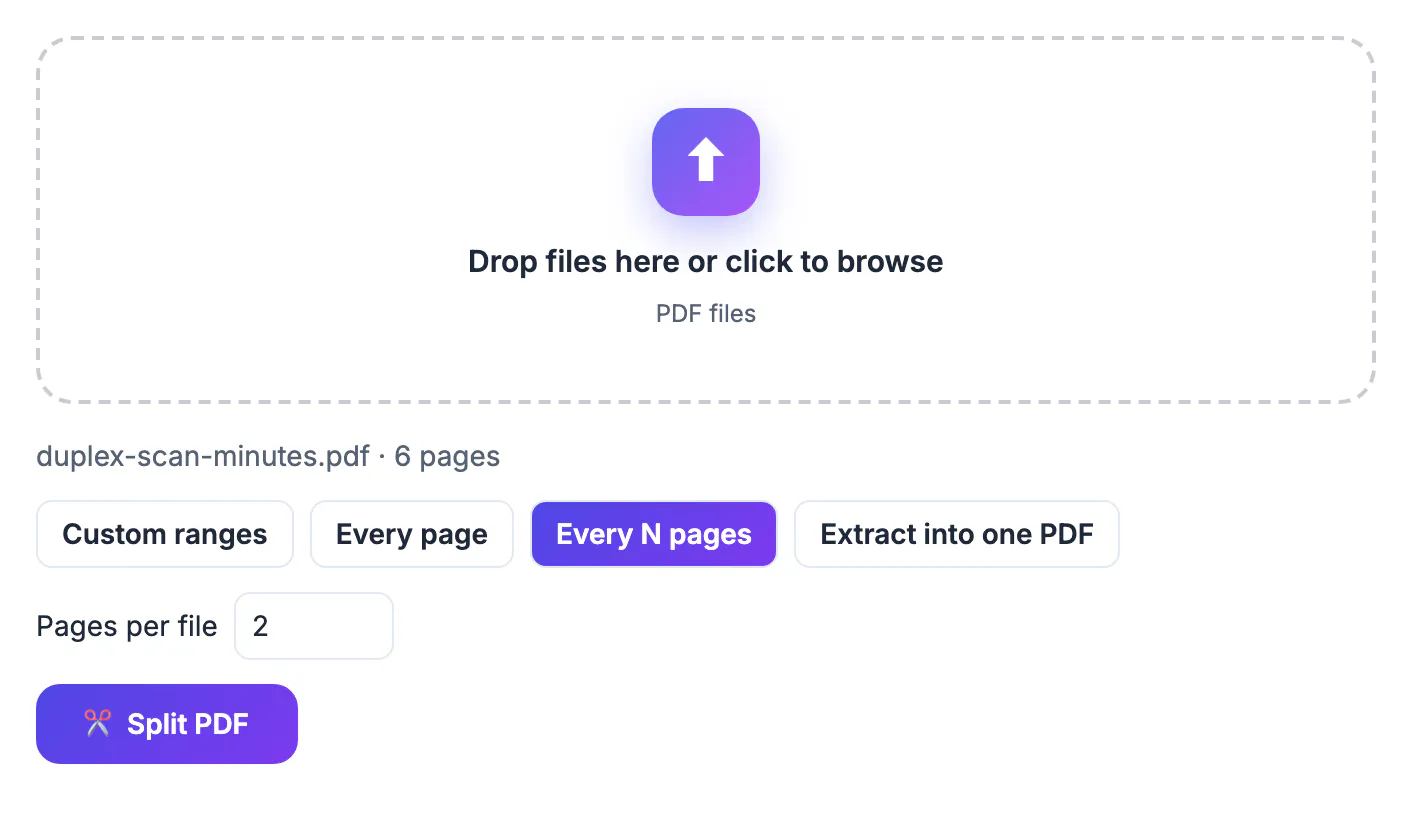
Every N pages suits documents built from equal-length parts. A stack of 50 two-page tax forms, set to 2, yields 25 files, one per person. Extract into one PDF takes your ranges and keeps them together, so 2, 7, 15-16 produces a single four-page file; use it when you need a few scattered pages sent as one attachment.
- Custom ranges: one output file per range
- Every page: one file per page
- Every N pages: equal chunks, such as 2 for two-page forms
- Extract: chosen pages combined into one file
Type page ranges the tool understands
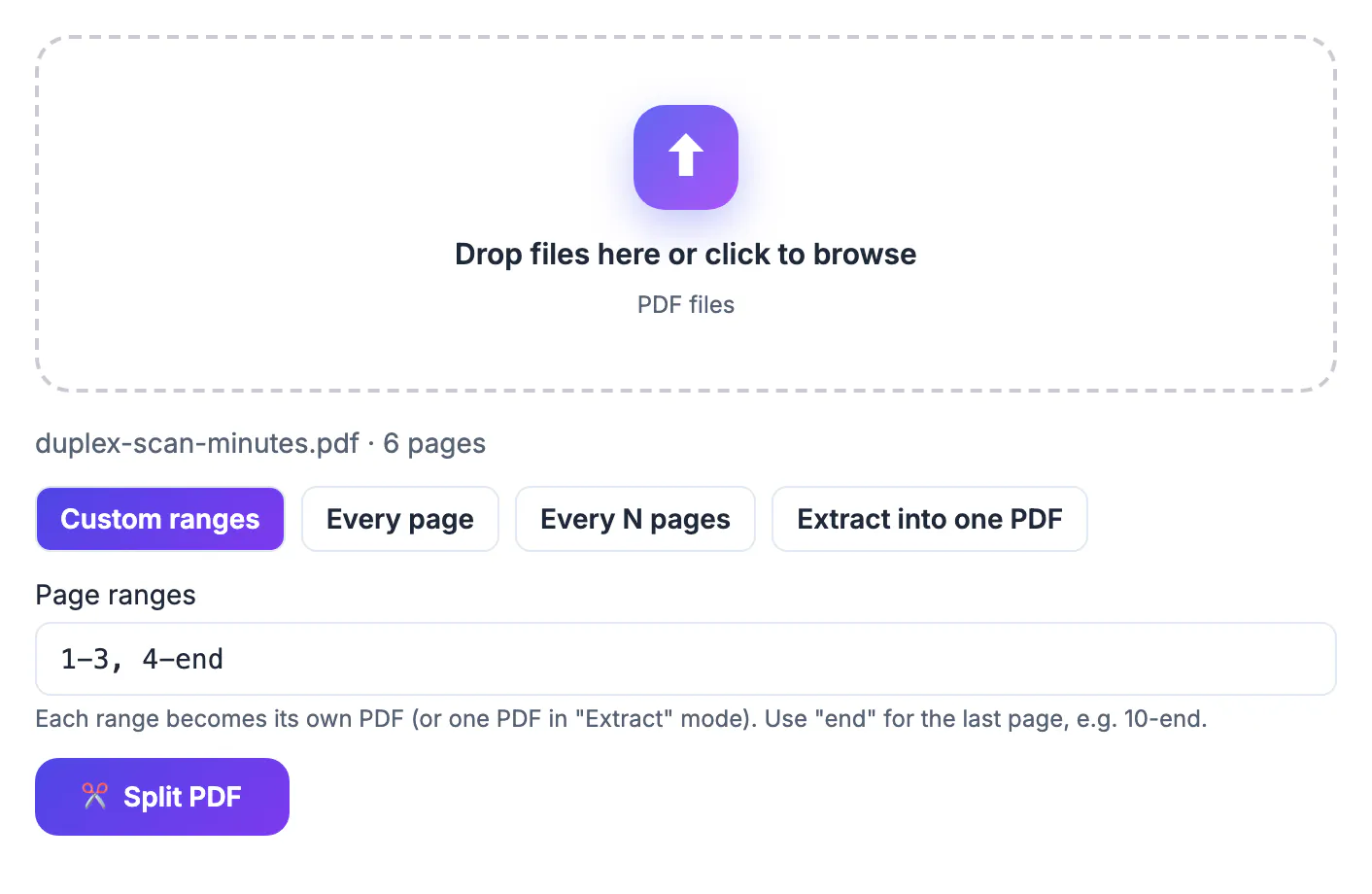
Ranges use the physical position of the page in the file, counted from 1, not the number printed on the page. That difference catches people with books and reports whose front matter uses roman numerals: printed page 1 might be the ninth page of the file. Open the document in any viewer and read the position from its page counter before you type.
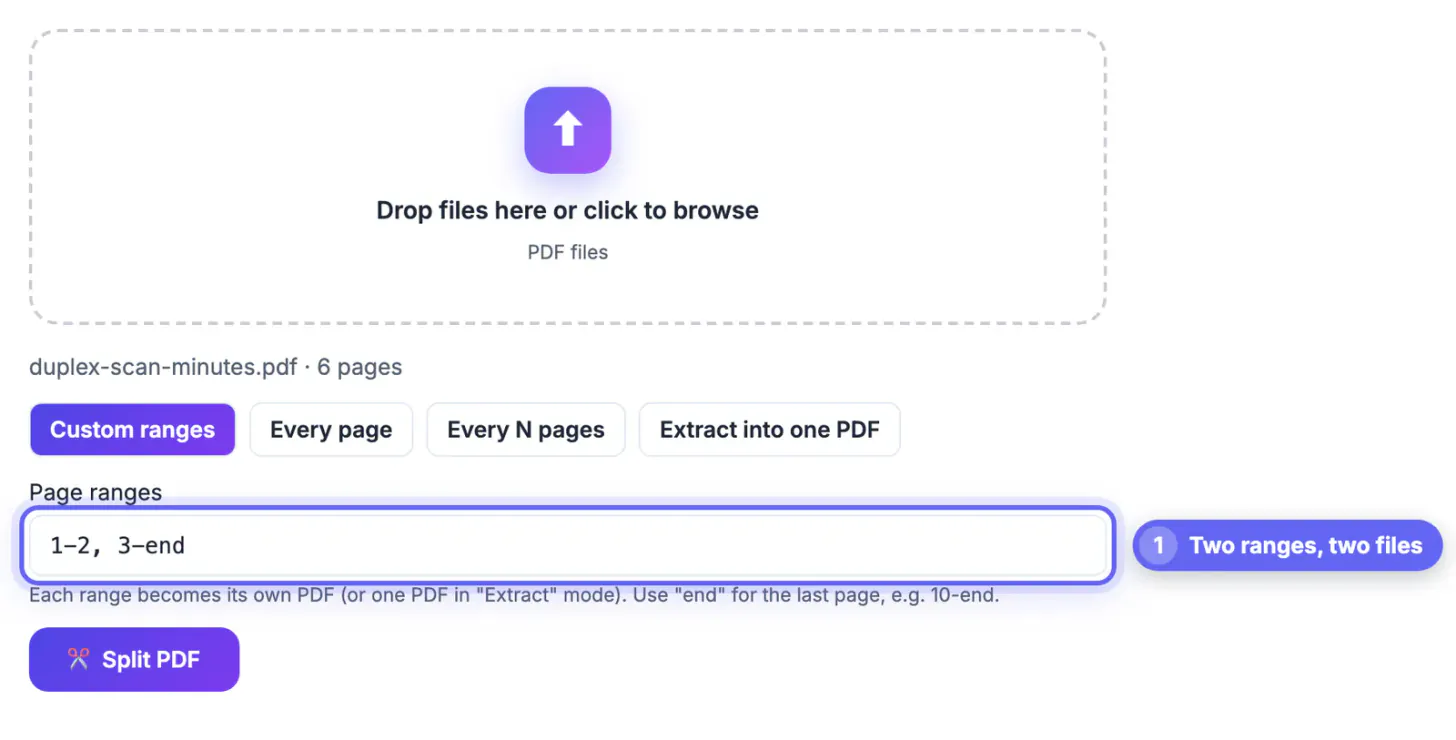
Separate ranges with commas, use a hyphen for spans, and use the word end for the last page, as in 10-end. Single pages work alone, as in 5. If a range falls outside the document, for example 40-45 in a 38-page file, the tool shows an error rather than producing a broken output. When the file loads, the box is pre-filled with a two-part split down the middle as a starting point.
- Positions in the file, not printed page numbers
- Commas between ranges, hyphens for spans
- Use end for the last page
- Out-of-range entries are flagged, not ignored
Download the pieces and name them
Each output appears as a card showing its page count and size, and clicking a card downloads that file. When there is more than one output, a button downloads them all as a single ZIP, which is easier than saving 30 files one by one. File names follow the pattern original-name-p1-4.pdf, so the page span is visible at a glance.
Rename anything you will share, for example Q3-report-summary.pdf, because a recipient will not know what p13-end means, and a descriptive name also helps anyone searching their inbox for it months later. Note that the combined size of the parts can be larger than the original, since fonts and shared images are copied into every piece. If a part needs to be smaller for email, run it through Compress PDF afterward.
- Click a card for one file, ZIP for all
- Names include the page span
- Parts can add up to more than the original size
- Compress individual parts if needed
When a different tool fits better
If you want to remove a few pages and keep the rest in one file, or reorder pages at the same time, Organize PDF is quicker, since you drag and delete thumbnails visually. If you need to combine parts from several documents into one, Merge PDF does that. And if the file is password-protected, it may not open or may split into unreadable pages; remove the password first with Unlock PDF, which requires that you know it.
Splitting does not change page content, so a scanned file stays a scan, with no searchable text. If you want to copy text out of a scanned part, use the OCR route in our scanned-document guides. As always, only work on documents you own or have permission to edit, particularly with contracts and records that belong to someone else.
- Delete or reorder visually: Organize PDF
- Combine several files: Merge PDF
- Locked files: unlock first with the known password
- Scans stay image-only after splitting
▶ Watch: How to split a PDF (0:38)
Video transcript
- Add your PDF. Drop the PDF you want to split. You will see how many pages it has.
- Choose Custom ranges. Custom ranges lets you decide exactly which pages go into each file.
- Type the page ranges. Separate ranges with commas. Here pages 1-2 and 3-4 become two files.
- Split the PDF. Each range is saved as its own PDF in a moment.
- Download a part. Save one part, or grab them all at once as a ZIP file.
Step-by-step
Common mistakes to avoid
Pro tips
Frequently asked questions
Is splitting free?
Yes. There is no charge, no account and no watermark on the output files.
Are my pages uploaded?
No. The tool reads and rebuilds the document in your browser, so the file stays on your computer.
Can I extract just one page?
Yes. Type a single number, such as 7, and download that one page as its own file.
Will the pages lose quality?
No. Pages are copied into the new files without re-rendering, so text stays sharp and selectable where it was before.
Why does the tool say a range is outside the document?
The number is higher than the page count or the start is after the end. Check the total shown after loading and use end for the last page.
Choose the mode that matches the job, type ranges by file position, and download the parts or a ZIP. The split happens in your browser, so confidential pages stay with you, and the original can be kept intact until you have checked every piece.
Related guides
Browse more: all PDF guides · the Split PDF tool