How to Translate a Document: PDF, Word and Text Free
To translate a document, get its text out first, translate that text, then put the translation back into a document. The AI Translator reads plain text files directly (.txt, .srt, .vtt, .md); for a PDF, extract the text with PDF to Text, or with OCR if it is a scan; for a Word file, copy the text or save it as .txt. Then choose the languages and a tone, translate, check numbers and names, and rebuild the layout in your word processor. This guide shows the full path with a real notice, explains why layout does not survive, and says when a machine translation is not enough.
📄 Try AI Translator now — freeOpen →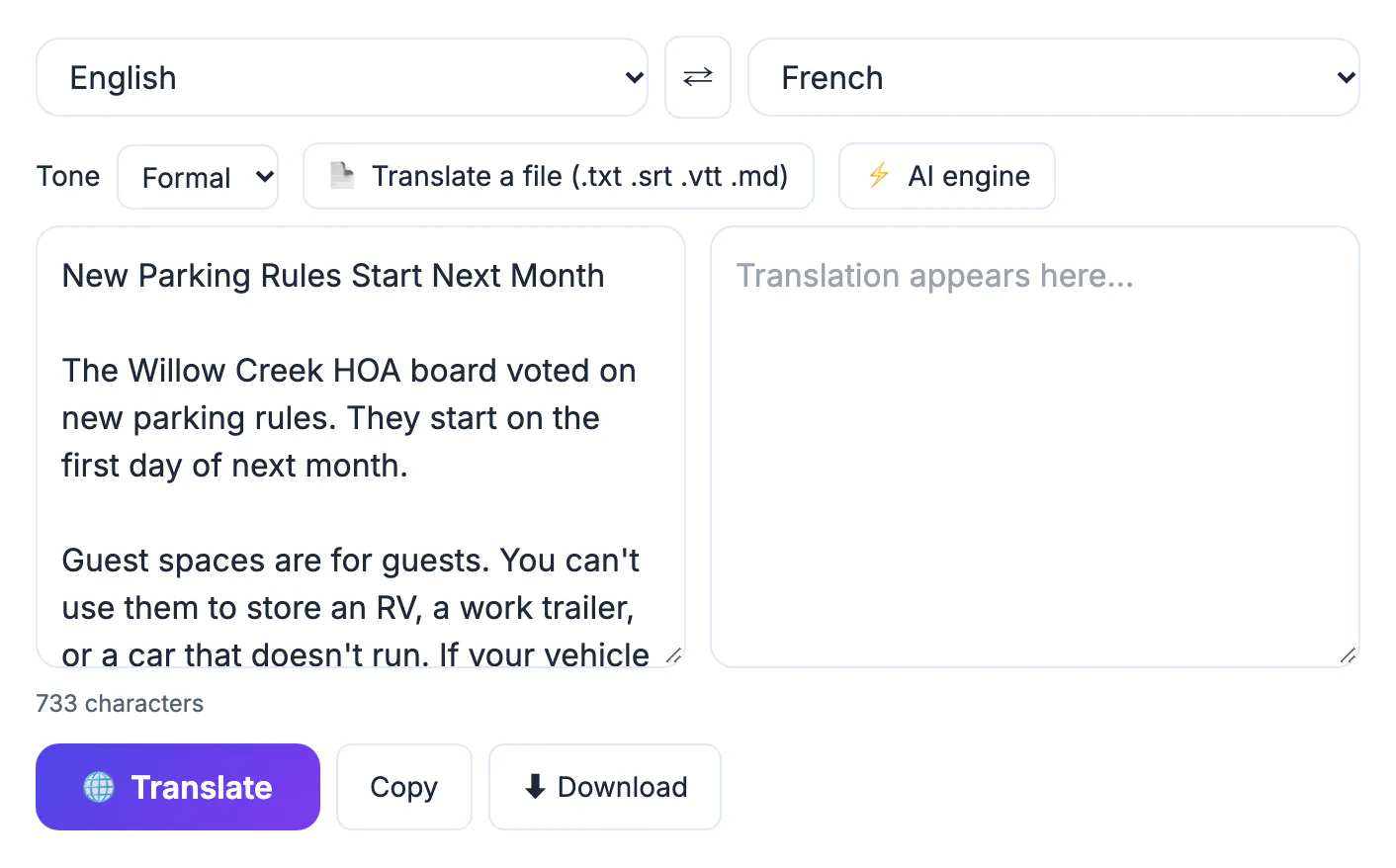
A translator works on text, not on files. A PDF is a picture of a page with positioned characters, and a scan is only an image, so pasting or dropping the file itself will not give you readable words. Getting clean text first is what makes the translation usable, and keeping the translation in sections makes it easier to review.
Get the text out of each file type
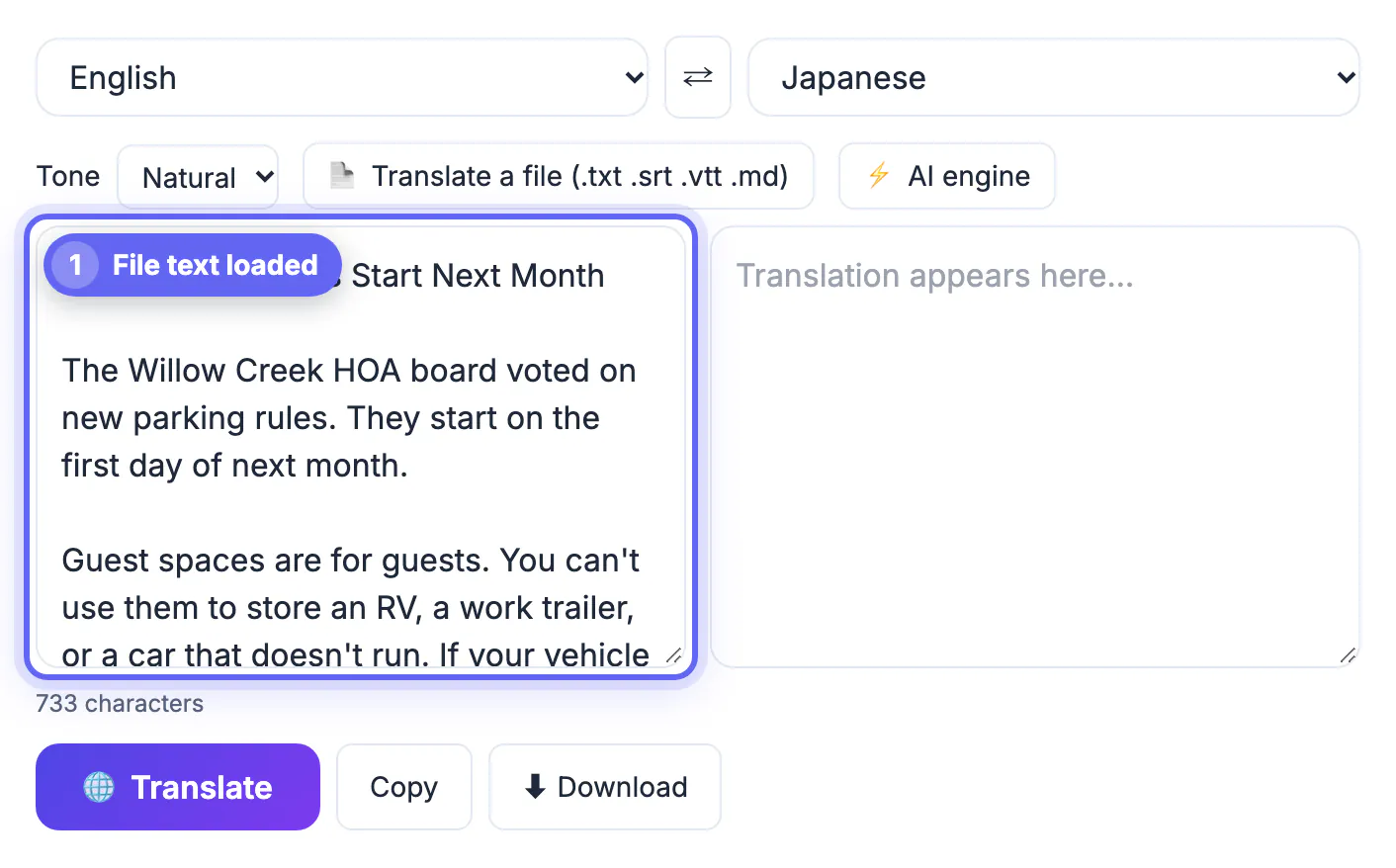
- Plain text, Markdown, subtitles: use Translate a file in the AI Translator. Files up to 2 MB of text are accepted, and subtitle numbers and timestamps stay as they are.
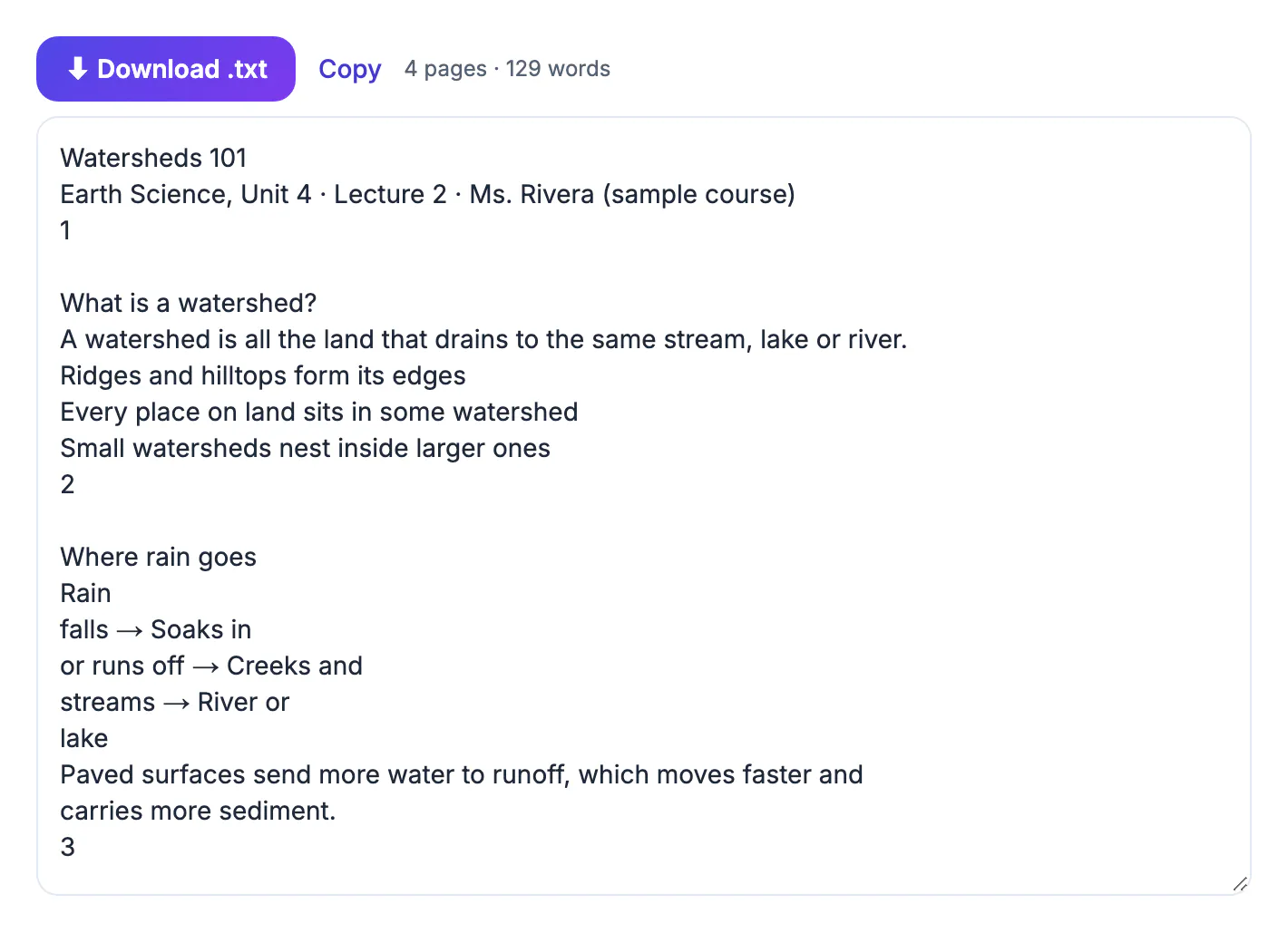
- Text-based PDF: open PDF to Text. In our sample a four-page handout produced 129 words, ready to copy. See how to convert a PDF to text.
- Scanned PDF or photo of a page: run OCR PDF or Image to Text first. Our guide on turning a scanned PDF into text explains the steps and the accuracy to expect.
- Word document: select all and copy the text, or save a copy as a plain text file.
Translate in sections, not in one block
Long text is processed in parts, but you keep control by translating a section at a time: a heading with its paragraphs, then the next. This makes it easier to spot a mistake and to put the result back under the right heading. Keep tables and numbered lists as plain lines. Names, addresses, product codes and amounts should be checked after translation, because a number that changed is more serious than a word that sounds odd.
A worked example
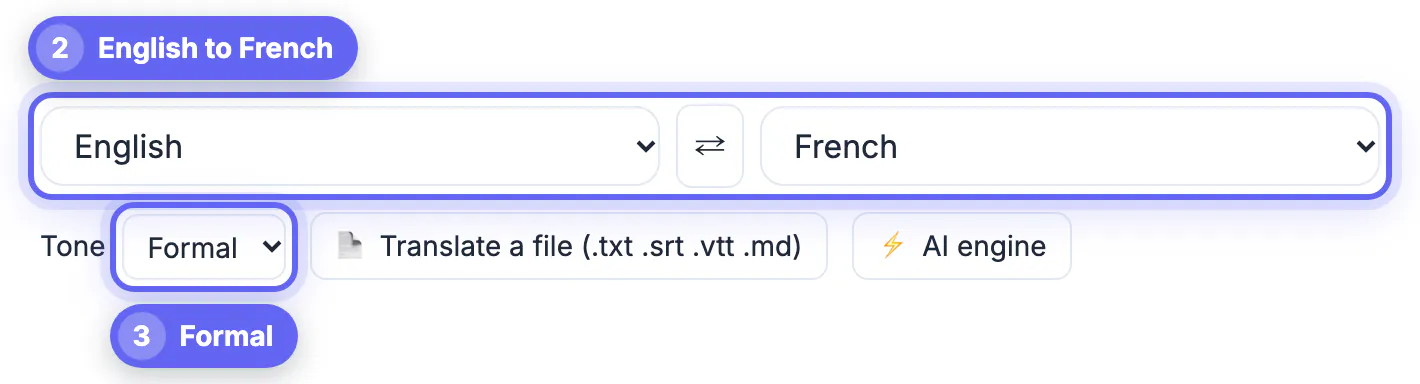
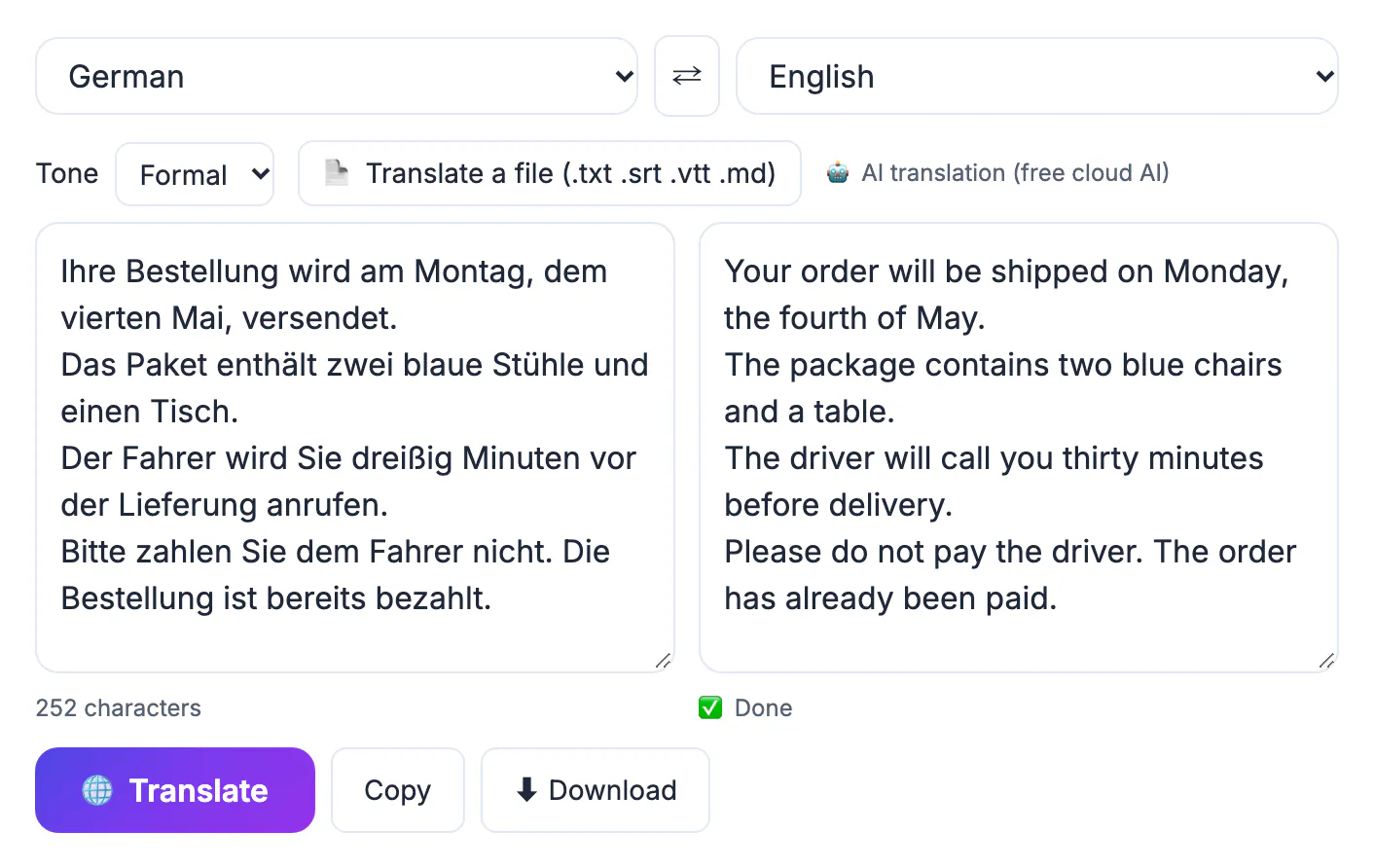
The sample is a short parking notice from a homeowners association, saved as a text file and loaded with Translate a file. It is 733 characters. The settings are English to French with the Formal tone, which is the right choice for an official notice to residents. The screenshot shows the text and settings before translating; run it, read the French, then press the swap button to translate it back and compare the rules: guest spaces are for guests, a written warning comes first, and requests for a large vehicle need five business days of notice. If any of those facts changed, fix the English and translate again.
Layout, accuracy and official use
You get words, not the original layout. After translating, paste the text back into your word processor or design file and re-apply headings, tables and images. For understanding a document, machine translation is excellent. For contracts, court papers, immigration or medical records, a machine translation is only a first draft: an official body may require a certified translator, and a professional should review the content before it is signed or filed.
Checking quality before you send
Machine output is a draft, not a final copy. Read the translation slowly, compare numbers, dates, names and units with the source, and watch for phrases that sound unnatural. If the document is important, ask a native speaker to review it. For legal, medical or immigration papers, use a certified translator, because authorities may refuse a machine version.
- Check that proper names keep their spelling.
- Confirm currency symbols and decimal separators.
- Look for sentences that were skipped or duplicated.
- Keep the source and translation side by side for review.
For further help, translating text accurately with AI, the free AI translator for 35 languages and translating English to any language cover tone and checking.
Rebuilding layout and formatting
After translating, paste the text into your original file and restore headings, tables and images. Languages differ in length: German and French often run longer than English, so tables may need wider columns. Check line breaks in headings, update the language setting for spell-check and review right-to-left scripts carefully if you work with Arabic or Hebrew.
Protecting sensitive documents
Before pasting anything into an online service, remove personal numbers, addresses and signatures you do not need to translate. Prefer tools that process text in your browser, and delete drafts from shared computers. Share the final file with a password when it contains private information.
Choosing between machine and human translation
Machine tools are fast and free, which suits understanding a letter, a manual or an email. Human translators are better for contracts, marketing copy and anything where tone and legal meaning matter. A hybrid approach works well: translate with a tool, then ask a bilingual colleague to proofread.
Step-by-step
Common mistakes to avoid
Pro tips
Frequently asked questions
Can I translate a PDF for free?
Yes. Extract the text with PDF to Text, or with OCR if it is a scan, then translate the text in the AI Translator. The tools are free and need no account.
Can the translator open a Word file directly?
No. Copy the text or save it as a plain text file, and use Translate a file for .txt, .srt, .vtt and .md files.
Will the formatting be kept?
No. You get the text. Rebuild headings, tables and images in your word processor afterwards.
Is a machine translation acceptable for official documents?
Usually not on its own. Authorities often require a certified translation, and a professional should review legal or medical content.
How long a document can I translate?
A text file can be up to 2 MB. Longer text is translated in parts, but you should still work section by section so you can check it.
Translating a document is three jobs: extract clean text, translate it in sections with the right tone, and rebuild the layout. Check numbers and names after every run, and treat the result as a draft whenever the document is official.
Related guides
Browse more: all AI guides · AI Translator