Convert Image to WebP: Settings, Support and Savings
To convert an image to WebP, drop it into GrabCast Image to WebP, leave the quality at the default of 80 percent, and download the result; the tool accepts JPG, PNG, GIF, BMP, AVIF, HEIC, TIFF, SVG, ICO and WebP files and converts a whole batch at once. A JPG photo typically comes out about a quarter to a third smaller, and a photo saved as PNG often far more. This guide explains what WebP is, what to expect from each input format, which quality numbers to use, and where WebP works today and where you should still keep a JPG or PNG copy.
⚡ Try the Image to WebP tool now — freeOpen →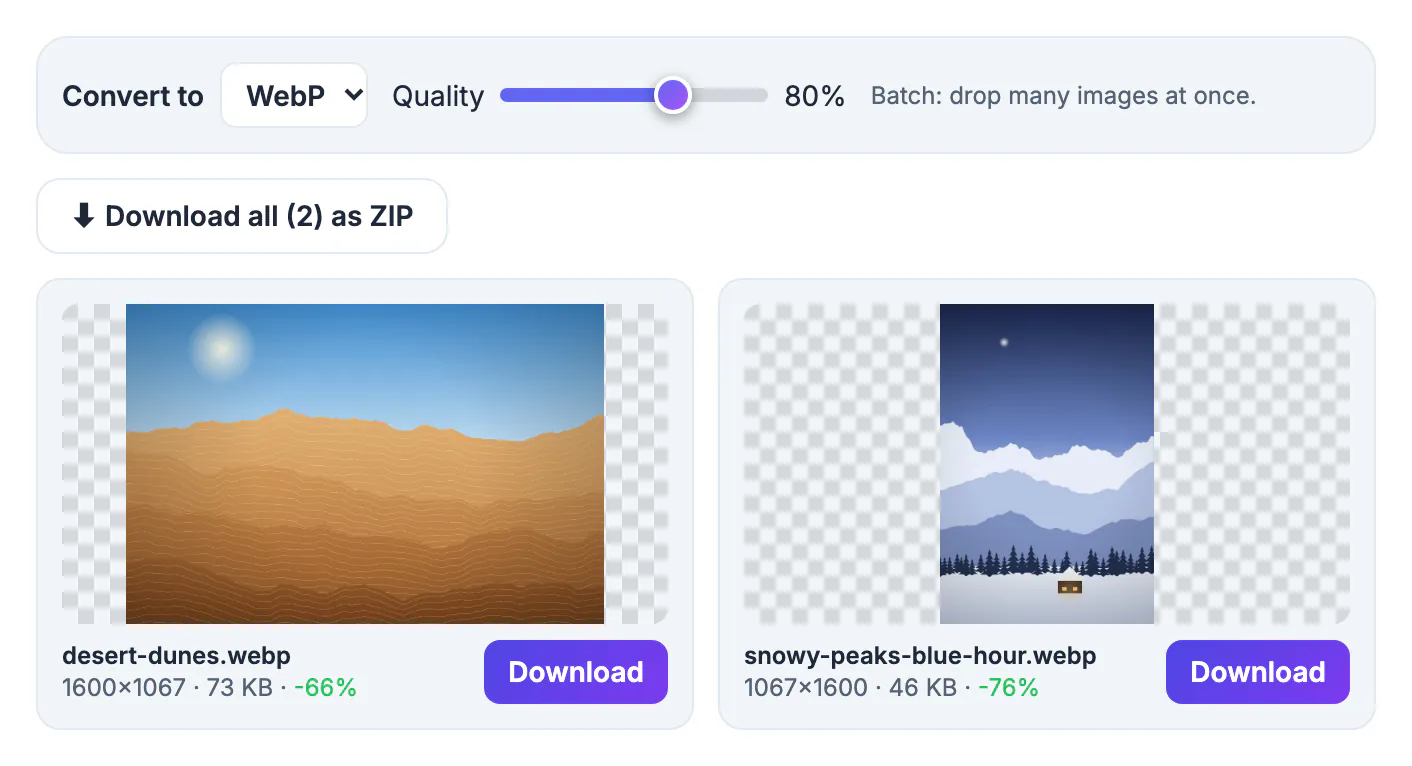
WebP was developed by Google for the web, and it does two jobs that used to need two formats: lossy compression for photos, like JPG, and transparency, like PNG. Google's published comparisons found lossy WebP files 25 to 34 percent smaller than JPEG at equal visual quality, and lossless WebP about 26 percent smaller than PNG. On an image-heavy page those savings add up to faster loading on phones, lower bandwidth bills, and a better chance of passing page speed checks. Outside the web the case is weaker, because some email clients, print shops and older desktop programs still do not open WebP, so the smart approach is WebP for delivery and the original for everything else.
What WebP is and why the files come out smaller
WebP uses a more modern way of predicting each block of pixels from its neighbors, so it spends fewer bytes describing smooth areas and repeating texture. The format supports lossy and lossless compression, an alpha channel for transparency, and simple animation, all in one file type with the .webp extension.
- Photos: similar look to a JPG at a noticeably smaller size, with fewer blocky artifacts at low settings
- Graphics with transparency: the see-through areas survive, unlike a conversion to JPG
- Screenshots: usually much lighter than PNG, though tiny text needs a higher quality setting
- Already optimized small files: savings shrink, and a tiny icon can even grow
WebP saves bytes; it does not add detail. A blurry JPG converted to WebP stays blurry, only lighter, so always start from the best version of the picture you have.
How to convert an image to WebP, format by format
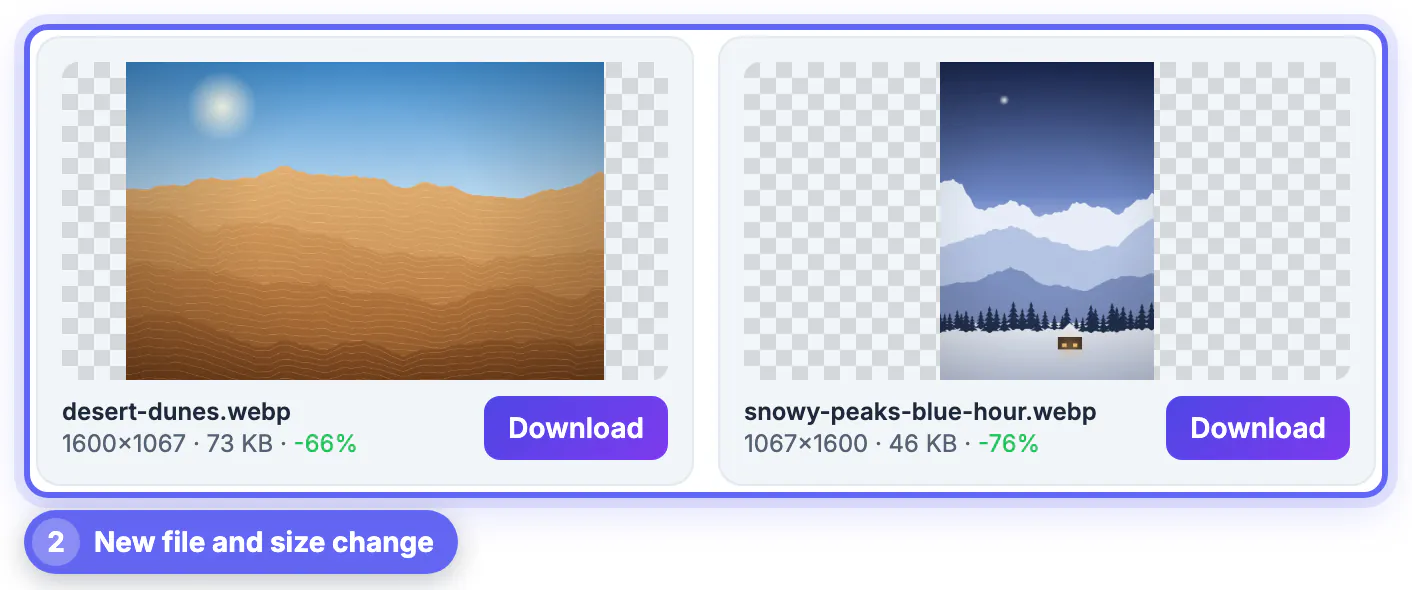
Drop the files into Image to WebP and conversion starts right away. Each card shows a preview, the pixel dimensions, the new file size and the percentage change, green when the file got smaller. What to expect depends on what you drop in:
- JPG photos: usually 25 to 35 percent smaller at the default setting, occasionally more
- PNG photos and screenshots: often half the size or less, with transparency preserved
- GIF: converted as a single still frame, so keep the GIF when the animation matters
- HEIC from an iPhone: a decoder loads in the browser the first time, then the photo converts like any other
- BMP: huge uncompressed files that shrink dramatically
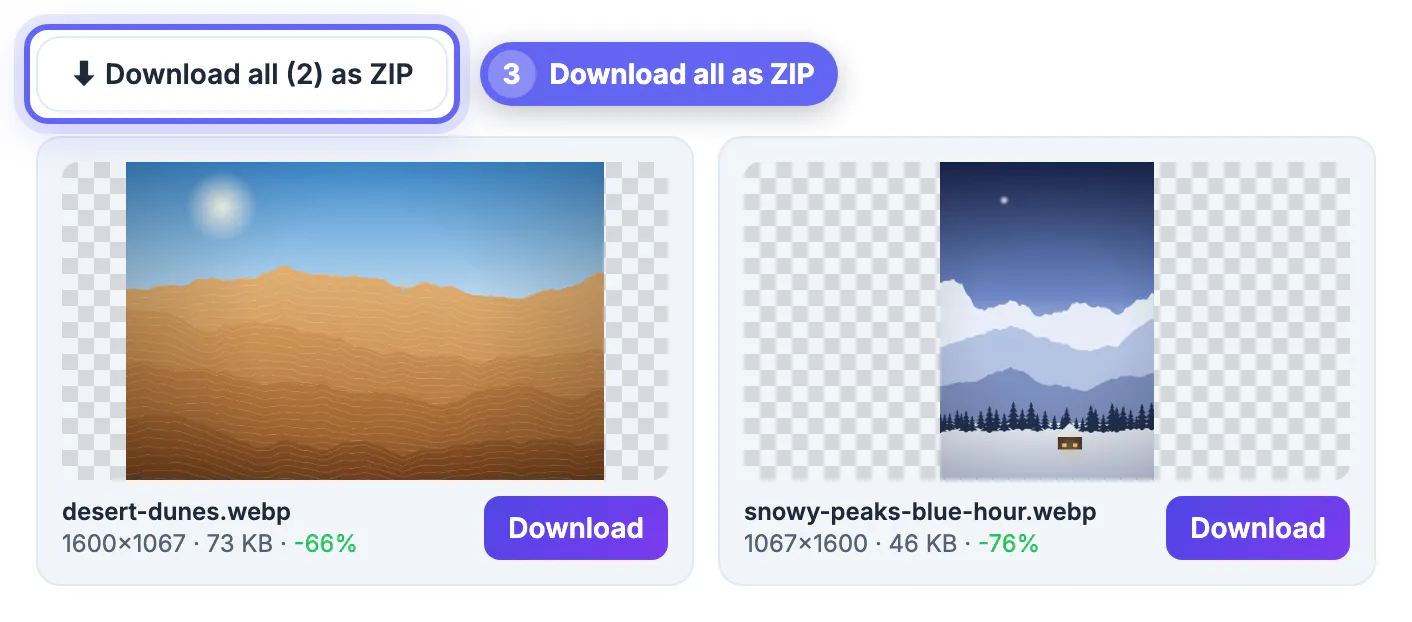
The images are decoded and re-encoded by your browser's canvas, so they never leave your device. The pixel dimensions stay the same, and camera metadata such as GPS location is not carried over. When several files are done, Download all as ZIP saves them in one archive; otherwise use the Download button on each card.
Quality settings for WebP that hold up
The Quality slider runs from 40 to 100 and starts at 80 for WebP. Changing it, or switching the output format, re-converts every loaded image automatically, so you can compare in seconds.
- 75 to 80: blog photos, backgrounds and most website images
- 85 to 95: product shots with fine texture, portraits for a portfolio, and screenshots with small text
- 60 to 70: thumbnails and small previews where softness is invisible
- 100: the largest files; use it only when a picture must look pristine and size hardly matters
A quick way to choose: convert your heaviest image at 80, zoom to 100 percent on faces, product edges or labels, then try 70 and 90. Keep the lowest setting where you cannot see a difference in the parts people will look at. If a picture will display 800 pixels wide, resize it to about 1600 pixels first so it stays sharp on high-density screens; resizing plus conversion beats either step alone.
Where WebP images work, and where they still fail
- All current versions of Chrome, Edge, Firefox and Safari display WebP; Safari added support in version 14 in 2020
- WordPress has accepted WebP uploads since version 5.8, and most other website builders and CMS platforms accept them too
- Several desktop email clients and some newsletter tools do not render WebP reliably, so use JPG or PNG in email
- Print shops, photo kiosks and many government or job portals list only JPG and PNG
- Some older desktop photo viewers and editors cannot open WebP without an update or plugin
For those destinations, switch the Convert to menu to JPG or PNG in the same tool, or keep the original file. On a website you can also offer both: serve the WebP through a picture element with a JPG fallback. The same menu offers AVIF in browsers that can encode it, which can be even smaller for large hero images, though support in other apps is narrower.
Part of a bigger speed plan? This image optimization guide covers it, and the Compress Image tool handles the rest.
Step-by-step

Common mistakes to avoid
Pro tips
Frequently asked questions
How much smaller is WebP than JPG?
Typically 25 to 35 percent smaller at similar visual quality, and often much more when the original is a photo saved as PNG. The exact saving shows on each result card as a percentage.
Does converting an image to WebP keep transparency?
Yes. WebP has an alpha channel, so transparent backgrounds from PNG, GIF or WebP files are preserved. Only JPG output cannot store transparency.
Are my images uploaded when I convert them to WebP?
No. Images are decoded and re-encoded with your browser's canvas on your own device. The page only loads helper libraries from a public CDN when needed: a HEIC decoder for iPhone photos, a TIFF decoder for TIFF files and a ZIP library when you download all.
Can I convert WebP back to JPG or PNG?
Yes. Drop the WebP into the same tool and switch Convert to to JPG or PNG. For JPG you can pick a Background color to fill any transparent areas.
Why is AVIF missing from the format menu?
AVIF appears only if your browser can encode it. If it is missing or fails, update the browser or use WebP, which every current major browser supports.
Convert images to WebP at about 80 percent quality for websites and apps, resize oversized pictures first, and check the size change on every card. Keep JPG or PNG copies for email, print and portals that do not accept WebP, and never expect the conversion to add detail that was not there.
Related guides
Browse more: all image guides · the Image to WebP tool