Best Free PDF Tools: Merge, Compress, Split, Protect
The best free PDF tools are the ones that match the job in front of you: Merge PDF to combine files, Compress PDF to shrink a scan, Split PDF to pull out pages, PDF to Text to copy the words out, and Protect PDF to lock a file before you send it. GrabCast has 29 PDF tools, all free, with no account and no watermark, and they process the file in your browser instead of uploading it. This guide explains what each tool is best at, shows the real result of five of them on sample documents, and is honest about the cases where a free browser tool is not enough, such as scanned pages that need OCR or very large files.
📄 Try Merge PDF now — freeOpen →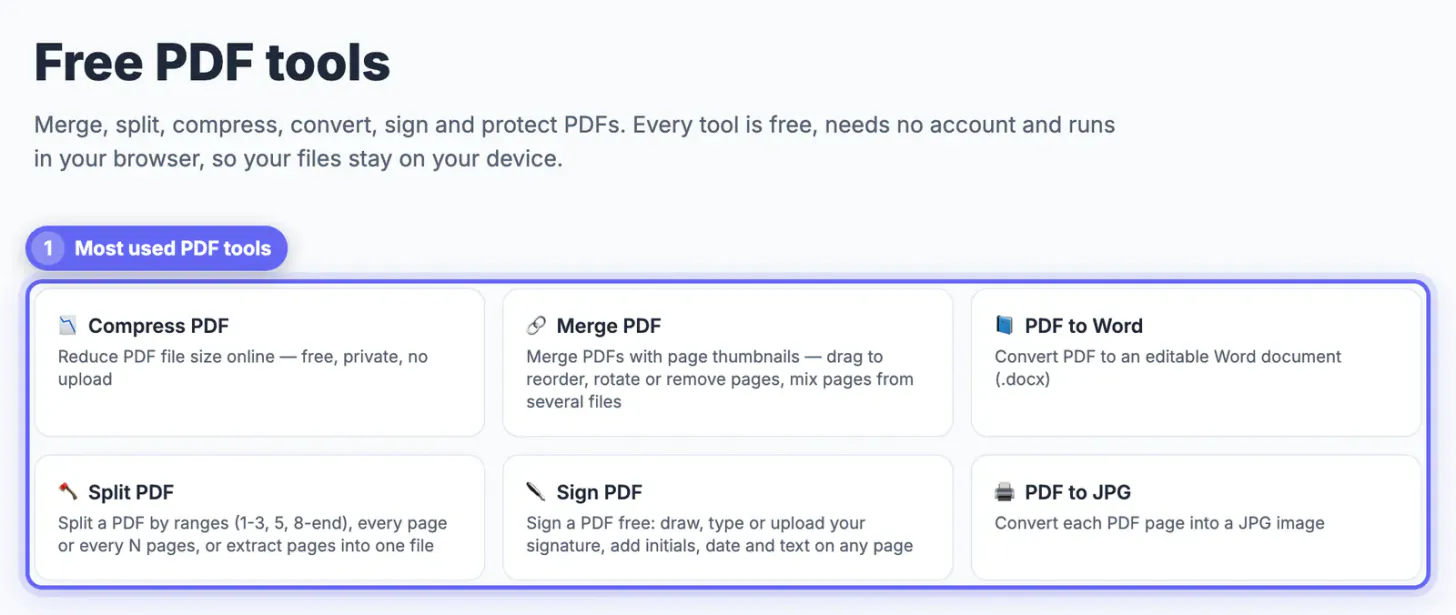
Most PDF trouble is one of six jobs: combine, shrink, split, convert, sign or protect. A tool that does one of those well and quickly is worth more than a heavy suite you open twice a year. Because PDFs often hold contracts, statements and forms, where the file is processed matters too. The tools below run on your own device, so the document is not sent to a server to be edited.
Which PDF tool for which job
Start from what you want to end up with, then open the matching tool.
- One file from many: Merge PDF shows every page as a thumbnail, so you can drag pages into order, rotate or remove them. Images to PDF and Scan to PDF build a PDF from photos.
- A smaller file: Compress PDF has quality levels and a Flatten option for scans. The guide Compress a PDF to a Specific Size covers email and portal limits.
- Only some pages: Split PDF splits by ranges, every page or every N pages, or extracts pages into one new file. Organize PDF and Rotate PDF reorder and turn pages.
- Words and tables out: PDF to Text copies the text of a text-based PDF. PDF to Word, PDF to Excel and PDF to PowerPoint rebuild it as an editable file.
- A scan you need to search: OCR PDF reads the page image and adds a text layer; see how to turn a scanned PDF into text.
- Pages as pictures: PDF to JPG turns each page into an image you can post or place in a slide.
- Paperwork: Sign PDF and Fill PDF Form complete forms without printing, and Redact PDF removes private details before sharing.
- Before you send: Protect PDF adds a password with AES-256 encryption, Watermark PDF stamps a label, and Page Numbers adds numbering.
- Repairs and checks: Unlock PDF removes a password you already know, Repair PDF tries to rescue a damaged file and Compare PDF shows what changed between two versions.
The full list of 29 tools is on the PDF tools page, and the PDF guides hub has a how-to for most of them.
Five real results
These are real runs of the tools on sample files, with the numbers the tools reported.
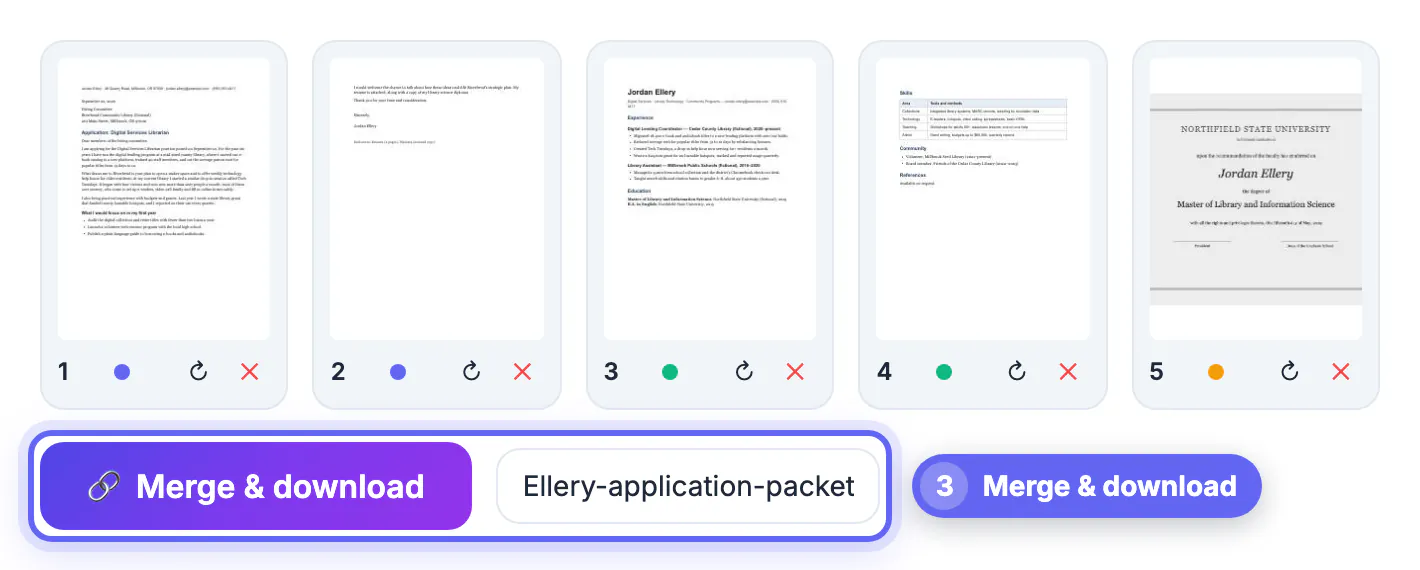
- Merge: a cover letter, a resume and a sideways diploma scan became one five-page packet. The sideways page was turned upright on its thumbnail before merging.
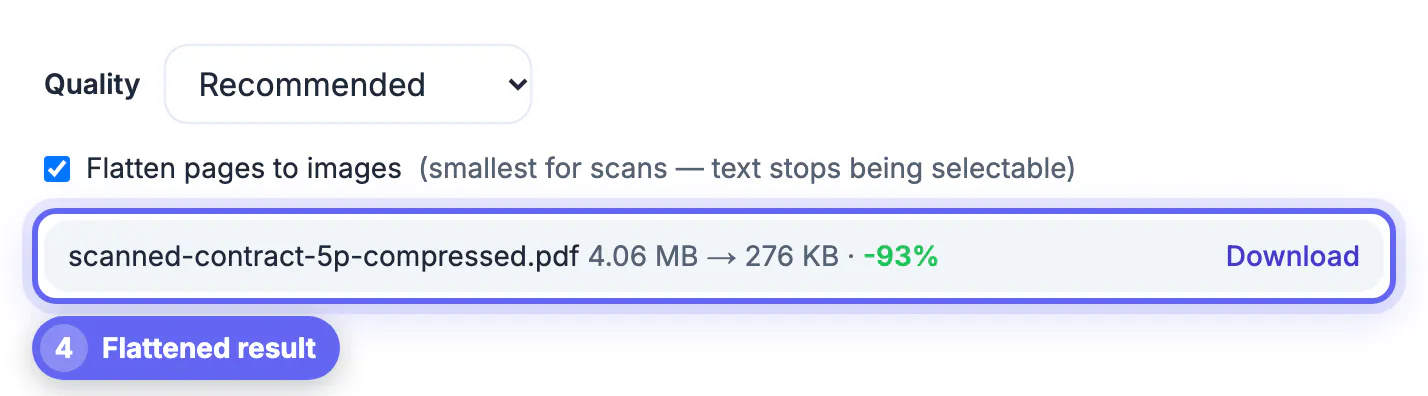
- Compress: a five-page scanned contract went from 4.06 MB to 276 KB, 93 percent smaller, on the Recommended level with Flatten pages to images ticked. The Strong level made it 150 KB.
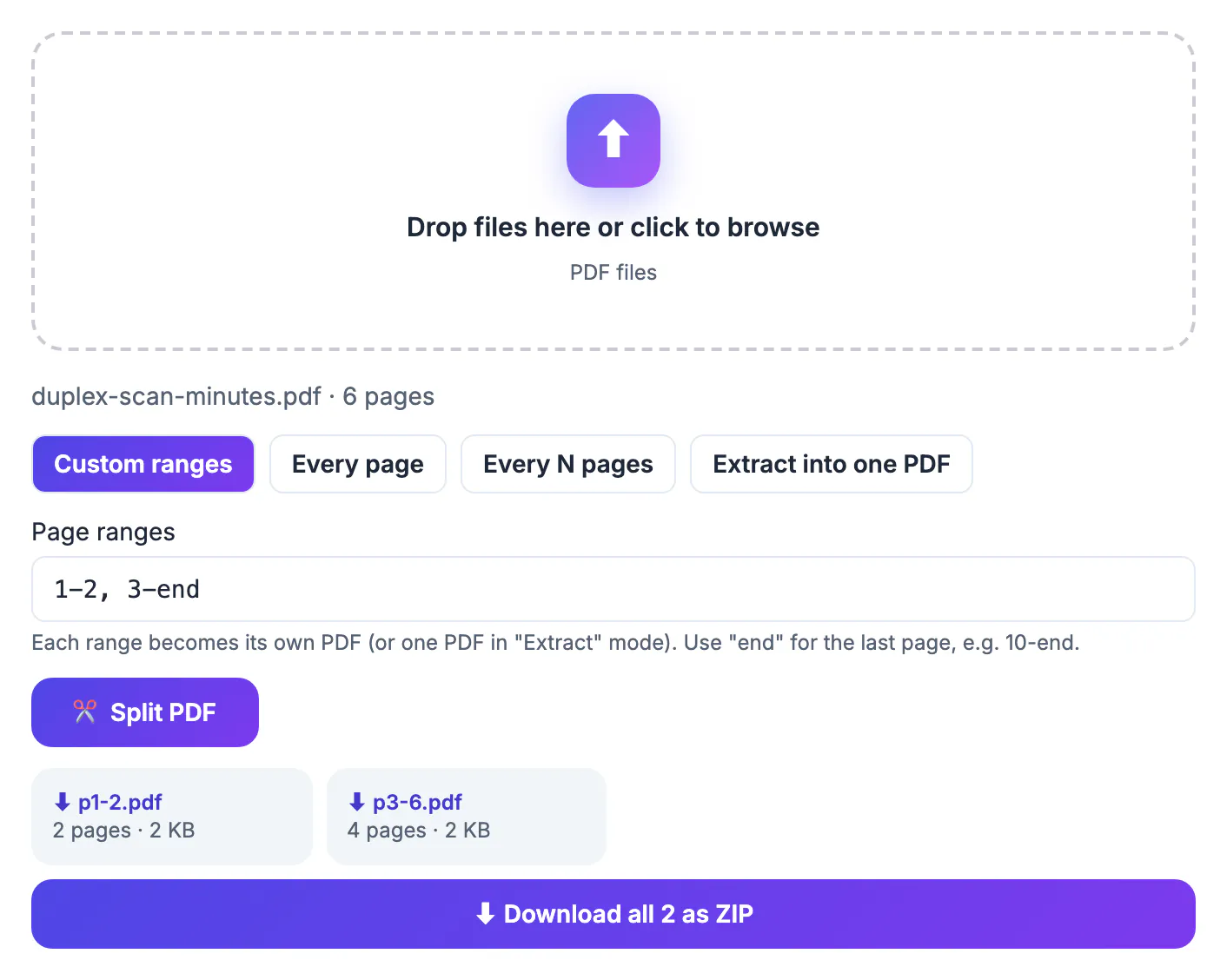
- Split: a six-page file became p1-2.pdf with 2 pages and p3-6.pdf with 4 pages using the ranges 1-2, 3-end.
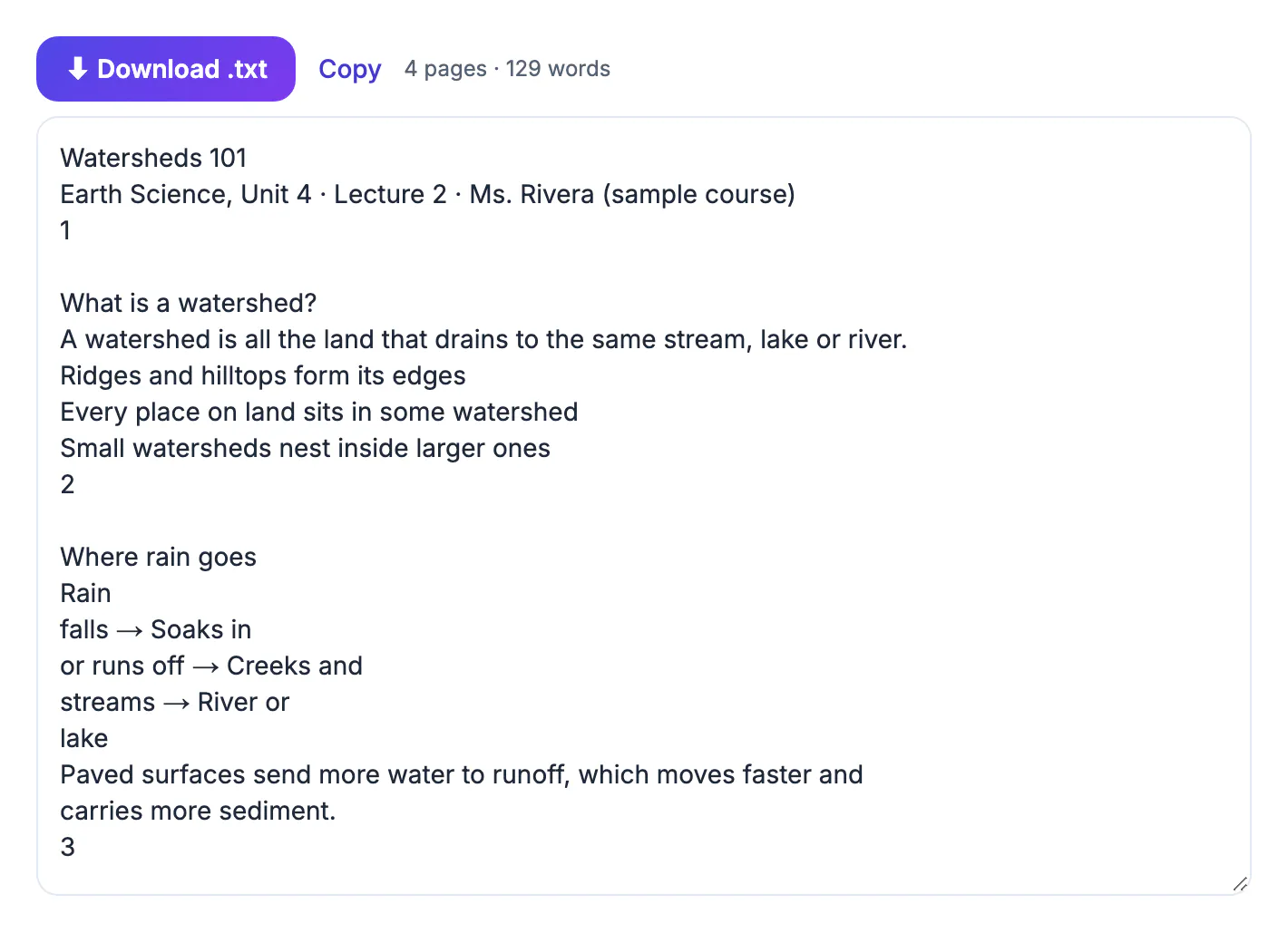
- Text: a four-page lecture handout produced 129 words of text, ready to copy or download as a .txt file.
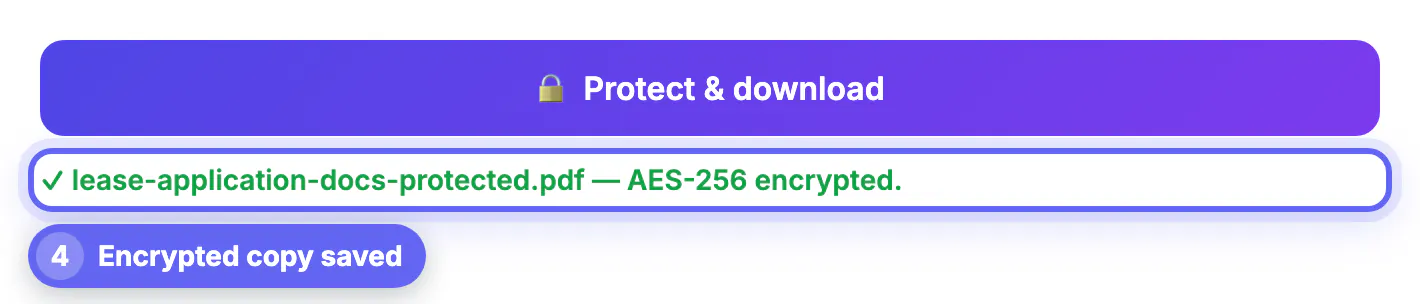
- Protect: a lease document was saved as an AES-256 encrypted copy with a generated 16-character password rated Very strong.
Your own files will not give the same numbers. A PDF that is mostly text shrinks far less than a scan, and a flattened PDF loses its selectable text, which is the trade-off behind the big saving above.
What browser-based means for your documents
GrabCast's privacy policy says its PDF tools run entirely in your browser: the file is processed on your device and is not uploaded to GrabCast. Some tools download open-source code, such as the PDF.js reader or the pdf-lib editing library, from a public content delivery network the first time you use them; those downloads do not include your file. The exception on the PDF side is Chat with PDF, which asks questions about a document and uses a cloud AI service, so use the other tools for confidential files. The guide Are free online tools safe? explains how to check any tool, not only these.
Where a free browser tool reaches its limit
Very large PDFs depend on your device's memory, so a 500-page file may be slow on an old phone. A scanned PDF has no text until OCR reads it, so search and copy will not work before that step. A password-protected file must be unlocked with the password before most tools can edit it, and no honest tool can guess a lost one. If you need legally binding e-signature workflows with audit trails, a dedicated signing service is the right choice; Sign PDF is for placing a signature image or typed name on a document you need to return.
A quick routine for common paperwork
Most office jobs combine several steps, and the order matters. For a job application, join the cover letter, resume and certificates, shrink the result so it stays under the upload limit, and add a password only if the recipient asks. For a contract, remove spare sheets first, fill in the fields, add the signature and flatten the file so nothing can be moved. For a long report, split it into chapters, send each person only their part and keep the complete original in a safe folder.
Check every result on a phone as well as a computer, since many readers open attachments there. Rename the file with a clear title and date before sending, and avoid spaces or special characters that some portals reject. If a portal still refuses the upload, the usual cause is size, so compress again at a lower quality or reduce the resolution of embedded photographs.
- Keep a master copy that is never edited.
- Work on duplicates so mistakes are reversible.
- Delete temporary versions after the job is done.
- Write down which steps worked for next time.
Step-by-step
Common mistakes to avoid
Pro tips
Frequently asked questions
Are these PDF tools really free?
Yes. GrabCast's PDF tools have no account, no watermark and no per-file fee. Heavy use is limited only by what your device can handle.
Are my PDFs uploaded?
For the PDF tools in this guide, no. They process the file in your browser. Chat with PDF is the exception because it uses a cloud AI service.
What is the best free tool to shrink a PDF?
Compress PDF is built for it. Use Recommended first, and for a scan also tick Flatten pages to images. In our example a scanned contract fell from 4.06 MB to 276 KB.
Can I edit the text of a PDF for free?
You can use PDF to Word to get an editable document, Edit PDF to add text and shapes on a page, or PDF to Text to copy the words. A scanned PDF needs OCR first.
Do I need to install anything?
No. The tools open in your browser on a computer, phone or tablet, so there is nothing to install and no account to create.
Pick the PDF tool by the job, not the brand: merge to combine, compress to shrink, split to extract, PDF to Text to copy, Protect to lock. Run the steps in that order, keep your original until you have checked the result, and prefer tools that process the file on your device.
Related guides
Browse more: all PDF guides · Merge PDF