How to Convert a Screenshot to PDF (Free, Fast)
To convert a screenshot to a PDF, add the image to an Images to PDF tool, choose a page size, and download the file. GrabCast's free Images to PDF does it in your browser: each screenshot becomes one page, you can reorder pages, pick A4, US Letter, US Legal, A5 or a page that matches the image exactly, and nothing is uploaded. This guide shows the steps with two real screenshots (a desktop capture and a flyer), explains the page options that matter for screenshots (fit, margin and quality), and answers the common problems: blurry text, tiny pages and files that are bigger than expected.
📸 Try Images to PDF now — freeOpen →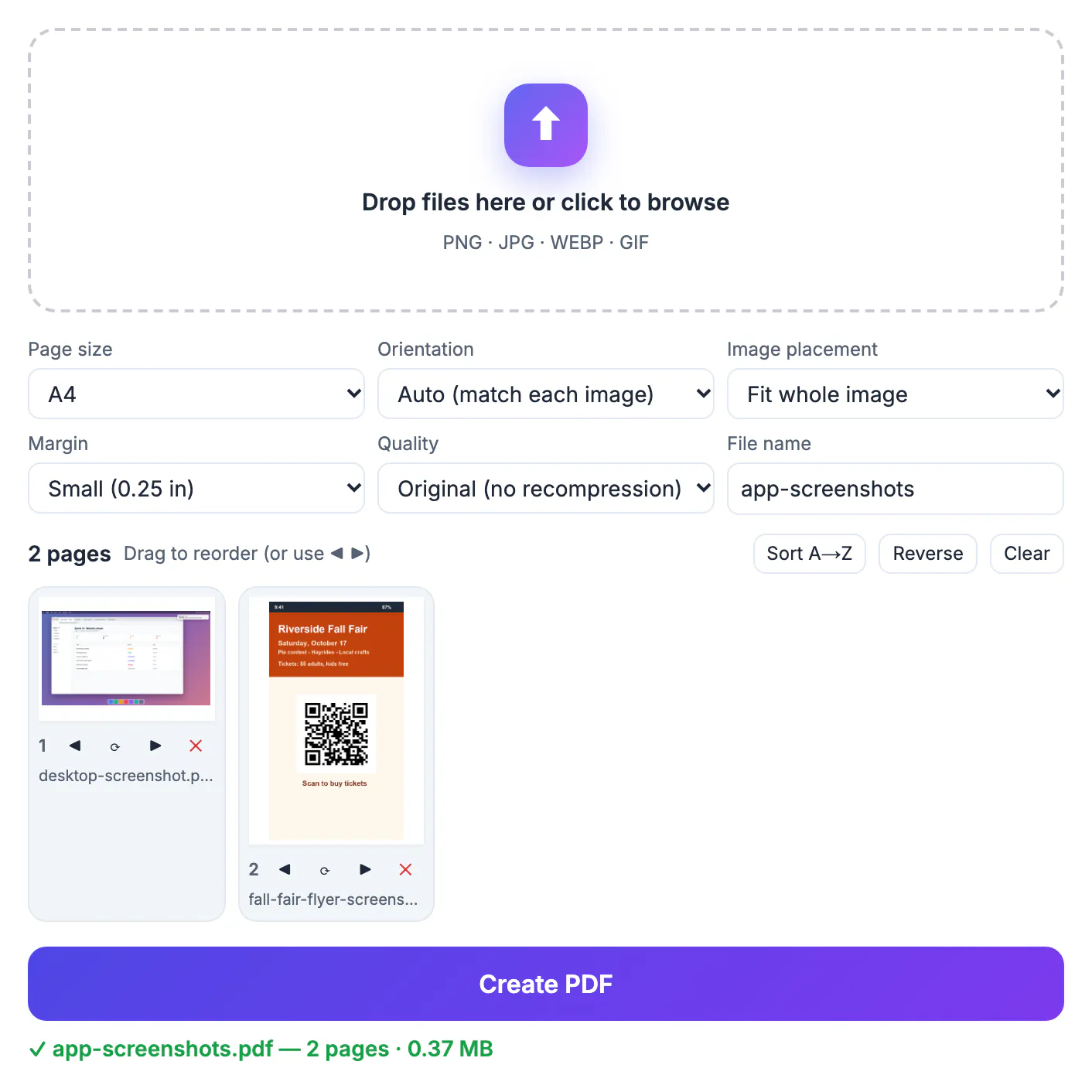
A PDF is easier to send, print and archive than a loose image. It opens the same way on every device, keeps several screenshots in a fixed order (a receipt, a confirmation page, an error message) and is accepted by forms and support desks that do not take pictures. If you need the screenshot as evidence or documentation, one tidy PDF with a clear file name is more professional than five attachments.
Take screenshots that convert well
Capture the whole area you need at the screen's native size and avoid zooming, which blurs text. On a phone use the built-in screenshot and crop off the status bar if it shows personal details. PNG is the best format for screenshots because text edges stay sharp; JPG works but adds compression noise around letters. Name the files in the order you want the pages (1-login, 2-error) so the tool loads them in sequence.
Screenshots often contain more than you intend to share: notification banners, email addresses, account numbers. Crop or blur them before converting, since a PDF can be copied and forwarded.
Page size, fit and margin
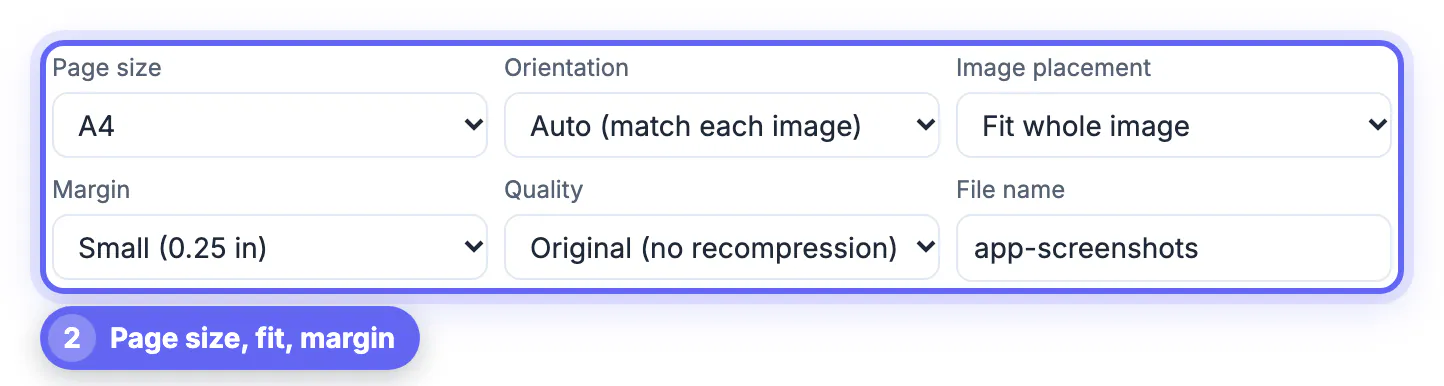
The tool's options are on one row:
- Page size: US Letter, A4, Fit to image, US Legal or A5. Choose A4 or Letter if the PDF will be printed; Fit to image makes each page exactly the size of its screenshot, with no white borders.
- Image placement: Fit whole image keeps the entire screenshot and may leave white space; Fill page crops the edges, which is rarely what you want for a screenshot.
- Margin: none, small (0.25 in), normal (0.5 in) or large (1 in). A small margin stops the image touching the paper edge when printed.
- Quality: Original (no recompression) keeps text crisp; the High option recompresses to JPEG 85 percent and makes smaller files.
In the example, two screenshots were placed on A4 pages with a small margin and saved as app-screenshots.pdf; the finished file was 0.37 MB.
Order, rotation and removal
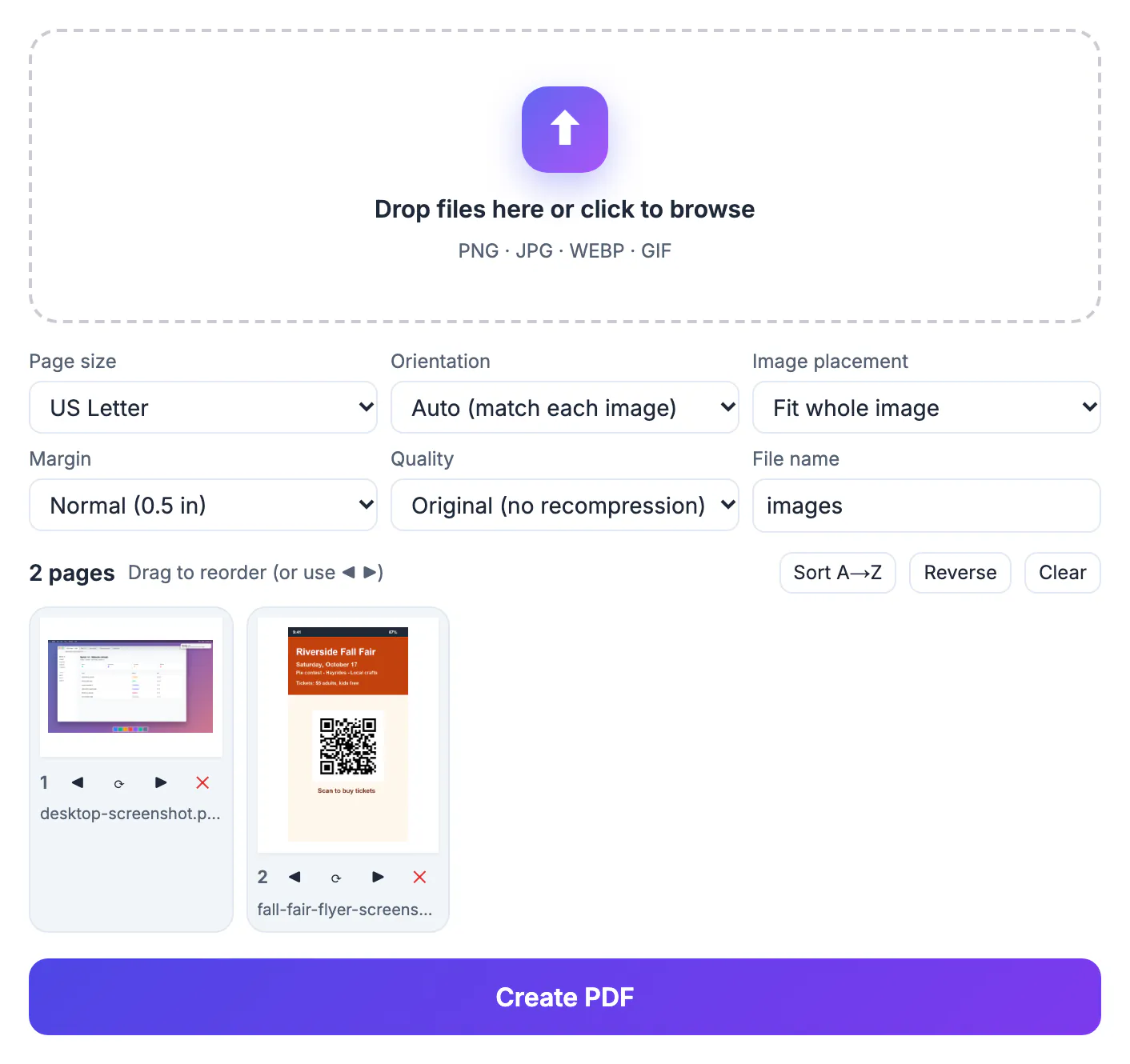
Each thumbnail has arrows to move it left or right, a rotate button and a remove cross. Sort A→Z orders pages by file name, Reverse flips the order and Clear starts again. The page count is shown above the thumbnails (2 pages in the example), so you can check that nothing was left out before you create the file. Auto orientation matches each page to its image, so a wide desktop screenshot becomes a landscape page and a tall phone screenshot a portrait one.
Fixing common problems
- Blurry text: the original screenshot was low resolution or scaled. Retake it at full size and keep the quality on Original.
- Very large file: many full-resolution PNGs add up. Use the High quality setting or shrink the images first with an image compressor.
- Tiny page: with Fit to image, a small screenshot makes a small page. Choose A4 or Letter instead.
- Need one PDF from PDFs and images: convert the images first and then use Merge PDF.
For photos of paper documents rather than screenshots, the Scan to PDF tool straightens and cleans the page first.
Common uses for a screenshot PDF
People turn captures into documents for many reasons. A support agent may need a record of an error message, a student wants to submit slides from a recorded lecture, and a shopper wants proof of an order confirmation. A PDF keeps every capture in order, opens on any device and is easy to attach to an email or upload to a portal that rejects image files.
- Evidence for disputes: include the date and time in each capture.
- Reports: add captions or a cover page before saving.
- Applications: portals often accept only PDF, so convert before uploading.
- Archives: a single file is easier to store than twenty separate pictures.
If you start from a photograph, converting a photo to PDF on a phone or laptop explains similar steps, and turning PDF pages into images goes the other way.
Keeping private details out of the file
Captures often contain names, email addresses, account numbers and notifications. Crop or blur them before building the document, and check each page again at the end. Hiding personal info in a screenshot shows a safe approach, and compressing the finished file with a free PDF compressor can bring it under an upload limit.
Step-by-step
Common mistakes to avoid
Pro tips
Frequently asked questions
How do I convert a screenshot to PDF for free?
Add the screenshot to GrabCast's Images to PDF, choose a page size and click Create PDF. It runs in your browser, so the image is not uploaded.
Can I put several screenshots in one PDF?
Yes. Add them all, reorder the thumbnails and each becomes its own page.
Will the text stay sharp?
Keep the quality on Original and capture at full size. PNG screenshots convert without recompression.
What page size should I choose?
A4 or US Letter for printing, and Fit to image for documents that will only be read on a screen.
Is there a file size limit?
There is no fixed limit, but very large images use a lot of your device's memory, so convert big batches in parts.
Turning a screenshot into a PDF takes three choices: the page size, how the image fits and a clear file name. Capture at full size, keep the quality on Original for crisp text and check the page order before you send.
Related guides
Browse more: all PDF guides · Images to PDF