How to Convert WebP to PNG (Free, Keep Transparency)
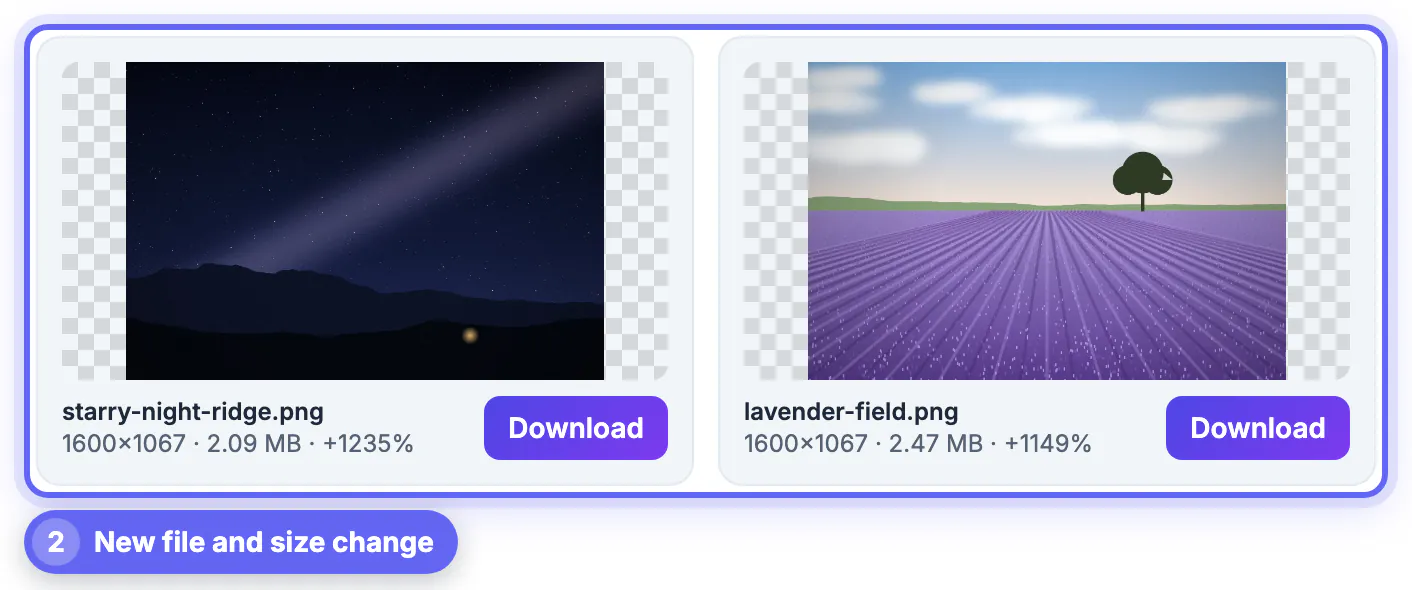
To convert WebP to PNG, drop the WebP file into an image converter, choose PNG as the output and download the result. GrabCast's converter does it in your browser and shows the size of every file. Expect a bigger file: PNG is lossless, so a 1600 × 1067 landscape saved from WebP came out at 2.09 MB and 2.47 MB in our test, more than ten times the WebP versions. That is normal, and it is the price of a format that every editor, printer and old program can open. This guide explains why you would convert, what the size jump means, what happens to transparency and how to do it in batches.
🖼️ Try JPG to PNG Converter now — freeOpen →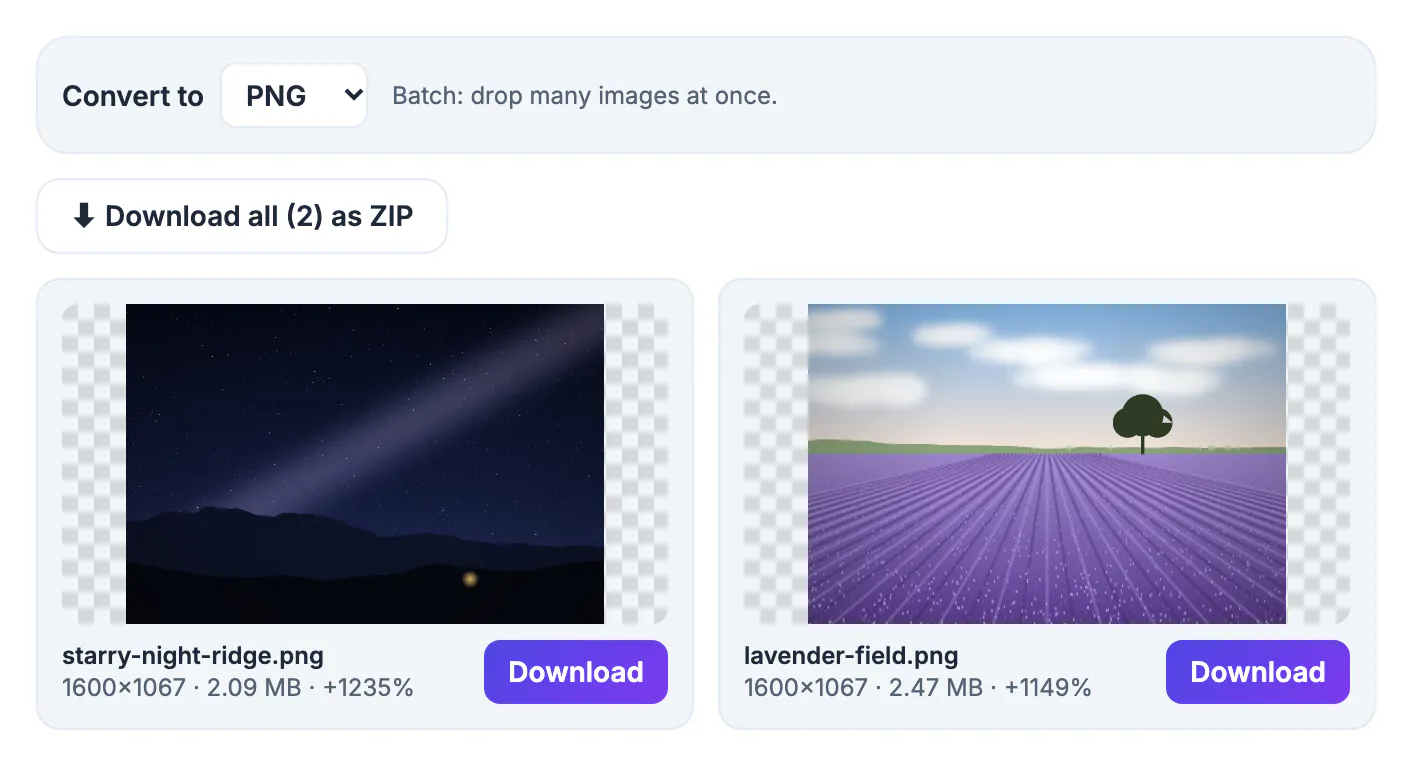
WebP is a modern web format that makes small files, but some software still cannot open it: older photo editors, some print shops, document tools and upload forms. PNG opens everywhere, supports transparency and does not lose quality when saved again. Converting is usually the quickest way to make a downloaded WebP usable in a program that refuses it.
What you get, and what you don't
Converting WebP to PNG changes the container, not the picture. If the WebP was compressed with loss (most are), the detail that was thrown away is not restored, so the PNG looks the same as the WebP, only stored without further loss. That means it is safe to edit and re-save as PNG, but converting will not sharpen a blurry image.
Transparency is kept: a WebP with a transparent background becomes a PNG with the same transparent areas. The checkerboard behind the previews in the tool shows it.
Why the PNG is so much bigger
A lossless format stores every pixel, while lossy WebP stores an approximation. For the two photo-like landscapes in the example the tool reported 2.09 MB (+1235 percent) for the starry-night image and 2.47 MB (+1149 percent) for the lavender field, both 1600 × 1067 pixels. Simple graphics and screenshots compress much better than photos, so the increase will be smaller for them.
If the size matters, keep the WebP for web use and only make a PNG copy when a program requires it. If you want a smaller universal file, JPG is the alternative for photos; see how to convert an image to JPG.
Batch conversion and the ZIP
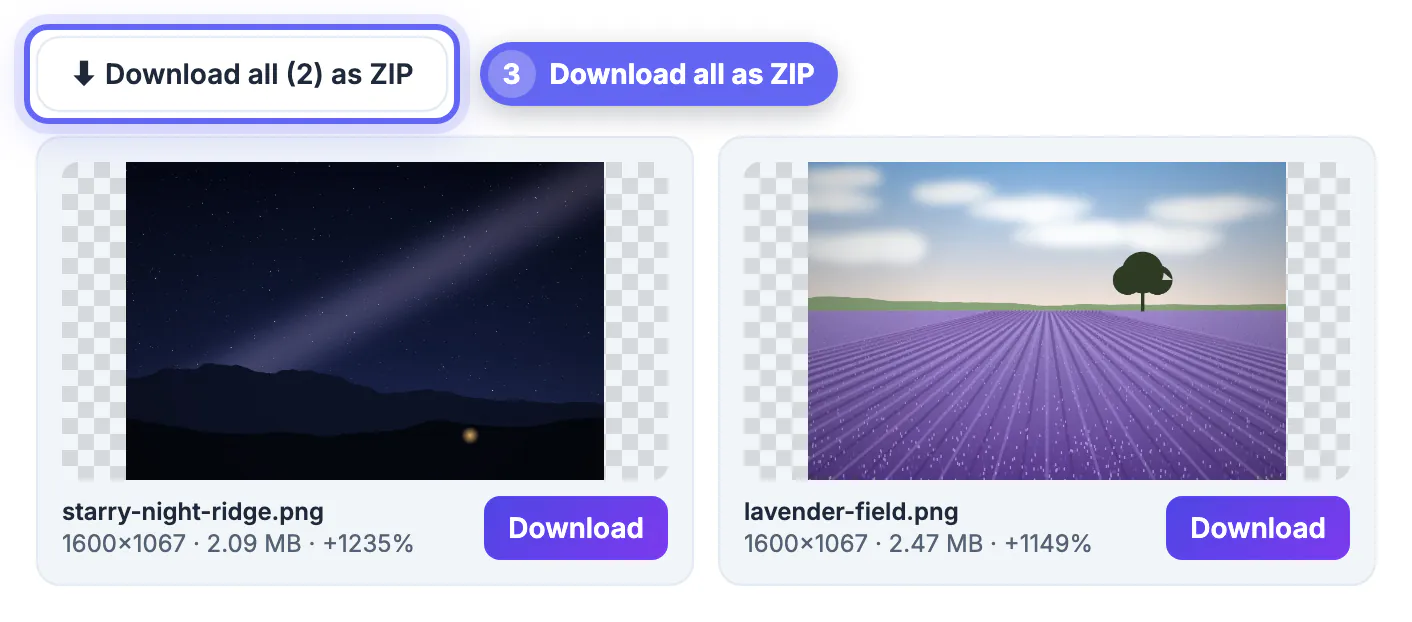
Drop several WebP files at once; they convert one after the other, each with its own Download button, and a Download all as ZIP button appears above the list. Names are kept and the extension changes, so starry-night-ridge.webp becomes starry-night-ridge.png. Because everything runs on your device, there is no upload wait, but a large batch of big images needs memory, so split hundreds of files into several rounds.
If a program still won't open the file
Check that you converted to PNG and not just renamed the file: changing the extension does not change the contents, and many programs will refuse it. If the target requires a very small file, convert to PNG and then compress it, or choose JPG. To make a white background transparent after converting, see white background to transparent. The reverse trip, PNG to WebP, is covered in PNG vs WebP.
Where WebP files come from
Most WebP files arrive when you save an image from a website, export from a design or screenshot tool, or receive one in a chat app. Browsers and sites increasingly serve WebP because it is lighter, and "Save image as" then gives you a .webp file that some programs reject. That is the situation this conversion solves: it makes the picture usable in software that predates WebP, such as older versions of photo editors, some page-layout programs and some online forms.
Remember that you should only convert images you have the right to use. If the picture is your own or licensed to you, a PNG copy is a harmless working file; if it belongs to someone else, check the terms before you edit or republish it.
Editing and printing WebP pictures
Older design programs, some print shops and a few document editors still reject WebP. A lossless copy solves the compatibility problem at the cost of size, and it is a safe working format for edits because it will not degrade when you save again. Convert once, edit the copy, and export the final result in whatever format the destination needs.
- Keep the original WebP if you may need a small version later.
- Check that transparent areas look right on a dark background before sharing.
- Remember that animated WebP files will lose their motion when saved as still images.
- Rename the output so you can tell the versions apart.
For the reverse direction, migrating a whole site in bulk explains how to migrate a site, a size and quality comparison compares quality and size, and opening HEIC photos on Windows helps with another awkward format.
Troubleshooting a file that looks different
If colours look slightly off after the change, the original may have used a wider colour profile than the viewer shows. Open both files in the same program to compare. If edges look jagged, the source was probably small and has been enlarged. Start again from the largest version available, and avoid resizing before you switch formats.
Storage and file size planning
A lossless copy can be several times larger than the original, so plan disk space before a large batch. Work in groups of a few dozen, move finished files to an archive folder and delete duplicates. For web use, keep the compact version for display and the large one only for editing.
Habits that keep your picture library tidy
A mix of formats in one folder quickly becomes confusing. Decide on a single working format for edits, one for sharing and one for archives, and write the choice in a short note. Use consistent names with dates, keep originals in a read-only folder, and delete experiments once the final version is approved.
Back up important files in two places, and test a restore now and then. A simple habit such as sorting new downloads at the end of each week prevents hundreds of unnamed files from piling up and makes it far easier to find the version a client asks about months later.
Keeping colours and sharpness consistent
Look at the output beside the source in the same viewer, at full size. Check gradients for banding, small writing for blur and edges for halos. If something looks different, the cause is usually the viewer's colour handling rather than the file, so test in a second program before you spend time on repairs.
Planning a larger batch of pictures
Downloads from websites and chat apps pile up quickly, and most of them arrive with meaningless names. Before processing a big set, sort it: delete duplicates, group files by project, and decide which ones truly need a lossless copy. Process each group separately and store the results next to the originals in a sub-folder with a clear label, so you always know which file is which.
Check disk space first, because lossless copies can be several times larger. When the job is done, archive the unmodified downloads on an external drive and clear the working folder, which keeps your machine fast and makes later searches painless.
Step-by-step

Common mistakes to avoid
Pro tips
Frequently asked questions
How do I convert WebP to PNG for free?
Drop the file into GrabCast's JPG to PNG converter, keep PNG selected and download the result. It runs in your browser.
Why is the PNG so much larger?
PNG is lossless and stores every pixel, while WebP was compressed with loss. In our test two photo-sized WebP files became PNGs about ten times larger.
Does the conversion keep transparency?
Yes. Transparent areas in the WebP remain transparent in the PNG.
Will converting improve the quality?
No. It stops further loss but cannot restore detail already removed.
Are my files uploaded?
No. They are converted on your device.
WebP to PNG is a safe, lossless format change that makes a file open in any program. Expect a much larger file, keep the WebP for web use and only convert when something refuses WebP.
Related guides
Browse more: all image guides · JPG to PNG Converter