Convert PNG to WebP: Keep Transparency, Cut File Size
To convert PNG to WebP, drop the PNG files into GrabCast Image to WebP, keep the quality around 80, or 85 to 92 for screenshots with small text, and download the results; transparent backgrounds stay transparent. Photo-like PNGs and screenshots often end up half the size or less, while flat logos and tiny icons barely change and can even grow. This guide shows which PNG files are worth converting, how to check transparent edges, how to choose a setting by eye, and when the PNG should stay a PNG.
📉 Try the Image to WebP tool now — freeOpen →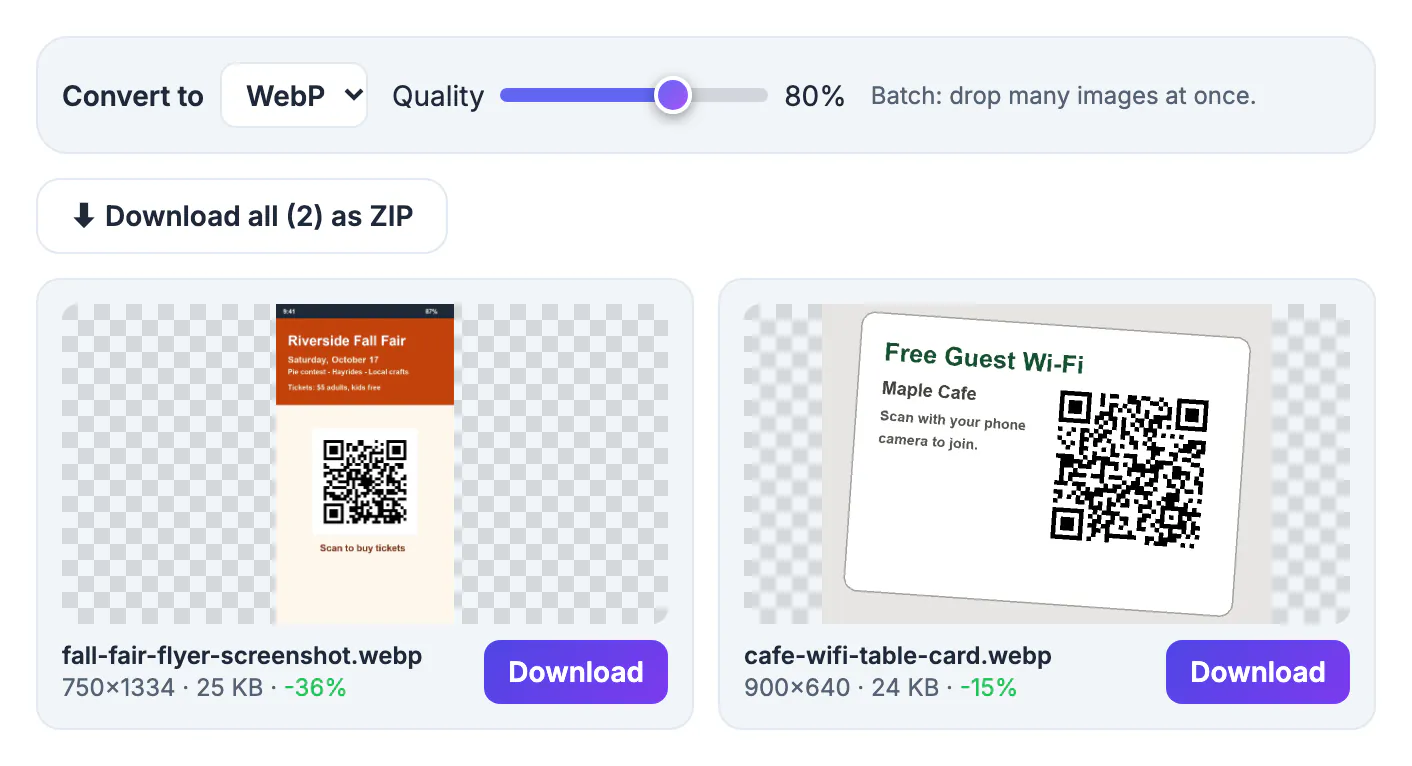
PNG is lossless, which is perfect for editing but wasteful for delivery. A product cutout, app screenshot or marketing graphic saved as PNG can weigh 1 to 3 MB, and a page with a dozen of them makes phones on cellular data wait several seconds before anything useful appears. Page weight feeds into Core Web Vitals, particularly Largest Contentful Paint, which Google uses as one ranking signal among many. WebP keeps the one thing PNG users care about most, transparency, while shrinking the file. Smaller files also upload faster to a CMS, take less room in a shared drive, and converting locally keeps unreleased product shots and client mockups on your own machine.
Which PNG files shrink the most when you convert to WebP
The savings depend on what is inside the picture, not on the format label. The WebP encoder excels at smooth gradients and photographic detail, which PNG stores inefficiently.
- Photos saved as PNG, often exported from a phone editor or design app: commonly 70 to 90 percent smaller
- Screenshots of apps, dashboards and web pages: a large cut, with small text staying sharp at 85 to 92
- Transparent product cutouts and portraits: big savings, and the alpha channel is kept
- Logos, icons and flat illustrations with few colors: modest gains, and tiny icons can come out larger
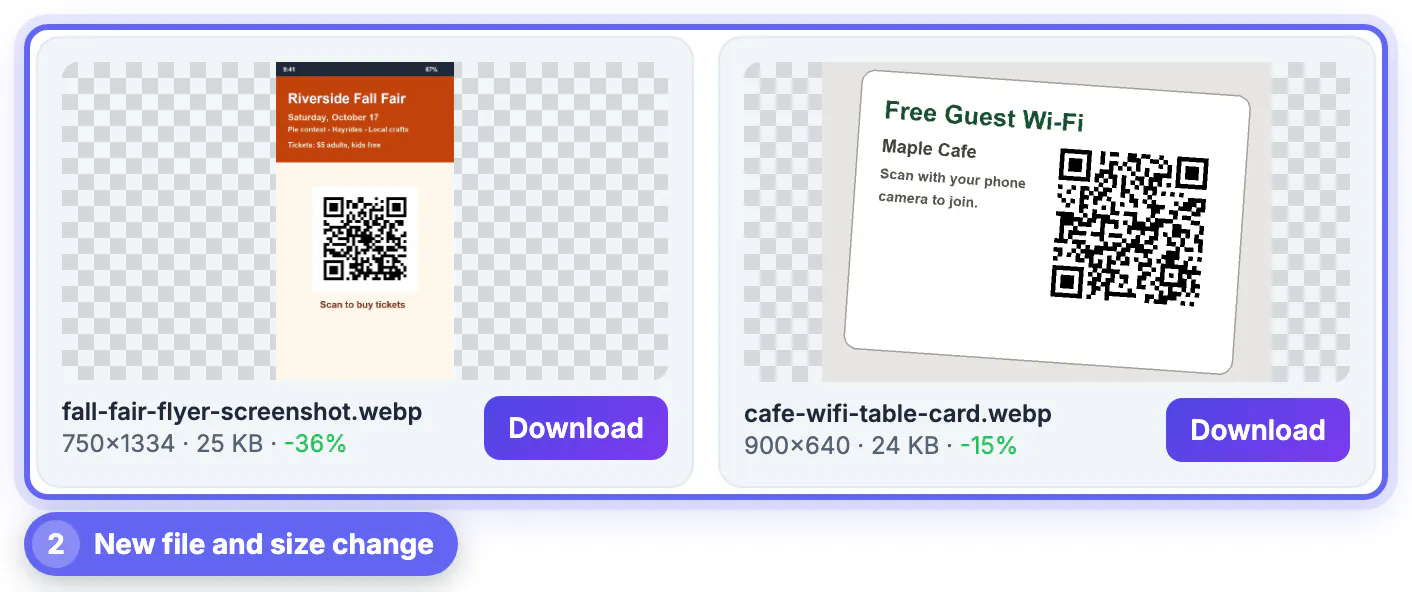
Every result card shows the change as a percentage, green when the file got smaller. If a small graphic comes out bigger, keep the PNG for that one; there is no rule that every file must switch.
Transparency: what survives and how to check it
WebP has a full alpha channel, so transparent and semi-transparent pixels carry over from the PNG. Soft shadows, anti-aliased logo edges and wisps of hair in a cutout all keep their partial transparency.
- The preview shows a checkerboard behind each result, so gaps and halos are easy to spot
- Zoom into curved edges and fine details; low quality settings can add faint fringes around them
- If you see a fringe, raise the quality by five to ten points and compare again
- Choosing JPG in the same menu fills transparency with a background color, so stay on WebP for cutouts
A practical test for a logo is to place the WebP on the darkest and the lightest backgrounds it will ever sit on, such as a dark site header and a white slide. If both look clean, the conversion is safe. Converting a PNG with a solid white background does not make that white disappear; remove the background first if you need a cutout.
Picking a quality setting to convert PNG to WebP
The Quality slider runs from 40 to 100 and starts at 80 for WebP. Moving it re-encodes every loaded file after a short pause, so you can watch sizes change live.
- 75 to 85: photos, hero images and product cutouts on websites
- 85 to 92: screenshots with small text, UI mockups, charts and diagrams
- Below 70: thumbnails only, where softness is invisible
- Always zoom to 100 percent on text and edges before accepting a lower number
The output is meant for delivery, not editing, so keep your PNG as the master for future changes, printing and new exports. Conversion also keeps the exact pixel dimensions. A 4000 by 3000 export stays 4000 by 3000, so if the image will display 800 pixels wide, resize it to about 1600 pixels first, then convert. Doing both usually beats either step alone by a wide margin.
Converting a whole folder? The Batch WebP Converter saves time, and this image optimization guide shows where WebP fits.
When the PNG should stay a PNG
Every current major browser displays WebP, including Safari since version 14, and WordPress accepts it as an upload. A few destinations still expect the original format:
- Files people download and open in older or specialist desktop software
- Email newsletters, since several desktop mail clients do not render WebP reliably
- Print shops, sticker makers and print-on-demand services that list PNG or TIFF
- Design handoffs, where a developer or designer wants a lossless source file
- Tiny icons and sprites where the WebP came out larger than the PNG
For a website that must also serve very old software, keep both files and serve the WebP through a picture element with the PNG as a fallback. After converting, remember to update image references in your pages or CMS; a new file on disk speeds nothing up until the site actually uses it.
Step-by-step

Common mistakes to avoid
Pro tips
Frequently asked questions
Does converting PNG to WebP keep transparency?
Yes. WebP supports an alpha channel, and the converter keeps transparent and semi-transparent areas. The checkerboard behind each preview lets you confirm the edges look clean before downloading.
How much smaller will my PNG get as WebP?
It depends on the content. Photo-like PNGs and screenshots often shrink by more than half, while flat logos and tiny icons change little and can occasionally grow. The card shows the exact new size and percentage for each file.
Is the WebP output lossless like PNG?
Treat it as a delivery copy rather than a lossless master. The converter uses a quality slider from 40 to 100, so keep your original PNG for editing, printing or future conversions.
Can I convert many PNGs to WebP at once?
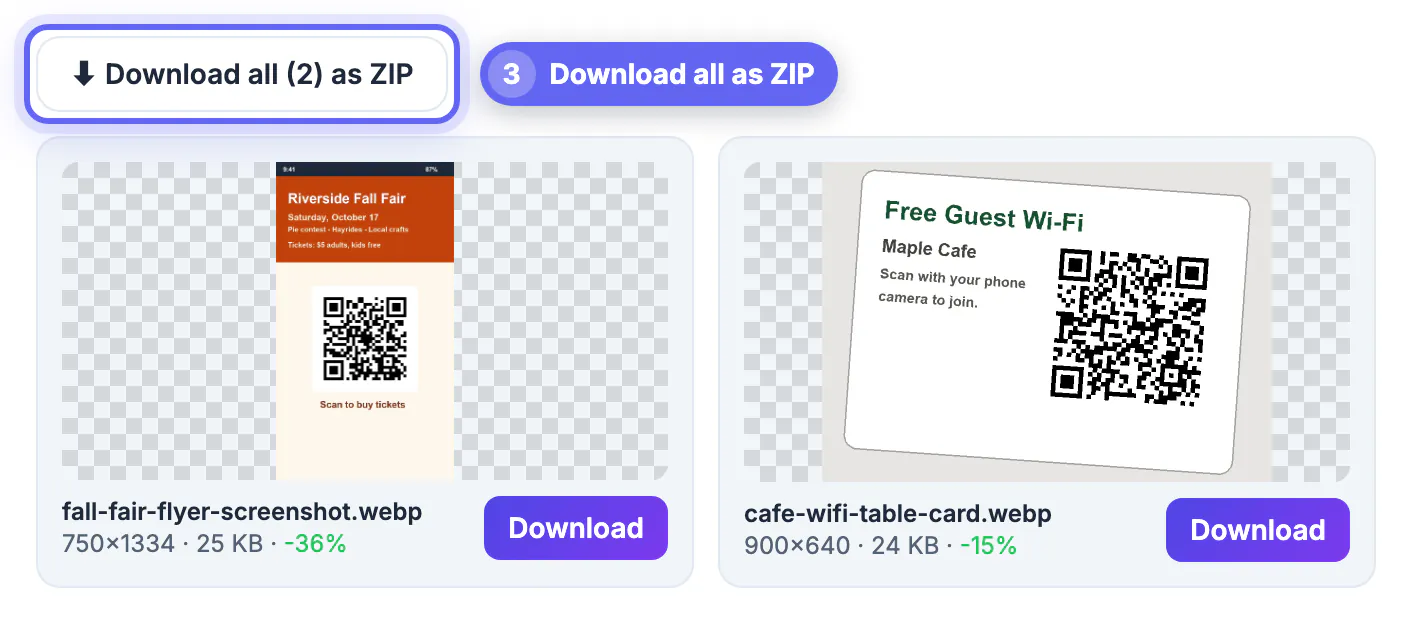
Yes. Drop a whole batch and each image is processed in turn. When there is more than one result, Download all as ZIP saves them as a single file, which is convenient for uploading to a CMS.
Are my PNG files uploaded to a server?
No. Decoding and encoding happen in your browser, so the files stay on your device. Only the ZIP helper library loads from the web when you ask for a ZIP, which makes the tool suitable for confidential client work.
Convert PNG to WebP at about 80, or 85 to 92 for text-heavy screenshots, after resizing to the display size, and check transparent edges on the checkerboard. Photos and screenshots shrink dramatically, flat icons barely move, and email, print and design handoffs still want the PNG, so keep your originals.
Related guides
Browse more: all image guides · the Image to WebP tool